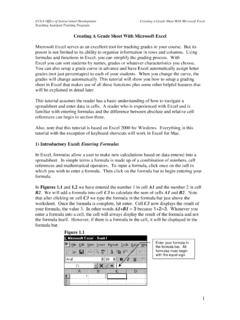
Creating A Grade Sheet With Microsoft Excel
In Figures 1.1 and 1.2 we have entered the number 1 in cell A1 and the number 2 in cell B2. We will add a formula into cell C3 to calculate the sum of cells A1 and B2. Note that after clicking on cell C3 we type the formula in the formula bar just above the worksheet. Once the formula is complete, hit enter. Cell C3 now displays the result of
Download Creating A Grade Sheet With Microsoft Excel

Information
Domain:
Source:
Link to this page:
Documents from same domain
Creating A Grade Sheet With Microsoft Excel - UCLA
www.math.ucla.eduUCLA Office of Instructional Development Creating a Grade Sheet With Microsoft Excel Teaching Assistant Training Program 1 Creating A Grade Sheet With Microsoft Excel
Introduction x - math.ucla.edu
www.math.ucla.eduKIRSZBRAUN-TYPE THEOREMS FOR GRAPHS NISHANT CHANDGOTIA, IGOR PAK, AND MARTIN TASSY Abstract. The classical Kirszbraun theorem says that all 1-Lipschitz functions f : A!
Hook-length formulas for skew shapes - UCLA
www.math.ucla.eduHOOK FORMULAS FOR SKEW SHAPES ALEJANDRO H. MORALES?, IGOR PAK , AND GRETA PANOVAy Abstract. The celebrated hook-length formula gives a product formula for the number of standard
THE PRODUCT REPLACEMENT GRAPH ON …
www.math.ucla.eduTHE PRODUCT REPLACEMENT GRAPH ON GENERATING TRIPLES OF PERMUTATIONS Gene Cooperman College of Computer Science, Northeastern University Boston, MA 02115
8'(x) -I - UCLA
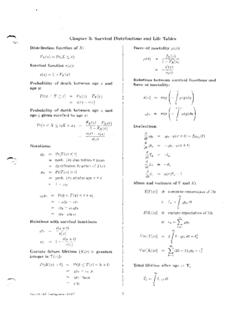
www.math.ucla.eduChapter 8: Benefit Reserves . Notations: br . death benefit payable at the end of year of death for the j-th policy year . 71J~l: benefit premium paid at the beginning of the j …
www.math.ucla.edu
www.math.ucla.eduCreated Date: 9/20/2000 8:55:13 AM
: lJ^?:B * @C!#BgP+:@C*m ÇD?&(EI)rr!(BM
www.math.ucla.edu8 o&,# t.!g*m: *m &7w @i)w/ h&b:@r@c!#bj@c)w* !#b:).@c)h. b6lp+@c. !#? -w$:-h , @i!#? ) b:!(@c!#bq!(j ;s " )h'#?: @ib6. '#-.(e>j^!#-2b:!#bv wb: '67@c,( i).@cno$:ec
OntheBorelandvonNeumannPokerModels - UCLA
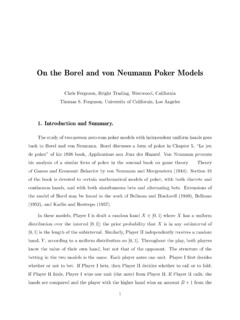
www.math.ucla.edude poker” of his 1938 book, ApplicationsauxJeuxdesHazard. Von Neumann presents Von Neumann presents his analysis of a similar form of poker in the seminal book on game theory — Theory
THE ENDGAME IN POKER - UCLA
www.math.ucla.eduTHE ENDGAME IN POKER Chris Ferguson, Full Tilt Poker Tom Ferguson, Mathematics, UCLA Abstract. The simple two-person poker model, known as Basic Endgame, may be described as follows. With a certain probability known to both players, Player I is dealt ... theory by von Neumann and Morgenstern (1944) are devoted to the topic. In the 1950’s,
COPS ON THE DOTS IN A MATHEMATICAL MODEL OF …
www.math.ucla.eduCOPS ON THE DOTS 3 Figure 1. A snapshot of the attractiveness Afrom simulations of the discrete model on a toroidal grid. Figure 2. A numerical solution of the continuous model (4) (left)
Related documents
Math Fact Fluency Worksheets
www.myskillstutor.comAddition Worksheet A : Name: _____ Date: _____ Addition Worksheet B :

Grade 3 mixed math problems and word problems worksheet
www.mathinenglish.comGrade 3 Mixed Bag I Word Problems Name: _____ Class: _____ Question 1 A new motorbike costs 3,000 dollars. James has already 1,765 dollars. How much more money does he need? Question 2 There are 60 cars in the parking lot. Each car has 4 wheels. How many wheels are there in all? Question 3
Kindergarten & First Grade Writing Folder
www.berkeleycountyschools.org©2013 BERKELEY COUNTY SCHOOLS K-1 GRADE WRITING FOLDER 28 Correct Use of Good and Well Incorrect: He did good. She sang good. We done good. (Two mistakes. Good should be well and done is a participle and needs auxiliary/helping verb.) …

Term 2 Grade 6: Natural Science Worksheet
parkhurstprimary.org.zaTerm 2 Grade 6: Natural Science Worksheet Topic: Mixtures and water resources. (Notes) 1. Introduction. Every day, South African rivers are being poisoned by pollution. Water pollution is anything that is put into a river, stream, lake or ocean that harms the …
Exercise Worksheets
www.westwoodusd.orgWorksheet #2 Subtracting Whole Numbers 87 - 20 35 - 8 493 - 37 821 - 507 652 - 251 776 - 498 1904 - 625 1,344,192 - 804,663 70,801 - 62,762 Subtract.

Practice Packet 6th Grade Math
aross6thgrademathchms.weebly.com6th Grade Math Practice Packet An Education.com Collection by LaRhondaBeardenSteward. Table of Contents ... Comparing Fractions Adding Exponents Fraction Review: Addition, Subtraction, and Inequalities Measuring Angles Beginning Algebra Comparing Algebraic Equations Number Sequences Graphing Ordered Pairs ... 1.) 3x – x _____ 4x – 14 2.) 2x ...
2nd Grade - Lesson 1.1 Classifying Objects Based on their ...
www.acs.org2nd Grade - Lesson 1.1 . Classifying Objects Based on their Observable Properties . Objective . Students will develop an understanding that objects and materials have characteristics or properties. Students will be able to recognize similarities between the properties of certain
Grade 1 Addition Sentences A - K5 Learning
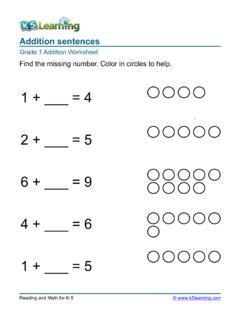
www.k5learning.comTitle: Addition sentences worksheet Author: K5 Learning Subject: Grade 1 Addition Worksheet Keywords: addition, addition sentences, numbers, math, worksheet, grade 1 ...

Grade 6 Integers Worksheet - Addition of Integers (-10 to …
www.k5learning.comGrade 6 Integers Worksheet - Addition of Integers (-10 to +10) math practice printable elementary school Created Date: 20160315033506Z ...