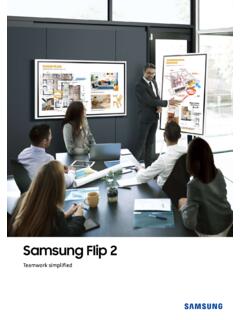
Samsung Flip 2
2 Samsung Flip is an intuitive and easy-to-use digital flipchart for any meeting environment, offering enhanced collaboration capabilities in an easy UI with a host of features, including brush mode, annotation on, merge to roll, and other collaboration
Download Samsung Flip 2

Information
Domain:
Source:
Link to this page:
Documents from same domain

Easy Setting Box - Samsung Display Solutions
displaysolutions.samsung.comEasy Setting Box Install/Uninstall 07 6 Click Install. 7 Click Finish to complete the installation. 8 The executable Easy Setting Box icon is created on the desktop when installation is complete. To start the program, double-click the icon.
User Manual - Samsung Display Solutions
displaysolutions.samsung.com• When installing the product on a cabinet or shelf, make sure that the bottom edge of the front of the product is not protruding. ... ‒ Contact Samsung Customer Service Center for repairs. • To move the product, first disconnect all the cables from it, including the power cable.
User Manual - Samsung Display Solutions
displaysolutions.samsung.comApr 29, 2019 · User Manual The color and the appearance may differ depending on the product, and the specifications are subject to change without prior notice to improve the performance. Recommended hours of use per day for the DBJ, QBH, QBH-N, QHH models is less than 16 hours. If the product is used for longer than 16 hours a day, the warranty may be void.

MagicInfo Player I - Samsung Display Solutions
displaysolutions.samsung.comcustomized. In formal mode, devices can be arranged based on a predefined matrix such as 2x2 and 4x4. - Matrix Switcher Matrix Switcher refers to a device that converts and sends signals from a variety of external input sources, such as HDMI, DVI and videos, to display devices. - Stream Repeater Stream Repeater refers to a program that sends

INSTALL GUIDE - Samsung Display Solutions
displaysolutions.samsung.comThis TV B2B (Business to Business) model is designed for hotels or the other hospitality businesses, supports a variety of special functions, and lets you limit some user (guest) controls. Figures and illustrations in this Install Guide are provided for reference only and may differ from the actual product appearance.

Monitor User Manual - Samsung Display Solutions
displaysolutions.samsung.comMonitor User Manual The color and the appearance may differ depending on the product, and the specifications are subject to change without ... If a gas leakage is found, do not touch the product or power plug. Also, ventilate the area immediately. • Sparks can cause an explosion or fire.

Samsung SMART Signage
displaysolutions.samsung.comThe Samsung SMART Signage Platform (SSSP) is an open-source, all-in-one solution embedded in Samsung SMART signage that simplifi es installation and maintenance. With SSSP, there is no need for any external devices to communicate with the server or play digital media enjoying easy development, reinforced capability with
Curved Monitor - displaysolutions.samsung.com
displaysolutions.samsung.com‒ Dust accumulation combined with heat can cause a fire, electric shock or electric leakage. • Use the product at the recommended resolution and frequency. ‒ Your eyesight may deteriorate. • Do not put AC/DC adapters together. • Remove the plastic …

User Manual - Main | Samsung Display Solutions
displaysolutions.samsung.comAug 16, 2018 · Leaving the screen fixed on a stationary image for an extended period of time may cause ... " If dust or dirt from the supplied pen remains on the protective glass, clean it referring to the instructions below. Cleaning the exterior and display Wipe the surface with a slightly wet, soft cloth, and then wipe with a dry cloth. ...

2020 Samsung Display Solutions
displaysolutions.samsung.comcally adjusts the brightness based on the external lighting environment. Unsurpassable visibility day and night Featuring high brightness and contrast ratio, Samsung’s window displays remain bright and clear, delivering an uncompromised picture that will capture the attention of potential customers - even in direct sunlight.
Related documents

HP DisplayPort setup
h20331.www2.hp.comDisplayPort adapters (see Figure 1). Displays with HDMI inputs can be used with a DisplayPort to HDMI adapter. DisplayPort FAQ Why won’t my cable plug into the DVI end of the DisplayPort to DVI adapter? Does the cable look like the one above? If so, you have a DVI-I cable that combines both the DVI and VGA signals in one cable.

HDMI Firmware Update Guide for Intel® NUC Products: Intel ...
downloadmirror.intel.com1.2 Update HDMI Firmware via the Command Line with BobcatISP.exe The HDMI Firmware Update Tool - BobcatISP.exe – is a command-line based tool. You can use this tool to create a one-click update file to mass deploy an HDMI firmware update to many Intel NUCs. Connect an HDMI monitor to the Protected UHD HDMI Port 1 (the one next to the 19V power

OVERVIEW - Lenovo
psref.lenovo.com• Optional port 1 (one of VGA / 2nd DisplayPort / 2nd HDMI / serial / USB-C 3.2 Gen 1 with DisplayPort function) • Optional port 2 (serial) • 1x parallel Notes: The transfer speed of following ports will vary and, depending on many factors, such as the processing speed of …

Installation Guide for Cisco TelePresence SX20 Quick Set
www.cisco.comConnect your primary display to the blue colored HDMI socket. With the dual display option, connect the second display to the other HDMI output. Connect your camera (option A or B, or a third-party camera) to the codec. Connect a PC (video and audio) to be able to share presentations (locally, or with remote participants).

HDMI Demystified rev 1.02 - fpga4fun.com
www.fpga4fun.comIn most cases, you don’t need to worry about the evolution from HDMI 1.2 to HDMI 1.3. Like most new technologies, HDMI 1.3 is backwards compatible. Also, most of the HDMI devices have DDC communication capability. If any device in the chain is not HDMI 1.3 compliant, the whole system will fall back to HDMI 1.2 or lower to

User Manual Sanyo Smart
www.sanyoappliance.in2 Note: If your device has an HDMI connection, we recommend you use that to get the best quality possible. If the external device has a DVI output only, use a DVI to HDMI adapter cable to connect to the HDMI terminal. Note: For the audio receiver control Sound Out, firstly you must have a device which supports HDMI Sound Out, then connect it