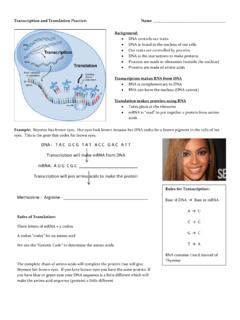
Example: biology

Connecting to G Drive on Windows 10 - Pacific Lutheran College

Pacific Lutheran College Connecting to G Drive on Windows 10 1. Open This PC by clicking the folder icon in the taskbar 2. Click the Computer tab, and select Map network Drive 3. Enter exactly as seen below. Alternatively, copy and paste from here. Drive : G: Folder: \\plcvfs01\data Check Reconnect at sign-in Check Connect using different credentials Pacific Lutheran College 4. Enter your school email address, password and check Remember my credentials. Click OK This completes the process of setting up your computer to access G Drive (Data/Common/Student)
Connecting to G Drive on Windows 10 1. Open This PC by clicking the folder icon in the taskbar 2. Click the Computer tab, and select Map network drive 3. Enter exactly as seen below. Alternatively, copy and paste from here. Drive: G: Folder: \\plcvfs01\data Check Reconnect at sign-in Check Connect using different credentials

Information

Domain:

Source:

Link to this page:

Please notify us if you found a problem with this document:

Other abuse

Advertisement

Transcription of Connecting to G Drive on Windows 10 - Pacific Lutheran College

1 Pacific Lutheran College Connecting to G Drive on Windows 10 1. Open This PC by clicking the folder icon in the taskbar 2. Click the Computer tab, and select Map network Drive 3. Enter exactly as seen below. Alternatively, copy and paste from here. Drive : G: Folder: \\plcvfs01\data Check Reconnect at sign-in Check Connect using different credentials Pacific Lutheran College 4. Enter your school email address, password and check Remember my credentials. Click OK This completes the process of setting up your computer to access G Drive (Data/Common/Student)


Related search queries