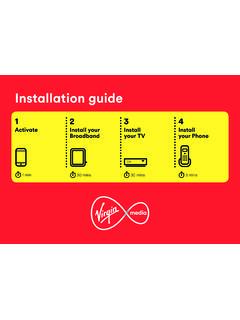
Transcription of Install your Virgin TV 360 Mini box
1 Install your Virgin TV 360 Mini box1 Activate31If you haven t done so already, make sure you reply GO to the text message we sent you. You must do this within 48 hours of receiving your new kit otherwise you may lose you didn t get a text message, give our automated line a quick call on 0800 953 9500. It ll only take a minute. When you call you will need to have your account number and area reference to hand. You can find them in the welcome email we sent you. Doing this now means there are no delays in accessing your services when you re all set your serviceThis section will take about 1 mins4 Install 360 Mini52 Install 360 Mini2 Cable adaptor360 Mini box360 Mini box power supply360 Mini remoteNew HDMI cableFor this section you ll need:This section will take about 15 mins2 Install 360 Mini6 COAX INAUDIOSCART cableIsolator cable360 Mini boxPower supplyCable adapterWall socketWhat s included?
2 The yellow labelled parts have been supplied in the 360 Mini boxThen follow the step-by-step instructions to get your 360 Mini box up and ready to 360 Mini72 . to your second roomLet s start by getting your second 360 Mini box connected to your Virgin Media the red-banded end of the 3m isolator cable and push it firmly into the Virgin Media socket on your the cable adaptor to the black banded end of the 3m isolator the connector cable with the white end to the socket on the rear of your 360 Mini box by pushing it firmly into 360 MiniThere are two options for connecting your 360 Mini box to your Hub. WiFi As 360 Mini boxes are usually set up in a second room, we advise connecting via If your 360 Mini box is close enough to your Hub, Ethernet cable provides the best 360 Mini box to the the new power supply for your 360 Mini box.
3 Use the new HDMI cable provided to connect your 360 Mini box to your TV. Take a note of the name of the HDMI port you have connected to, HDMI TV 360 supports 4K, please make sure you check your TV instructions and connect to the correct HDMI 360 your 360 Mini box into a nearby mains socket. the new power supply for your 360 Mini on at the mains socket and then use the switch at the back of your 360 Mini box to turn it on. You will see an amber light on the front of your 360 Mini 360 :Using the right remote?You need to use your TV remote for this bit. Your 360 Mini remote won t work for finding your HDMI AUDIOUSB on your TV, then using your TV remote press the Input, AV or Source button. It may also be a button with this icon.
4 Select the correct HDMI input for your 360 Mini the set-up process if your 360 Mini box can t find an Ethernet connection to your Hub it will show this your 360 Mini remote highlight and select with WiFi2 .1 0 When you see the Welcome screen, you can pull the tab out of your 360 Mini t see your network?If your network isn t visible in the list you can click on Enter network name to search for it 360 MiniSelect WPS setup and follow on screen messagesTo connect using WPS press the WPS button on the front of your Hub until the light flashes, then press OK on your remote to continue. Your 360 Mini box will attempt to connect 360 Mini box will now download the new software and restart. Connect manuallyFrom the Connect to WiFi screen Select known WiFI network and enter password when list of local networks will be displayed.
5 Look for your network name. Unless you have changed it, it will look something like VM123456. You will then be asked for your password which you should enter using your 360 Mini 360 Mini box will now download the latest the end of the update you will see the following download will take up to 10 minutes and will involve 1 restart where the screen will go back to the Please wait screen several minutes212 Install 360 Mini2 .1 2 When complete you ll see the home screen. Use the best connection for the jobIf you re having trouble connecting via WiFi and can t connect with Ethernet, please visit 360 Mini box and our TV apps are a match made in telly TV Go appInstall TV Go app133 This section will take about 5 mins14 Install TV Go app3 Watch telly wherever you are with the Virgin TV Go appThanks to the TV Go app available to Virgin TV customers at no extra cost You can access over 110 live TV channels on up to four devices, including Android, iOS, Windows 10 and PC/Mac.
6 This includes BT Sport, FOX, Comedy Central and Sky One (depending on your TV package). You can also access On Demand content and stream to your heart s content! (Again, content available is dependent on your package.) Install TV Go done!Open the App Store or the Play Store. Search for Virgin TV s it. All of your Virgin Media services are set up. Enjoy!For existing customersGot a MyVM account already? Use your Username (email address) and password to sign in to the yet registered?Just follow the on screen instructions. You ll need your Account number and Area reference number to register, you can find this on a recent some help? Head over to help16 Get more from your Virgin Media your TV with new remoteDo more with your new kitDownload the Virgin Media Connect appTroubleshooting Get more from your kitGet more from your kit17 voice control Your new remote has voice control to make navigation quicker.
7 With this feature you can perform various actions, including: Switch to a channel or open an app Search for programmes and content Navigate the guide control playbackAccess voice control at any time by simply pressing and holding the mic button and speaking. Try opening the episode guide by saying, Go to the Guide .HomeHere you ll find everything on your box, in one easy 6 things while you watch a 7th you recorded earlier, or something on BBC iPlayer, Amazon or between your TV s different inputs in a back to your last-watched channel or live TV from any more info about what you re watching and accessibility little way to navigate fastest way to find whats the profiles menu to switch between the Virgin TV 360 box on or more from your kitControlling your TV with the remote18Do more with your kitTalk to us Need more help or to talk to the team?
8 Go online to You can also go online to see our how to videos and top tips at essentials from the Virgin TV guide: Parental Controls your box has a default PIN of 1234. To change, select Settings on the Home screen, choose Parental Controls and follow the on-screen you need to know about your 360 box can be found in the User guide that came with your QuickStart If you require audio description or subtitles they are available through settings > profiles. You can also use voice control to turn subtitles on or the Virgin Media Connect App You can use the Virgin Media Connect App to scan your home for WiFi blackspots. Once you ve downloaded the app you can also: Reboot your Hub 3 without leaving the sofa (and tackle common connection problems) Connect to Virgin Media WiFi hotspots when you re out and about Share your WiFi password with guestsDownload for iOS or AndroidGet more from your kitUser guide19 Where to place the 360 boxIf you want to set up your remote with your amplifier, go to Settings, select Audio & up your amplifierNot only is your 360 box small and fast, but you can place it out of sight too.
9 Your remote doesn t have to have a line of sight to work , after you tuck it away, your remote doesn t work you need to pair it with your 360 box check out the instructions in the Troubleshooting section that follows more from your kit20 Remote not workingwith your box?If your 360 remote is not working with your box press the TV button and for 10 seconds and point at your remember to check the remote control issues?If you are having problems with your picture, please make sure you are using the new HDMI lead that is supplied with your help?Most things are pretty easy to resolve check out the Troubleshooting advice on this page for some top tips on how to fix common problems. Need help with setting up your kit for the first time?
10 Go to: and have working services?Go to: not fast enough?If WiFi won t work, we recommend you use VM Boosters to connect your new Hub and new box. To find out more, visit *AOTV360 MINI*10013718 AOTV360 MINI0120