Transcription of LockDown Browser® Respondus Monitor®
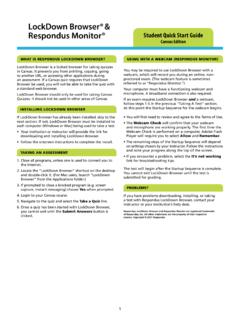
1 1 Student quick start guide Brightspace by D2L EditionLockDown Browser & Respondus Monitor WHAT IS Respondus LockDown BROWSER? LockDown Browser is a locked browser for taking quizzes in Brightspace. It prevents you from printing, copying, going to another URL, or accessing other applications during a test. If a Brightspace test requires that Respondus LockDown Browser be used, you will not be able to take the test with a standard web Browser should only be used for taking Brightspace quizzes. It should not be used in other areas of Brightspace. TAKING A QUIZ1. Log into Brightspace with a regular browser, select the course and navigate to the From this screen, either install LockDown Browser or launch it to take the If prompted to close a blocked program ( screen capture, instant messaging), choose Ye If you are required to use a webcam to record yourself during a test, a Startup Sequence will guide you through a webcam check and other items required by the instructor.
2 5. Once a test has been started with LockDown Browser, you cannot exit the test until the Submit button is clicked. USING WITH A WEBCAM ( Respondus MONITOR)You may be required to use LockDown Browser with a webcam, which will record you during an online, non-proctored exam. (The webcam feature is sometimes referred to as Respondus Monitor. )Your computer must have a functioning webcam and microphone. A broadband connection is also an exam requires LockDown Browser and a webcam, follow steps 1-5 in the previous Taking A Test section. At this point the Startup Sequence for the webcam begins. You will first need to review and agree to the Terms of Use.
3 The Webcam Check will confirm that your webcam and microphone are working properly. The first time the Webcam Check is performed on a computer, Adobe Flash Player will require you to select Allow and Remember. The remaining steps of the Startup Sequence will depend on settings chosen by your instructor. Follow the instructions and note your progress along the top of the screen. If you encounter a problem, select the It s not working link for troubleshooting test will begin after the Startup Sequence is complete. You cannot exit LockDown Browser until the test is submitted for grading. PROBLEMS?If you have problems downloading, installing, or taking a test with Respondus LockDown Browser, contact your instructor or your institution s help , LockDown Browser and Respondus Monitor are registered trademarks of Respondus , Inc.
4 All other trademarks are the property of their respective owners. Copyright 2017 Respondus1 If the computer already has LockDown Browser installed, simply click the Launch LockDown Browser If the computer does not have LockDown Browser installed, this link will enable you to install LockDown Browser to the