Transcription of SC114 HD 1080p Car DVR Dash Camera User Manual
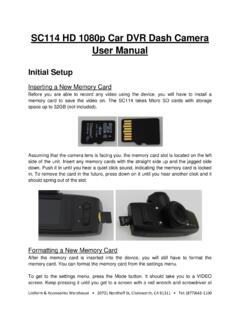
1 Uniform & Accessories Warehouse 20701 Nordhoff St, Chatsworth, CA 91311 Tel: (877)643-1100 SC114 HD 1080p Car DVR dash Camera user Manual Initial Setup Inserting a New Memory Card Before you are able to record any video using the device, you will have to install a memory card to save the video on. The SC114 takes Micro SD cards with storage space up to 32GB (not included). Assuming that the Camera lens is facing you, the memory card slot is located on the left side of the unit. Insert any memory cards with the straight side up and the jagged side down. Push it in until you hear a quiet click sound, indicating the memory card is locked in. To remove the card in the future, press down on it until you hear another click and it should spring out of the slot. Formatting a New Memory Card After the memory card is inserted into the device, you will still have to format the memory card.
2 You can format the memory card from the settings menu. To get to the settings menu, press the Mode button. It should take you to a VIDEO screen. Keep pressing it until you get to a screen with a red wrench and screwdriver at Uniform & Accessories Warehouse 20701 Nordhoff St, Chatsworth, CA 91311 Tel: (877)643-1100 the top. Press the key until you have FORMAT highlighted. Press OK so select it and press the to select YES. Press OK and the memory card will be formatted once the spinning circles disappear. WARNING: Formatting the memory card will erase any information already on it, so make sure there is no information that you need on it, or that you have a backup of the data. Setting the Time When you first turn on the unit, the time may be incorrect. The current time on the device can be seen on the bottom left of the main screen.
3 If it is incorrect, you can go to the settings menu to change it. To get to the settings menu, press the Mode button. It should take you to a VIDEO screen. Keep pressing it until you get to a screen with a red wrench and screwdriver at the top. Press the key until you have DATE highlighted. OK so select it and press and to adjust the year. Press OK to save the year and it should move on to the month, and after that is saved it will move onto the day. Uniform & Accessories Warehouse 20701 Nordhoff St, Chatsworth, CA 91311 Tel: (877)643-1100 Once the date is set, you can move to the clock and use OK to select the hours, and after you save that, you can set the minutes. The time is in 24 hour format (if you need to enter a time that is PM, then add 12 to the hours and enter that number instead). Once the clock is set correctly and saved, you can press MODE to go back to the main screen.
4 Connecting to Your Computer To view the videos and photographs you have taken on the device on a larger screen, view the GPS data, make backups of the footage, charge the device, or empty space on the memory card, you will have to connect the device to your computer using the included cable. The port used to connect to your computer is on the top of the device, on the left side, and is labeled as USB above it. Turn the device off and take the included USB cable and plug the larger end into your computer and the smaller end into your device. If you have the suction cup attached, you will have to remove it first. A menu will appear with the options of OPEN, CHARGE, and MSC. You can select the option you want using the and buttons and use OK to confirm the selection. OPEN will turn on the device as normal. CHARGE will keep the device off but recharge it.
5 MSC will put the device in USB mode and allow you to view the files on the memory card on your computer. Uniform & Accessories Warehouse 20701 Nordhoff St, Chatsworth, CA 91311 Tel: (877)643-1100 The first time you are connecting the device to your computer, you will see a message appear on your screen informing you that your computer is installing drivers needed for the device to work properly. Please wait for a message telling you that they are successfully installed before doing anything else. While the device is connected to your computer you should see USB Connected on the screen of the device. An autoplay message should popup on your computer screen, and you can click Open folder to view files. You should see the following: DCIM, MISC, codec, Player, user_manual. Uniform & Accessories Warehouse 20701 Nordhoff St, Chatsworth, CA 91311 Tel: (877)643-1100 You should copy all files and folders on the memory card somewhere into a folder somewhere on your computer.
6 This makes a backup of the files and will make loading times much lower. If you want to free up some space on the memory card you can also delete them from the memory card after you have copied them to your computer. Installing Dependencies To play the files, you must first have Google Earth installed on your computer, as well as the included codecs. If you already have these installed, you may skip this section. Google Earth is free to download and install, and you can find it at the following URL: When you go to the website, there should be a button saying Download Google Earth The website may try and include Google Chrome with Google Earth, but this can be disabled by simply unchecking the check boxes near the top of the page. To start the download, click on Agree and Download. Uniform & Accessories Warehouse 20701 Nordhoff St, Chatsworth, CA 91311 Tel: (877)643-1100 If the download does not start, there is a link on the page you can click to force it to start.
7 If prompted to Save or Run the program, you can simply Run it. If you Save it instead, you will have to find where the file was saved and double click it. Uniform & Accessories Warehouse 20701 Nordhoff St, Chatsworth, CA 91311 Tel: (877)643-1100 An installer should open up once it has finished downloading (and after you double click it if you Saved it). It should automatically take care of the whole installation. Once the installation is complete, the installer should automatically close and Google Earth should automatically open. You do not need to have it open so feel free to close the window. Uniform & Accessories Warehouse 20701 Nordhoff St, Chatsworth, CA 91311 Tel: (877)643-1100 After that is installed, run the file to install the last files you will need to use the included player properly. When it opens, click on Next > to start.
8 You can install the codec in Simple mode to make the process faster. The options on the next three screens can be kept as is, and you can simply click on Next > each time until you reach the Ready to install screen. Click on Install when you get there. Uniform & Accessories Warehouse 20701 Nordhoff St, Chatsworth, CA 91311 Tel: (877)643-1100 Wait for the program to complete the installation process, and then click on Finish to close the window. Everything needed to properly view your recordings on your computer should now be installed. Uniform & Accessories Warehouse 20701 Nordhoff St, Chatsworth, CA 91311 Tel: (877)643-1100 Using the Camera Understanding the Main Screen Recording Video Assuming you have a properly formatted memory card installed. You should be able to see a time at the top left of the Main Screen.
9 This should show you how much recording time you have left on the current memory card. As long as it is not 0, you should be able to record simply by pressing the REC button. In red letters at the top of the screen, REC should appear indicating that the recording has started. To stop the recording, simply press REC a second time. Uniform & Accessories Warehouse 20701 Nordhoff St, Chatsworth, CA 91311 Tel: (877)643-1100 If you want GPS information while you are recording, wait for the symbol directly to the right of the recording time to turn green. This indicates that a GPS is receiving a signal. If it fails to turn green, try moving to an area where nothing is above you (you may have to take the device outdoors to get a signal). It may still take a minute or two to make the connection. Taking a Photograph On the top right of the device there should be a button with a small picture of a Camera above it.
10 This is the button used to take pictures. After you press it the screen should flicker and show a preview of the image you took and go back to the main screen immediately after wards. Uniform & Accessories Warehouse 20701 Nordhoff St, Chatsworth, CA 91311 Tel: (877)643-1100 Using the Player Player Layout To view your recorded files, you will have to double-click on to open the included video player. If you use any other software to play your videos, you will not be able to see the GPS information. The saved files from the memory card should appear at the top right of the screen. Double-click on the one you want to view and it will automatically start playing. The video should play at the top left of the screen. The controls to the video player are at the bottom center of the screen. You can pause the video or adjust playback speed from here.