Transcription of Manual for TV software „TT-Viewer ... - tt …
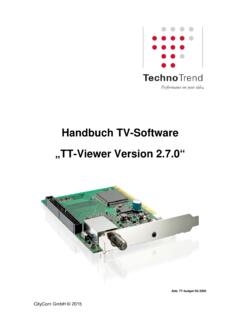
1 CityCom GmbH 2015 Manual for TV software TT-Viewer version Figure: TT- budget S2-3200 CityCom GmbH 2015 2 Index Manual TT-Viewer 3 1. Starting TT-Viewer software 3 2. General settings 5 3. Assignment of hardware 6 Unicable 7 4. Renderer 8 5.
2 Decoder 9 6. Remote control 10 Integrate the remote control 10 Programming the remote control 13 7. Main window TT-Viewer 15 Control panel 16 Information bar 17 8.
3 Channel scan 19 9. Channel list 21 Favorites list 26 10. Records 29 Direct recordings 29 Time shift 30 Programmed recordings 31 11. EPG (Electronic Program Guide) 33 The EPG timeline view 34 The EPG window view 36 12.
4 CI extension 38 13. Further functions 40 Technical support 41 CityCom GmbH 2015 3 Information Before you start the TT-Viewer software , please take a look at the Quick Start Guide. In the Quick Start Guide you will be able to find important information on how to connect and install your TechnoTrend product. The Quick Start Guide can either be found on the supplied CD or on our homepage: Manual TT-Viewer 1. Starting TT-Viewer software To start TT-Viewer open the start menu and select TT-Viewer, or click the TT-Viewer icon located on your desktop.
5 CityCom GmbH 2015 4 To open the channel list please move the cursor to the right side of TT-Viewer and click on a desired channel. The channel will now load on the left side of TT-Viewer. CityCom GmbH 2015 5 2. General settings The general setting in TT-Viewer can be found in the context menu. To open the context, please right click in the window and select Options General . In the general setting you will be able to adjust many setting. For example: Language settings Location settings Save location for recordings And much more CityCom GmbH 2015 6 3. Assignment of hardware Should you become the message All capable DVB Adapters are busy. No free device has been found you will need to enable your connected hardware to TT-Viewer.
6 To enable your connected hardware you will need to open the context menu by right clicking on the window and selecting options hardware. In this tab you will be able to search and choose the connected hardware. 1. First click Scan Devices 2. Select your purchased TechnoTrend device 3. Set the available features and confirm with OK The assignment of hardware is now finished. CityCom GmbH 2015 7 Unicable If you are using a Unicable system (SCR/CSS CENELEC EN50494), you will need to set the settings for the Unicable in TT-Viewer (please note: This needs to be done only once!). All of the following points of this Manual can be done without any changes after these Unicable settings. Open the context menu by right clicking the mouse and selecting Options Hardware (page 6).
7 Click on Sat CR . Now the Unicable settings window will open. Please tick Use Unicable Slot ( ) and select the needed slot and frequency. Also if necessary, please enter a PIN. Confirm with OK. Your setting for the Unicable system are now finished. CityCom GmbH 2015 8 4. Renderer If problems occur with the playback of sound and/or video, you will need to open the context menu by right clicking the mouse and selecting Options followed by the Renderer tab. In this tab you will find a variety of different renderer options which, many solve the playback problems. The default Audio Renderer is set as Auto . By click on the downward pointing arrow you may choose between different Audio Renderer settings. The default Video Renderer is set as Video Mixing Renderer 9.
8 By clicking on the downward pointing arrow you may choose between different Video Renderer settings. Before your setting will take change, you will need to either change the TV channel or restart TT-Viewer. Changing the renderer setting is only recommended while viewing Live TV. CityCom GmbH 2015 9 5. Decoder If problems persist with the playback of sound and/or video, you will need to open the context menu by right clicking the mouse and selecting Options followed by the Decoder tab. In this tab you will find a variety of different decoder settings which, may solve the playback problems. In the Decoder Settings tab you can set your preferred Decoder for a specific audio or video format. Also, you can see for what format a decoder will be available (FAILED/OK).
9 CityCom GmbH 2015 10 6. Remote control It is possible to use our standard TechnoTrend remote control with TT-Viewer. Using the Remote Control Settings in TT-Viewer you will be able to customize each button to an individual action in order to suit all your needs. Customizing the Remote Controller actions can be done simply, quickly, and without any hassles. Integrate the remote control To integrate the remote control with TT-Viewer, you will need to open the context menu by right clicking the mouse selecting Options followed by the Remote tab. If you are using the product TT- budget S2-4100, you will need to tick on TechnoTrend S2-4100 to activate the remote control. No further settings are needed.
10 You can start programming the remote control, now (see point below). CityCom GmbH 2015 11 If you are using the product TT-connect S2-4600, you will need to tick on TechnoTrend S2-4600 to activate the remote control. No further settings are needed. You can start programming the remote control, now (see point below). CityCom GmbH 2015 12 If you are using the product TT- budget CT2-4500 CI, TT-connect CT2-4650 CI, TT-TVStick CT2-4400 or TT- budget S2-4200 Twin you will need to tick on TechnoTrend CT2-4500 CI, CT2-4650 CI, CT2-4400, S2-4200 to activate the remote control. No further settings are needed. You can start programming the remote control, now (see point below). For all other TechnoTrend PC products you will need to tick on Technotrend to activate the remote settings.