Transcription of USB Download Cable Adapter Installation Checklist
1 ALTAIR AVIONICS CORP CUST-T- 408 -1 USB Download Cable Driver Installation 13 Sep 2006 Page 1 of 8 USB Download Cable Adapter Installation Checklist Caution: Only for use with the ADAS-C-053-1 USB Download Cable Overview 1) Download Diver information from TurbineTracker 2) Install the USB to Serial converter driver on your laptop 3) Install the communications port driver on your laptop NOTE: Ensure you have the current version of the Monitor Link Program (MLP) installed on your computer before attempting to Download the USB drivers.
2 The current version is available from the TurbineTracker website under the Support Tab by selecting the Systems Update button on the left and following the on screen instructions (See Checklist CUST-T- 417-1). 1. Download DRIVERS - Log in to TurbineTracker website with the Lap top you will be using the USB Download Cable on and Download the <ADAS-C-053 > file located under the Support Tab by selecting the Systems Update button on the left and clicking on the ADAS-C-053 hyperlink. NOTE: ADAS-C-053 is a Self Extracting WinZip file that contains the compressed USB driver information.
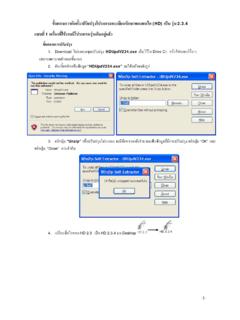
3 Copyright 2006 ALTAIR AVIONICS CORPORATION - All rights reserved ALTAIR AVIONICS CORP CUST-T-408 -1 USB Download Cable Driver Installation Page 2 of 8 If you get the File Download - Security Warning select Run If you get the Internet Explorer - Security Warning select Run When the WinZip Self Extractor pop-up opens, select the Unzip button. NOTE: The Self Extractor should default to the recommended c:\mlp\bin\usb folder on your computer, but the advanced user has the option to select a different folder.
4 Copyright 2006 ALTAIR AVIONICS CORPORATION - All rights reserved ALTAIR AVIONICS CORP CUST-T-408 -1 USB Download Cable Driver Installation Page 3 of 8 After the Download completes you should receive the WinZip pop-up message 14 files unzipped successfully . After clicking on OK when the files are done extracting. Click on Close to close the WinZip Self Extractor window. Now that you have downloaded the USB Download Cable Drivers to the c:\mlp\bin\usb folder on your PC, there are two steps to completing the driver Installation .
5 First, the USB Converter will be installed. Second, the Communications Port will be installed. The Installation is not complete until both pieces are in place on your computer. NOTE: You must complete the driver Installation for the adaptor and the instructions need to be followed specifically in order for it to be recognized. Some operators experience problems that require them to manually edit their systems communication port settings; especially if the computer was used previously to communicate with other devices PDA & Active-synch (turn off other programs or devices that may be using comm.)
6 Port resources). 2. Install the USB to Serial converter driver - Insert the USB Cable into your PC s USB port. The computer should detect the hardware automatically. This first step will install the USB Converter on your PC. Copyright 2006 ALTAIR AVIONICS CORPORATION - All rights reserved ALTAIR AVIONICS CORP CUST-T-408 -1 USB Download Cable Driver Installation Page 4 of 8 The Found New Hardware Wizard screen should automatically pop up on your computer.
7 Select Install from a list or specific location (advanced) in the wizard and then select Next . Note: Windows defaults to install the software automatically and will not be able the find the correct drivers unless you manually select the Install from a list or specific location (advanced) option Select Include this location in the search and you can also de-select Search removable media . Click Browse and navigate to c:\mlp\bin\usb then click OK. After you insure the correct path is displayed, click Next .. Copyright 2006 ALTAIR AVIONICS CORPORATION - All rights reserved ALTAIR AVIONICS CORP CUST-T-408 -1 USB Download Cable Driver Installation Page 5 of 8 Click Finish to close the wizard after the driver file transfer completes.
8 Install the communications port driver After the USB converter is successfully installed the computer should detect the communication hardware automatically. This next step will install the communication port driver. 3. The Wizard should re-appear to install the driver for the communications port automatically. You need to continue through the same steps just like you did for the USB converter. Select Install from a list or specific location (advanced) in the wizard and then select Next . Note: Windows defaults to install the software automatically and will not be able the find the correct drivers unless you manually select the Install from a list or specific location (advanced) option.
9 Copyright 2006 ALTAIR AVIONICS CORPORATION - All rights reserved ALTAIR AVIONICS CORP CUST-T-408 -1 USB Download Cable Driver Installation Page 6 of 8 Make sure that the selections are the same as those you made when installing the USB driver. If they are not, repeat those steps from above, and then click Next . Click Finish to close the wizard after it completes. You have now installed the USB driver and the new communications port on your PC/Laptop.
10 MLP will be able to auto-detect this port when you run MLP and follow the standard procedure for connecting to your monitor, as described in the MLP Manual. If you have trouble connecting to your monitor with MLP, remember to check your Windows hardware settings and that you may have to manually edit comm. port settings. Copyright 2006 ALTAIR AVIONICS CORPORATION - All rights reserved ALTAIR AVIONICS CORP CUST-T-408 -1 USB Download Cable Driver Installation Page 7 of 8 If MLP can not establish a connection with Autodetect: MLP will ask you to check common errors NOTE: If you have a Download Cable connected to a Generation 3 Monitor the Run/Conf switch should cause the Trend Lamp to illuminate when placed in the conf position.