Transcription of TOPS Pro Introduction - TOPS Software Corporation
1 tops Pro Tutorial Package Design and Palletization Getting Started ..2 General Overview ..3 Control Panel ..4 Menu Bar ..5 Windows Template Button-Style Menus ..8 Package Design Sequence Shortcut Buttons ..10 Exercise #1: Perform a Simple Analysis ..11 Exercise #2: Perform a Complex Analysis ..23 Exercise #3: Perform a Knockdown Analysis ..48 Exercise #4: Design the Output From an Exercise #5: Publish an Analysis to the Web or Network ..63 Exercise #6: New CASY Features ..66 Exercise #7: Design a Mixed Pallet ..71 Exercise #8: Design a Mixed Tray.
2 77 tops Pro Tutorial 1 tops Pro Tutorial Introduction Thanks for your interest in the tops Pro Demonstration (Demo) Software . tops Pro is designed to meet the most advanced needs of the packaging professional. However, this tutorial is designed to give a general overview of the primary functions of the Software . The tutorial does not explore the full range of the tops Pro Software capabilities, but is designed only as a basic tutorial that walks you through the core of the system. Getting Started: Walks you through the process of installing the tops Pro demo Software and logging into the system.
3 Exercise #1: Perform a Simple Analysis: Walks you through on how to find the optimal solution for loading shipcases onto a pallet. Exercise #2: Perform a Complex Analysis: Walks you through an analysis to find the optimal solution for loading bottles into a carton, into a shipcase, onto a pallet and onto a truck. You ll also use the CASY (Create A Shape Yourself) system to design a custom-shaped can and tray. Exercise #3: Perform a Knockdown Analysis: Walks you through a knockdown analysis to find the optimal solution for loading knockdown (collapsed) boxes onto a pallet.
4 Exercise #4: Design the Output from an Analysis: Walks you through the process of designing what information will go into your printed output and what that output will look like. Exercise #5: Publish an Analysis to the Web or Network: Walks you through the process of publishing an analysis to the Web or to a local network, where other people can view the analysis. Exercise #6: New CASY Features: Gives an overview of the new primary shapes and shape functions in CASY. Exercise #7: Design a Mixe Pallet: Walks you through on how to create a mixed pallet.
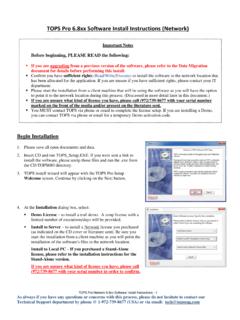
5 Exercise #8: Design a Mixed Tray: Walks you through on how to create a mixed pallet. 2 tops User Guide Supplement and Tutorial If you experience problems or difficulties while using the tops Pro Software , please call the tops Technical Support Department or your tops sales representative at (972) 739-8677. Getting Started This section of the tutorial walks you through the installation process and gets you logged into the system. To install the tops Pro demo Software , follow these instructions: 1. Start Windows. 2. Insert the tops Pro CD into your CD-ROM drive.
6 Note: For more information on installing the Software , please refer to the installation sheet included with the Software package. Follow the instructions on the screen until the installation is complete. 3. Double-click on the tops for Windows DEMO icon. System Response: The User Login panel appears, as pictured below. 4. Select the user group you belong to and click on the Login button. System Response: The Control Panel appears, as pictured on page 4. Congratulations! At this point, the installation is complete and you've logged on. Now you're ready to go to work with tops Pro.
7 First, we'll walk through a General Overview, where you'll get acquainted with the Control Panel and the layout of the system. After you're familiar with the primary elements, then we'll walk through some real-world packaging analyses. These exercises will demonstrate the ease and flexibility with which tops Pro generates a number of detailed solutions for the packing professional. tops Pro Tutorial 3 General Overview Before you start using tops Pro, let's get acquainted with the primary features and functions of tops Pro, as listed below: Control Panel: The primary window in the system that allows you to select the type of analysis you want to perform, the stages to be used in the analysis, and the dimensions of each stage.
8 Menu Bar: Provides a number of pull-down menus that allow you to perform common tasks such as setting print parameters, changing languages and defining stages in an analysis. Windows Toolbar: Contains a number of icons that allow you to perform standard, commonly used functions. Template Toolbar: Contains a number of buttons that give you easy access to analysis templates set up in the system. Button-Style Menus: Allow you to set up a Package Design Sequence, in which you select the various stages to be used in an analysis. Package Design Sequence Area: The area on the screen in which you define a series of stages that comprise an analysis.
9 For example, you might set up a sequence in which you analyze how to best load shipcases onto a pallet. Shortcut Buttons: Allow you to view solution panels for an analysis record or calculate solutions for an analysis. Let's discuss these features in more detail. 4 tops User Guide Supplement and Tutorial Control Panel When you login to the system, the Control Panel appears, as pictured below. The Control Panel contains all the primary features of the system: Menu Bar, Windows Toolbar, Template Toolbar, Package Design Sequence Area, Button-Style Menus and Shortcut Buttons.
10 Menu Bar Package Design Sequence Area Windows Toolbar Template Toolbar Button-Style Menus Shortcut Buttons The Control Panel is the primary panel in the system. It is the working area from which you will select the type of analysis you want to perform, select the stages to be used in the analysis and define the dimensions of each stage. tops Pro Tutorial 5 Menu Bar The Menu Bar, pictured below, provides a number of drop-down menus. These menus provide options that allow you to perform common tasks, many of which are duplicated on the Button Bar and Shortcut Buttons.