Transcription of Pathlore State/Local/Tribal User Job Aids
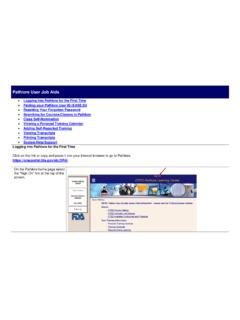
1 Pathlore State/Local/Tribal user Job aids Logging into Pathlore for the First Time Finding your Pathlore user ID Request a Pathlore Account Resetting Your Forgotten Password Searching for Instructor Led Classes in Pathlore Searching the OTED Course Catalog in Pathlore Viewing course/class information (Including course description, target audience and announcement.) Viewing Transcripts Adding Self-Reported Training Printing Transcripts System Help/Support Logging into Pathlore for the First Time Click on the link or copy and paste it into your Internet browser to go to Pathlore . Pathlore Learning Management System On the Pathlore home page select the Sign On link at the top of the page. (1) If you know your login ID and password enter them in the login boxes. Finding your Login ID (2) If you do not know your user ID, or have forgotten it, choose the Click here to Retrieve Login ID link.
2 1 2 Logging into Pathlore for the First Time If you have taken DHRD/OTED courses in the past, you most likely have an account that was created for you. To Request your Login ID, enter your email address, and choose OK . Your login ID will be sent to your email address if it matches the email address in Pathlore . If you do not receive the email within 15 -20 minutes, please contact the Pathlore Help Desk: or call the Help Desk at 866-807-3742, option 1, then 2. If your email address is not found you may have a previous email address on file if you have changed organizations. Enter your previous email address to find if it matches our records, otherwise contact our help desk at the number displayed. If a former email address matches our records but you cannot access it, contact our help desk to update your profile. Logging into Pathlore for the First Time If your email address is found, and you know your user id and password, select Sign On to return to the log-in page.
3 Enter your user ID and password then select OK. Return to top Return to top Request a Pathlore Account If Pathlore doesn t find an account matching the email, you may fill out a form to request an account. The following is a link to an Account Request form. Depending on your browser settings, you may not be able to view in your browser, but will be able to download the form. Please download, fill it out, and email to the address noted on the form. Pathlore Registration Account Request Form Return to top Resetting a forgotten password Go to the Welcome page, and Select the Sign On link in the upper center of the screen. On the sign on page select Reset Password . Resetting a forgotten password Enter your email address and Login ID to recover your password. Your temporary password will be emailed to the email address in your Pathlore profile.
4 Once you click OK you will see the password recovery notice; select OK to return to the logon page. If you do not receive your temporary password within 15 -20 minutes, please contact the Pathlore Help Desk: or call the Help Desk at 866-807-3742, option 1, then 2. Resetting a forgotten password Once you receive your temporary password enter your user ID and temporary password, then select OK. After logging in you will be asked to change your password. Password format requirements are: must be 8 or more characters, and contain at least one upper case, one lower case, and one special character. Return to top Searching for Instructor Led Classes Go to the Pathlore welcome page: Pathlore Learning Management System You can use the search functions without logging into Pathlore , or after you log in. To search for all upcoming Instructor Led classes offered by OTED, choose Class Search or OTED Instructor Led Classes.
5 These options will both take you to the Class search page. ** This search will return results containing Course ID, Class Name, Start Date, End Date, and Class Location, among others. (1) On the class search page select All Classes. (2) If you would like to search for a specific topic or subject, Input keywords you would like to search. (3) Select the date range you would like to search. This search will include detailed information about classes including dates, times and locations. 1 2 3 Searching for Instructor Led Classes When the results are returned, click the select button next to the title to view the class page. This will bring back additional information about the class, including course description, general prerequisites, OTED Accounting/Administrative Information, and State Contact, if available. For registration information, you will need to log into the system.
6 Searching the OTED Course Catalog Go to the Pathlore welcome page: Pathlore Learning Management System You can use the search functions without logging into Pathlore , or after you log in. To search for all courses in the OTED Course Catalog, choose Course Catalog Search or OTED Course Catalog. These options will both take you to the course search page. ** This search will return results containing course description, objectives and general prerequisites. The shortcut buttons at the bottom of the page can also be used to return to the home page (1) or go to the course search page (2). 1 2 Searching the OTED Course Catalog On the course search page you can choose the parameters to search including key words, course ID and category. To search for on-line course only, choose On Demand in the Type of Course drop down menu.
7 Searching the OTED Course Catalog By clicking the search button, without entering any information, Pathlore will return a list of all courses. This icon indicates that there is an active class scheduled. If you click on this icon you will be directed to the page with the detailed information about that class. Other useful direct links Course search screen Complete OTED Class schedule Returnto top Viewing Information on the Class Page When you find a course you want to view in your search results and choose the Select button for that course, you will go to the course information page. On this page there are links to course learning objectives and target audience. There is also a link to the course schedule. If there are current classes scheduled you will see a link for Class Schedule. On the class schedule page you will see details for each current class.
8 When the Select button is clicked you will be directed to the class page with additional information, including course description, general prerequisites, OTED Accounting/Administrative Information, and State Contact, if available. At this time State/Local/Tribal /Territorial partners cannot nominate themselves to attend a class, but should follow local procedures to register for the course. Return to top Viewing Transcripts After logging into Pathlore choose the Transcript link in the left menu. Your transcript will be displayed on the following page. You can also view your training calendar and add self-reported training from this page. Return to top Add Self-Reported Training After logging into Pathlore choose the Transcript link in the left menu. Your transcript will be displayed on the following page. In the upper right hand corner, click on the link to Add Self-Reported Training.
9 Fill in each field on this page. The fields with asterisks indicate required information. Select Save when you have completed your entry. Add Self-Reported Training You will see this window. After Selecting the OK button you will be returned to your transcript. Self-reported events can be edited or deleted from your transcript using these two icons. Return to top Printing Your Transcript After logging into Pathlore choose the Transcript link in the left menu. Once on your transcript page go to File on the top menu bar and choose print. Printing Your Transcript To print your transcript you will need to change your printer options to print in landscape format. To change your printer options choose Preferences. Choose the Layout tab. (1) This window may look different from the window you see depending upon the type of printer you are using.
10 Under the layout tab you will see options for Portrait and Landscape, choose the landscape option. (2) Select OK. (3) 1 2 3 Printing Your Transcript Select Print. Return to top System Help/Support Contact Information OR call 866-807-3742, option 1, then 2 LMS Helpdesk Hours of Operation* Monday Friday 9:00AM 5:00PM EST * Except for holidays observed by the Federal Government