Transcription of Introduction to Access 2013 - UMSL Computer …
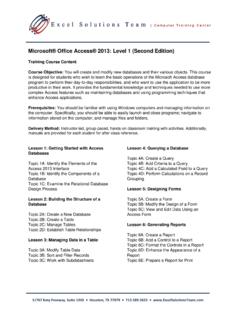
1 Introduction to Access 2013 IIntroduction to Access 2013 What You Will 1 Getting Started with Access 2013 .. 2 Opening an Existing Database .. 3 Understanding the Access Interface .. 4 Using the Ribbon to Locate Commands .. 5 Using Backstage View .. 6 Using the Navigation 7 Interpreting the Security Warning in the Message Bar .. 12 Working with Tables in Datasheet View .. 13 Understanding the Organization of Tables (Database Terminology) .. 14 Navigating Through Your Records .. 14 Using the Records Command Group .. 15 Adding a New Record .. 15 Entering Data .. 16 Editing Records .. 18 Selecting Records .. 18 Deleting Records .. 19 Resizing Columns .. 20 Rearranging Columns .. 20 Exercise 1: Working with Tables in Datasheet View .. 21 Finding and Replacing Data .. 22 Using the Search 22 Using the Find Command .. 23 Using the Replace 24 Exercise 2: Using the Find and Replace Commands (Optional) .. 25 Using Table Design View .. 26 Viewing a Table in Design View .. 26 Understanding Table Design.
2 27 Creating Tables .. 28 Designing Your Table .. 28 Creating a New Table in Design View .. 32 Establishing a Primary Key .. 33 Saving the Table .. 34 Modifying Table Design .. 35 Adding a 35 Introduction to Access 2013 Deleting a Field .. 35 Changing the Field 36 Saving Changes to Table Design .. 36 Exercise 3: Modifying Table Design .. 37 Sorting Data .. 38 Filtering Data .. 39 Using the Filter Command .. 40 Toggling a Filter .. 41 Clearing a Filter .. 41 Applying a Custom Filter .. 42 Applying a Filter Based on a Selection .. 43 Creating a Filter By Form (Optional) .. 44 Exercise 4: Using Filters .. 48 Querying Data .. 49 Creating a Query in Design View .. 49 Saving a Query .. 52 Using Comparison Operators .. 53 Using Wildcards .. 53 Using Logical Operators .. 56 Exercise 5: Querying Data .. 59 Exercise 6: Querying Data Using Logical Operators (Optional) .. 60 Combining Logical Operators .. 61 Exercise 7: Querying Data Using Compound Operators .. 63 Customizing Your Queries.
3 64 Rearranging and Resizing Fields in a Query .. 64 Removing Fields from a Query .. 64 Sorting Query Results .. 64 Excluding Fields from the Query Results .. 65 Searching for Blank Fields .. 66 Exercise 8: Customizing Your Queries .. 67 Creating a New Database (Optional) .. 68 Planning a Database .. 68 Creating a Blank Database .. 69 Creating a Database from a Template .. 70 Working with Date Fields .. 71 Introduction to Access 2013 Setting Up Date Fields .. 71 Adding Date Data .. 71 Entering Today s Date .. 72 Querying Dates .. 72 Exercise 9: Working with Date Data .. 75 Performing Queries on Multiple Tables .. 76 Setting Criteria for Multiple-Table Queries .. 78 Understanding Local vs. Global Relationships .. 79 Exercise 10: Querying Data from Multiple Tables .. 80 Performing Calculations in Queries .. 81 Creating Calculated Fields in Queries .. 81 Setting Criteria for Calculated Fields .. 82 Using Calculated Columns in Other Calculations .. 83 Performing Calculations on Fields from Related Tables (Optional).
4 83 Performing Calculations with Dates .. 84 Concatenating Text Values .. 84 Exercise 11: Using Calculations in Queries .. 85 Creating Action Queries .. 86 Creating Update Queries .. 86 Creating Delete Queries .. 88 Creating Make-Table Queries .. 89 Creating Append Queries (Optional) .. 92 Exercise 12: Running Update, Delete, and Make-Table Queries .. 93 Creating a Basic Form .. 94 Creating a Basic Form Using the Form Tool .. 94 Understanding the Form Views .. 95 Using Form View to Work with Data .. 96 Creating a Basic Report .. 98 Creating a New Report Using the Report Tool .. 98 Understanding the Report Views .. 100 Printing the Report .. 101 Working with External Data .. 102 Exporting Tables .. 102 Importing Database Objects .. 105 Linking Tables .. 116 Managing Your Access Database .. 125 Copying Tables .. 125 Introduction to Access 2013 Renaming Objects .. 126 Deleting Objects .. 127 Compacting and Repairing Databases .. 127 Exercise 13: Importing Data and Creating Forms and Reports (Optional).
5 128 Exercise 14: Summary Exercise (Optional) .. 129 Appendix A: Ribbon Tabs in Access .. 131 Appendix B: Understanding the Access File Formats .. 132 Working with Access 2000 and 2002-2003 Database Files (.mdb Format) .. 132 Appendix C: Getting Help in Access 2013 .. 136 Appendix D: Formatting Tables and Queries .. 138 Changing the Font .. 138 Changing Column Width and Row Height .. 138 Hiding and Showing Fields .. 139 Freezing Fields .. 139 Setting Up Default Datasheet Formatting .. 140 Appendix E: Solutions to Exercises .. 141