Transcription of Application Overview - Lawrence Merchandising Services
1 APRIL 2014 Application OverviewPlanogram Header LabelThe 1x3" planogram header label displays the planogram number and set date. It s the first label printed with the individual planogram labels and it s placed in the label holder on the gondola when setting the new planogram header label will print showing either a standard or reverse lead-in direction, depending on what was selected at the time the label request was planograms automatically convert to MPG status four weeks prior to a new set. The MPG status allows stores to sell through non-carryforward and discontinued merchandise prior to a new transition. When planograms go MPG, a new planogram header label is generated to reflect the MPG LabelsBackroom labels identify the location of merchandise in the backroom. Finding merchandise in the backroom is as easy as understanding the labels.
2 Each backroom is broken down by aisle and each aisle is numbered. Each aisle is divided into sections. Each section is assigned a letter that identifies it. Each shelf in the section has a numerical identification that assigns it to a specific backroom and GhostsBaffles and ghosts affect the stocking process of your product on the sales floor. That is why it is important to maintain accurate backroom locations. Baffles A baffle occurs when an item is found in the backroom and it is not located, likely caused by placing an item in a backroom location without systematically locating it. Make sure to partner with a Backroom team member for items that need to be located. Ghosts Ghosts occur when the backroom location system says an item is located in a certain place, but the item isn t there.
3 This is commonly caused by an item being taken from a backroom location without using the SUBT : If you identify a ghost or baffle while working in our backrooms, please notify a Backroom team member to correct/update the backroom location. 2014 Target Stores. Confidential: For internal use Label and Smart SchematicSmart Schematic is a way of numbering items on a planogram . Planograms provide a blueprint of where items go on a fixture. When a planogram is created, a unique location number is assigned to each item on that planogram . Each item is first assigned to a specific section of a planogram . Then, each item is assigned to a specific shelf or peg grouping within that planogram section. Finally, each item is assigned to a specific location on a shelf or in a peg number assigned to each item s location is called the schematic number.
4 When you put the sales floor location number, physical section number and the schematic number together, they help you determine exactly where an item should be schematic number includes the following information: planogram section number (section number within the planogram ) Shelf, peg or other fixture number Product location number within the shelf, peg or other fixture Revision number (if applicable)Logging into the PDA/RF UnitAlways sign in using your Vendor RF ID code never use a Target Team Member ID!1. Obtain a PDA unit from the If it is still logged in under a Target team member, please log At the Log In screen, enter your 4-digit vendor RF ID number and then click Log Me Select other then go to indicate what type of team member you are5. Select Vendor then go to indicate your role6.
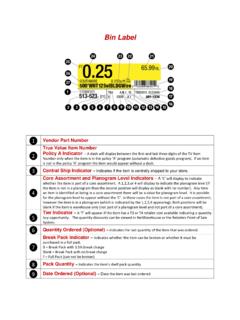
5 Select the Application you want to use from the menu7. To log off, click the arrow button at the top of the PDA screen then click exit at top right corner of PDA to Read a Shelf Label1. Description (Dynamo 125 oz.)2. Retail price ($ )3. DPCI (003/06/0783)4. Schematic number This tells you the planogram section (one), the shelf number (one) and the exact product location on that shelf or peg (one).5. Number of facings (four)6. Date label was printed (11/05)7. Last digits of the UPC code (48126)8. UPC bar codePOG ( planogram Fill)Before using this tool, partner with the Backroom team, as the product will need to be pulled by a store team member. This Application is used to request a fill batch for items on a specific At the Main Menu screen, access RF apps2. Key 2 to select the Replenishment At the Replenishment menu, key 2 to select the planogram Fill At the planogram Fill menu, key 1- POG Fill At the Scan/Key POG Label prompt, scan or key the planogram label of the planogram you want to At the Enter Batch Name prompt, key a batch name (up to 10 characters).
6 7. At the Batch XXXX is Being Created prompt, key N for the next planogram or R until you return to the Main Menu Backroom team members use the PULL Application to pull the planogram fill batch (Location)Use LOC in Backroom Mode to locate an item s backroom At the Main Menu screen, access RF apps2. Key 1 or LOC at the Key Application prompt, then press Enter choice for location, key B for Scan or key the DPCI or UPC, then press Use the Enter key to scroll down through the locations displayed. Key D to see more than five locations. Tip: Write down the location numbers, they can be difficult to Key C (Continue), then press Enter to return to the Key or Scan Repeat steps three to five until you ve found locations for all the Key E, then press Enter until you return to the Key Application prompt to you scan an item and it appears without a location number, this means the item is on file, but hasn t been scanned in the stockroom with STO, LOC or PULL SearchThis Application gives general information, including retail price and sale price if on ad, backroom locations and quantity, and current on hands.
7 1. At the main menu touch the Item Search icon. 2. Scan or Key DPCI (if keying use 49+DPCI)3. Click No to not include Click the arrow on the lower left corner to go back to main item search screen to scan/key next Click on Sales floor or Backroom location to see more Click on house icon in the upper left corner to log out until you see the main Click on the door icon in the upper right corner to log (Subtract)Use this Application to remove single items from the backroom and keep the backroom location system At the main menu screen touch SUBT 2. Scan or key the UPC of the item you re pulling from the backroom. Key the 49, then the DPCI: 49/DDD/CC/IIII. This turns the DPCI into a UPC. If the item isn t on file in the Stockroom Location System, the PDA Unit will let you Choose a location, then scan the location label with the locations containing the item display.
8 Key D, then press Enter to scroll down to view additional Key the quantity being pulled from this location, then press Enter. The PDA will display a message asking if you pulled all of the item with a Y-es/N-o option. If all of the item is being pulled, use the Y-es option, this tells the system to delete the item from that location. If some of the item remains in the location, use the N-o option.