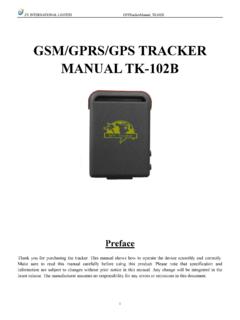
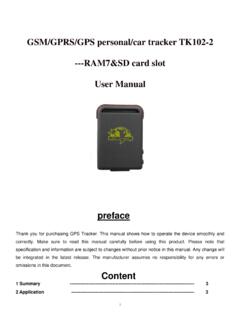
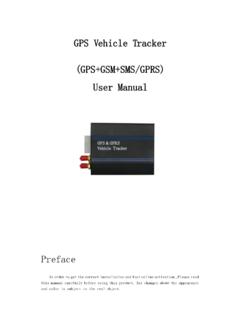
Transcription of TZ- G Personal Tracker
1 TZ-GT02 Personal Tracker User Guide TZ-G. TZ- GT02 Personal Tracker User Guide Version Page 1 of 8. TZ-GT02 Personal Tracker User Guide Tracker GT02 User Manual 1. POWER SUPPLY AND CHARGING OF Tracker . Power Use Power Adapter for 3. 2. FAST STARTUP. 3. Startup Authorized User/s Time zone 5. 3. USAGE. 5. Locate the 5. Tracker reply in 30 or 60 SOS 6. Warning function 6. 8. SPECIFICATION. Page 2 of 8. TZ-GT02 Personal Tracker User Guide 1. Power Supply and Charging of Tracker Power Supply The Tracker is operated by its built-in and irreplaceable lithium polymer battery.
2 The fully charged battery can supply power for the Tracker for about 70 hours (in stand by mode). Do not remove, puncture or damage the battery or throw the battery into fire or water. The battery might burst, explode or release dangerous chemicals. Use Power Adapter for Charging For the first time and later usage, you should use the power adapter to charge the Tracker for at least 3 hours. Connect the DC end of the power adapter to the power connector on the right of the Tracker and connect the other end of the power adapter to the socket to charge the Tracker .
3 During the charging of the Tracker , the POWER indicator light turns red. Never unplug the adapter during charging. Wait until the battery is fully charged. When the battery is fully charged, the POWER indicator light turns off. When the battery is low or used up, charge it as soon as possible. 2. Fast Startup Startup Operation Insert a valid GSM SIM card into the SIM Card slot on the right side of the Tracker (Note: Use the given tool to push the SIM card into the slot and the SIM. card will be locked automatically.). Place the Tracker in an open area and push POWER key to switch on the Tracker .
4 The Tracker starts to work within 10 sec.~ 20sec. and to receive the GSM signals. When the Tracker has GSM signals, the GSM indicator light will flash every second. If there is no GSM network, the GSM indicator light is off. While GSM is connecting with the network, the GPS starts searching for satellite signals. The GPS indicator light flashes every 2 seconds. When the GPS. functions successfully, the GPS indicator light is on. When both GSM and GPS of the Tracker work, you can use your mobile phone to dial to the number of the Tracker to locate it.
5 Page 3 of 8. TZ-GT02 Personal Tracker User Guide Authorized User/s Setting After you purchase the Tracker , you should set the authorized user/s immediately. immediately Method to set authorized user/s a. Note that only four authorized users are allowed to set into the Tracker . The codes of the authorized users are SM1, SM2, SM3 and SM4 and they can be used according to your own choose. This means the first authorized user can be SM1. or SM2 or SM3 or SM4. b. The first user uses his mobile phone to send a SMS command to the Tracker .
6 He SM1:xxxxxxxxx, sends a SMS SM1:xxxxxxxxx, SM1:xxxxxxxxx, to the Tracker . For example, if the mobile phone SM1:123456789, number is 123 456 789, the SMS will be: SM1:123456789, SM1:123456789, . When the setup Set OK! completes, the Tracker will reply in a SMS Set OK! to the user s mobile phone, Set Fail! otherwise, it will reply a SMS Set Fail! . Now he is the first authorized user of the Tracker . c. Only the first authorized user can add the second authorized user by sending a SMS command to the Tracker . For example, if the mobile phone number of the 2nd SM2:444555666, to the authorized user is 444 555 666, then the SMS is SM2:444555666, Tracker .
7 The first and the second authorized users are now allowed to add the other authorized users. Repeat the same SMS command to set up the other authorized users. d. If a non-authorized user try to add an authorized user, the Tracker will send a SMS. You are not master! You master! . Method to delete the Authorized Users a. All four authorized users are allowed to delete the users of the Tracker . Send a User Code:, SMS User Code:, to the Tracker . For example, if you want to delete authorized SM2:, user SM2, then send a SMS SM2:, SM2:, to the Tracker .
8 When the deletion completes, Set OK! the Tracker will reply a SMS Set Set Fail! OK! , otherwise, it will send a SMS Set Fail! . b. If a non-authorized user try to delete an authorized user, the Tracker will send a You are not master! SMS You master! . Hints Hints Hints Make sure that the input of the mobile phone number are correct and the characters of the SMS command must be capitalized. Page 4 of 8. TZ-GT02 Personal Tracker User Guide Time zone setting ST+00. ST+00,, . The ex-factory time zone is Greenwich ST+00. To set the correct time zone, send a SMS command ST+ ST+,**.
9 ST+, ST-,**. ** or ST- ST-,** from the user's mobile phone to the Tracker . For example, Beijing, China is ST+08 , Pacific Ocean: ST-08 . Set OK! When the time zone setting completes, the Tracker will send a SMS Set OK! to Set Fail! your mobile phone; otherwise, it will reply a SMS Set Fail! . 3. Usage Power ON! When the Tracker is switched on, it will send a SMS Power ON! to all authorized users. Warning: low battery! When the battery is low, the Tracker will send a SMS Warning: Please charge! charge! to all authorized users.
10 Locate the Tracker The authorized user calls the Tracker . It hangs off automatically and send out a SMS with position and time to his mobile phone. For example:- SMS content: GPS 03. GSM 22. 2006-08-16. 17:17:16. Hints Hints Hints If a non-authorized dial to the Tracker , the Tracker will not respond to it. If the Tracker cannot receive any GPS signal, the Tracker will send a SMS with the last location information. For example:- SMS content: Weak Signal, last located: GPS 03. GSM 22. Batt: 50%. 2006-08-16. 17:17:16. To view the location of the Tracker , the user can input the geographical information in the website Page 5 of 8.