Transcription of Instructions on Placing a Lens Order - Eyemed Visionary
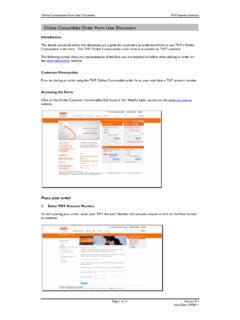
1 Instructions on Placing a lens Order Fill in the form as it appears on your screen. The ordering engine displays only those fields appropriate to the prescription and specific options you choose. All required fields are marked with a red asterisk. Patient Prescription Sphere, Cylinder, Axis, and Addition 1. Sphere Enter the Sphere in quarter or diopters, as specified by your lab. The default measurement for this field is quarter diopters, unless your lab supports diopter measurements. The spherical power will default to a plus (+) unless you indicate that it is a minus (-) by entering "-" in the field.
2 2. Cylinder Enter the Cylinder in quarter or diopters, as specified by your lab. The default measurement for this field is in quarter diopters, unless your lab supports diopter measurements. The cylinder power defaults to a minus (-) unless you indicate that it is a plus (+) by entering a "+" in the field. 3. Axis Enter the value in a range of 1 to 180 degrees. 4. Addition Enter the addition in quarter diopters. 5. Copy Field The small arrows allow you to copy values from the Right Eye (RE) fields to the corresponding Left Eye (LE) fields. 6. Copy Eye The arrow between the RE and LE, allows you to copy the entire Rx.
3 7. If you are ordering a single lens , complete the prescription information only for the required eye, and leave the fields associated with the other eye blank. You cannot Order a single vision lens and a multi-focal lens on the same Order . Laboratory Selection 1. Laboratory Select a lab from the list of labs that show as available to you. 2. Shipping Account Upon selecting a lab, you will be able to select the shipping address associated to the lab. Once you have selected your lab, your screen will refresh as the ordering engine accesses the selected laboratory s customized smart catalogs. These smart catalogs only show you products available from your selected lab and help ensure error-free lens ordering.
4 Job Type and lens Type Selection 1. Job Type Select a job type based on how you wish the lens to be finished. The lab determines available job types. 2. lens Type Select a lens type for the job. lens type choices are determined by the prescription. The screen will refresh to display the available lens design, material, and treatment options for the chosen lens design Patient Prescription 1. Distance PD and Near PD Enter the patient s measurements in half-millimeter increments in the appropriate fields. PDs must be entered in monocular form. 2. Height Enter the measurement in half-millimeter increments. For a single vision Rx, the Height field is automatically populated with the optical center.
5 By default, the optical center value for a single vision lens is pre-populated after the B measurement is entered and is equal to the B measurement. It may be edited if necessary. For a progressive Rx, the Height is the fitting height. For other multi-focal Rx, the Height is the segment height. 3. Show Prism If required, click the Show Prism button and fields will appear to enter prism values that correspond to the prescription. 4. Prism Enter the dioptric value of the prism in the Prism field. 5. Base Indicate the direction in the Base field. Base values, or prism direction, can be specified in the following ways: o By typing the words Up , Down , In , or Out in the Base fields o By typing the first letter of the direction ( U , D , I , or O ) in th e Base fields o By clicking the corresponding arrow located on the diamond-shaped figure next to each Base field, or o By entering degrees ranging from 1 to 360 lens Design, Material, and Treatment Options Selection QuickTip: There are three ways to search for materials, treatments, and lens designs.
6 You can start by choosing the lens design, material, or treatments. Depending on your selection, only valid results will appear for the other choices. 1. lens Design Select a lens design by highlighting the item. 2. lens Material Select a lens material by highlighting the item. 3. Available Treatments Click the treatment option(s) that you would like and they will be moved to the Selected Treatment field. 4. Selected Treatments To remove a treatment, simply click the treatment and it will be moved back into the Available Treatments field. 5. Treatment Comments To Lab If applicable, enter tint color, mirror color, density, or other comments.
7 (Special Instructions to the lab and product ordering information should not be entered in this field). 6. Reset To remove a treatment option, or reset the lens Type, lens Design, or lens Material fields; click the "Reset" button. Frame Measurements and lens Thickness Information Frame measurements and thickness information can be entered in one of two ways: 1. Enter the A, B, and Dbl, and select a standard frame shape: 1. A box Enter the A measurement to the nearest 1/10th millimeter, if required (If the field is not visible, your lab does not require the information for the selected Job Type ). 2.
8 B box Enter the B measurement to the nearest 1/10th millimeter, if required (If the field is not visible, your lab does not require the information for the selected Job Type ). 3. Dbl Enter the Dbl (distance between lenses) measurement to the nearest 1/10th millimeter, if required (If the field is not visible, your lab does not require the information for the selected Job Type ). 4. Ed Enter the Ed (effective diameter) measurement to the nearest 1/10th millimeter, if required (If the field is not visible, your lab does not require the information for the selected Job Type ). If you do not enter an Ed measurement, and you have selected a Frame Shape , the Ed measurement will automatically be calculated.
9 5. Select Standard Shape Click the shape that most closely resembles the frame being used for the job (If the fields are not visible, the information is not required). 6. Frame Type Select a frame type (This information is required for some Job Types, and it is used by the laboratory lens processing system as part of the lens thickness calculations). 7. Thickness Type Select the lens thickness. The Edge Thickness , Center Thickness , and Thickness at Drilling Point options all give you the ability to specify particular lens thickness requirements. If you choose the Lab Decides Best Thickness option, you will not be required to enter the exact lens thickness information.
10 8. RE Thickness and LE Thickness Enter the RE Thickness and LE Thickness to the nearest 1/10th millimeter, if applicable. 2. Import a Trace File Special Instructions Enter any special Instructions relative to this job. This field should not be used for ordering products not found in the product catalog. Completing the Order Once you have provided all of the necessary information for the Order , you have three options. You can: 1. Make Changes to the data entered. 2. Save the data: click the Submit Claim button. The Order will be validated for completeness and any errors will be highlighted. Correct any errors and click Submit Claim again.