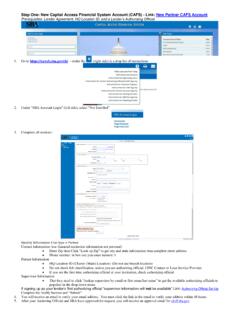
Transcription of Capital Access Financial System (CAFS) Account Set-Up Guide
1 Capital Access Financial System (CAFS) Account Set-Up GuideDescription and Purpose of the Capital Access Financial System (CAFS) Account2 OverviewFor approved SBA lendersto Access ,submit, and service loans, they must establish Access to the SBA s Capital Access Financial System (CAFS) by creating an online Account . CAFS is the primary System for loan origination and servicing for the SBA s loan Capital Access Login System (CLS) supports Account creation for CAFS. A CAFS Account and a CLS Account are the same; the terms can be used interchangeably. This presentation provides step-by-step instructions for creating and authenticating a new CAFS/CLS Account , including requesting Access to appropriate systems and more information on how to become an approved SBA lender, visit 1: Creating an Online AccountSetting up your CAFS AccountCreateAuthenticateAccess4 Lenders: Create Online Account via to the Capital Access Financial System (CAFS) home page: the Not Enrolled?
2 Link in the top left corner of the login boxLenders should start this process after receiving confirmation that they are an SBA-approved lender. The entire request process (from requesting a CLS Account to receiving Access to CAFS systems) may take several days to complete due to the multi-level approval processThe red dots correspond to the numbered instructional step on the left side of the screen Instructions12 CreateAuthenticateAccessInstructions5 Lenders: Create Online Account via will be taken to the page shown to the will need to complete all mandatory fieldsMandatory fields are indicated by bold text and a red asteriskThe red dots correspond to the numbered instructional step on the left side of the screen 43 CreateAuthenticateAccess6 Lenders.
3 Create Online Account via and enter your User ID and password which you will use to login to the systemYour UserIDmust be 8 to 15 characters long, and cannot include <, >, , , &, or accented password must be a minimum of 12 characters, and must contain at least three of the following properties:a)Upper Case Letters (A, B, C, .. Z)b)Lower Case Letters (a, b, c, .. z)c)Numerals (0, 1, 2, .. 9)d)Special Characters ( { } [ ] < > : ? | ` ~ ! @ $ % ^ & * _ -+ =)Instructions5 The red dots correspond to the numbered instructional step on the left side of the screen CreateAuthenticateAccess7 Lenders: Create Online Account via the Partner user type from the drop-down list6 The red dots correspond to the numbered instructional step on the left side of the screen CreateAuthenticateAccess8 Lenders: Create Online Account in in your nameFirst and last are required, middle name is in your Date of BirthYour DOB must be filled out in the format of mm/dd/yyyy( , November 1, 1980 = 11/01/1980)Instructions8 The red dots correspond to the numbered instructional step on the left side of the screen CreateAuthenticateAccess9 Lenders.
4 Create Online Account in CLSThe red dots correspond to the numbered instructional step on the left side of the screen in your street address and zip codeUse your office the Lookup Zip will populate the City/State field, so you will no longer need to fill in that portionInstructions910 CreateAuthenticateAccess10 Lenders: Create Online Account in CLSThe red dots correspond to the numbered instructional step on the left side of the screen your Phone Numbers (standard and mobile) The country code for the is 001. Include a hyphen in the 7-digit phone number. If you are only using your cell phone, put your mobile number under both landline and your email addressYour mobile number, landline number or email will be used for your two-factor authentication upon login, so you need Access to your phone or email to receive your login PINI nstructions1112 CreateAuthenticateAccess14b14a11 Lenders: Create Online Account in CLSThe red dots correspond to the numbered instructional step on the left side of the screen your organization s Location ID.
5 If you do not know your organization s location ID, use the Lookup button Functionality: a)Search for your institution s name or filter the list by selecting your Partner Type ( , Banking Institution or Credit Union)b)Press the Lookup by Name, Type, City, State, and/or Zip buttonc)When you find your institution in the list, press the blue Location ID link to auto-copy that into your CLS Account sign-upInstructions1314cCreateAuthentica teAccess12 Lenders: Create Online Account in CLSThe red dots correspond to the numbered instructional step on the left side of the screen your institution s Authorizing Official (AO) from the drop-down your Location ID has many AOs, you can search for a specific AO by entering their email, first name, or last name in the corresponding box and click Lookup Lender s Authorizing Official If you are the first CAFS Account for a Location ID, you will be automatically assigned as the AO.
6 In this case, you will not be able to select an AO from the dropdownInstructions1516 CreateAuthenticateAccessIf you already have a CLS Account and want to assign yourself as an additional AO for your Location ID: Send an email to subject PRODUCTION Authorizing Official Approval Request. In the email, state that you are requesting to be an authorizing official for your Location ID (include your Location ID in the email). You will receive an email from your Account has been approved13 Lenders: Create Online Account in CLSThe red dots correspond to the numbered instructional step on the left side of the screen three security questions from the dropdown menus that you can easily answer, and enter your answers in the appropriate the Captcha by entering the text in the boxPlease note that the text is Submit at the bottom of the there are any errors in the previous fields, you must correct the errors, re-write these security questions, and verify a new CaptchaInstructions181719 CreateAuthenticateAccess20 Step 2: Authenticate Your Account Use two-step verification to secure your accountCreateAuthenticateAccess15 Lenders.
7 Authenticate your Account to the Capital Access Financial System (CAFS) home page: the credentials created during Account the box next to I agree to these terms and click Login will be asked to authenticate using a PINYou can receive by text, call, or email (select your preferred option). You must authenticate by PIN for your Account to be considered fully activeThe red dots correspond to the numbered instructional step on the left side of the screen Instructions22212324 CreateAuthenticateAccess16 Lenders: Authenticate your you do not have Access to your phone/email while trying to log in, you can use a backup code by selecting "Skip PIN and take me to home page"This will allow you to generate a backup code, but you will not have full System functionality.
8 You will not be able to utilize the backup codes unless you have fully activated your the person icon in the top left, select "update profile" from the the profile page, you will see a box about generating backup codes. Select the "Generate Backup Codes for Credential Authentication" pop-up box will appear with a list of backup codes. You can download this list or copy a single backup code for useThe red dots correspond to the numbered instructional step on the left side of the screen Instructions25262728 CreateAuthenticateAccess17 Lenders: Authenticate your Account out of your back into your Account , and this time when it requests your PIN, select "Click here to authenticate by using a backup code instead one of your generated backup codes and press the "verify backup code" are now fully logged into the System !
9 The red dots correspond to the numbered instructional step on the left side of the screen Instructions302931 CreateAuthenticateAccess32 You ve set up your Account ! Step 3: Request Access to SystemsGet Access to the CAFS Applications you ll need to do business with the SBAC reateAuthenticateAccess19 Lenders: Request logged in, you will see your information on the left-hand request specific System Access within CAFS, select the person icon in the top right side of the screen and select Request Access to CAFS Systems from the dropdownInstructions3334 CreateAuthenticateAccess20 Lenders: Request each Access level below, click the folder icon, input your Location ID, and select the appropriate check boxa)Partner Information System (PIMS): View Partner Information b)Electronic Lending Origination (ETRAN).
10 Enter/Edit your SBA Loan Applications (includes Read)c)Electronic Lending Servicing (ETRAN): Update your Lender s SBA Loans (includes Read) submit at the will receive an email that your Account has been updatedNOTE: THIS IS NOT AN APPROVAL FOR the Access is approved by your organization s AO, the SBA Program Office, and the CLS security team, you will receive an email from you do not receive this email, contact or the Call Center at (833) 572-05023936!373821 Contact the Capital Access Login System at