Transcription of Acrobat X Action: Extract Commented Pages
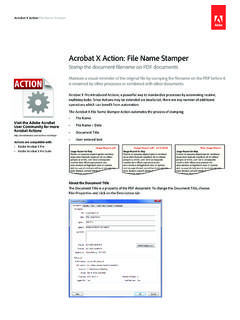
1 Acrobat X action Extract Commented PagesActions are compatible with: Adobe Acrobat X Pro Adobe Acrobat X Pro SuiteExtract Pages containing comments from multiple files as part of commenting workflow or to automate document X Pro introduced Actions, a powerful way to standardize processes by automating routine, multistep tasks. Since Actions may be extended via JavaScript, there are any number of additional operations which can benefit from Acrobat X Extract Commented Pages action processes multiple PDF files and extracts Pages in two ways to a subset of files from the original document and to a summary document containing all Pages extracted from source documents. Document 3 Page 1 Document 3 Page 2 Document 3 Page 3 Document 3 Page 4 Document 4 Page 1 Document 4 Page 2 Document 4 Page 3 Document 4 Page 4 Document 1 Page 1 Document 1 Page 2 Document 1 Page 3 Document 1 Page 4 Document 2 Page 1 Document 2 Page 2 Document 2 Page 3 Document 2 Page 4 Above: Source files are multiple PDF documents with annotations present on any page.
2 Below: Output process creates documents containing Pages with comments or a compiled document of all Commented Pages from all files in the 1 Page 1 Document 1 Page 4 Document 2 Page 2 Document 3 Page 2 Document 3 Page 3 Document 4 Page 4 Document 1 Page 1 Document 1 Page 4 Document 2 Page 2 Document 3 Page 2 Document 3 Page 3 Document 4 Page 4 Acrobat X action : Extract Commented PagesExtract Commented Pages from multiple filesVisit the Adobe Acrobat User Community for more Acrobat X action Extract Commented PagesWho benefits from extracting Commented Pages ? Lawyers who need to indicate privileged and non-priveleged Pages from documents Regulatory personnel who need to report on safety issues Anyone who regularly analyzes multiple documents and needs to compile resultsExtracting the Extract Commented Pages ActionBefore intsllaing the action , you will need to Extract it from this In the Attachments Panel at left, select Extract Commented Right-click and choose Save Attachment to your desktop or other convenient location Installing the Extract Commented Pages ActionTo install the Extract Commented Pages Action1.
3 Locate the Extract Commented file on your desktop (or other location)2. Double-click the file and click the Import button. The Edit Actions window will open and display the newly imported Action: 3 Acrobat X action Extract Commented PagesUsing the Extract Commented Pages ActionBefore using the Extract Commented Pages action , locate the files you wish to process. It s easiest if all of the files are in the same the Extract Commented Pages ActionTo run the Extract Commented Pages action , choose File> action Wizard> Extract Commented Pages or open the Tools Pane and choose the action Wizard to locate the Extract Commented Pages will ask you to confirm that you wish to run the action . Click the Next button. The Select Files Window will open: Click the Add Files or Add Folders button and locate the files you wish to process.
4 When finished, click the Next easy way to access Actions is through the action Wizard Tool PanelThe Select Files window does not allow you to reorder documents. If the order of processing is important to you, you can select and add one document at a time. The Extract Commented Pages action optionally outputs documents to individual files. You can use File> Create PDF> Combine files to a single PDF after running the action . This method allows you to put the extracted files in any order needed. 4 Acrobat X action Extract Commented PagesExtract Commented Pages action OptionsSelect the options for processing your Commented Choose whether to add all extracted Pages to the Summary File. A report document is produced which contains each Commented page from your source Choose if you wish to create a new set of documents which contain only Commented pages3.
5 Choose the file location for the documents containing only extracted pages4. Choose the file location for the Summary Document5. Set the name for Summary Document .6. Click the OK button to process documents. 5 Acrobat X action Extract Commented PagesWorking with the Summary DocumentDuring processing, the Extract Commented Pages action creates a Summary Document which includes information about the files that were you enabled Append extracted Pages to Summary Document when the action is run, each Commented page from your source file set will be added to the Summary Document resutling a new, compiled set of all Commented Pages . If you click the Show extracted Pages button in the document, the Bookmark Panel will open displaying links to extracted Pages from each of your source documents: Adobe Systems Incorporated 345 Park Avenue San Jose, CA 95110-2704 USA , the Adobe logo, Acrobat and the Adobe PDF logoare either registered trademarks or trademarks of Adobe Systems Incorporated in the United States and/or other countries.
6 2010 Adobe Systems Incorporated. All rights reserved. Questions and AnswersCan I edit the action ?Because the Extract Commented Pages action sets file destinations, you cannot edit or add steps to the want to use the Extract Commented Pages action to mark Pages for extraction. What s the fastest way to mark the Pages ?Try this workflow:1. Fit the page to the window CTRL-0 (Windows) and CMD-0 (Mac)2. Hit Page Down key to go to the next Hit CTRL-6 (Windows) or CMD-6 (Mac) to add a sticky note to the page. I added comments only to indicate the Pages I wanted to Extract . How do I delete the Comments?Open the Tools Pane and choose Protection. Select Remove Hidden Information. In the Remove Hidden information panel, deselect all options except for Comments. Click Remove. The Extract Commented Pages action created by WindJack Solutions, mission is to make Acrobat and PDF easier to use and more accessible for everyone.
7 We specialize in all the programming activities surrounding Acrobat and PDF, including plug-ins, JavaScript automation, form scripting, and server scripting. We have been at it since 1997 and we accomplish our mission by mentoring, writing articles, teaching classes, creating educational materials, lecturing at conferences and of course by creating our line of software products and services for assisting document designers and developers to get the most out of PDF. We are currently delivering our accumulated knowledge of PDF and Acrobat development to users through our membership website at : Make it an action !You can easily create an action to remove Comments. In the Edit Actions window, open the Protection pane and select Remove Hidden Information.