Transcription of AnyConnect Connection Guide - Cisco
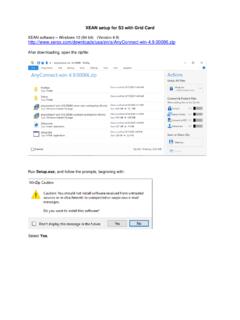
1 AnyConnect Connection Guide The Cisco AnyConnect VPN Client provides a method for Sandbox users to create a secure VPN Connection to a Sandbox Lab. This document will Guide users through the process of using AnyConnect to establish a VPN Connection to their reserved lab. Although the images in this document are specific to a Windows system, the Connection process on Mac OS systems should be essentially the same. 0) Download and Install If you have not yet downloaded and installed the AnyConnect VPN Client, you must do this first. Download AnyConnect VPN Client Install AnyConnect VPN Client 1) Launch Launch the AnyConnect VPN Client program: 2) Set Preferences You ll need to review and configure the AnyConnect options. After AnyConnect launches, you ll need to click on the Configuration button on the main panel.
2 See image below. 2 You will need to uncheck the option that says Block connections to untrusted servers . Your selection is immediately saved. Close the Configuration window. 3) Email with Connection Information You will receive an email when your Lab is fully provisioned, tested and ready for you to access. This email will contain three important pieces of information. 1) Your Lab s Network IP Address 2) Your VPN Username 3) Your VPN Password You ll need these pieces of information in several of the upcoming sections of this Guide . 3 4) Enter Your Lab s Network IP Address In the main entry field, enter your Lab s Network IP Address as provided in the email. Then choose Connect . 5) Accept the Certificate Warning After a few seconds, you ll see a new window notifying you of an Untrusted Server Certificate.
3 This is expected and not a real issue. Choose Connect Anyway . 4 6) Enter Your Network Credentials You ll see a new window prompting you to provide your Lab s network credentials. Enter the Username and Password as provided in the email. Choose OK . 7) Connection Status Next you ll see the main AnyConnect window go through several Connection states. When it has completed establishing the Connection , AnyConnect will iconify in the Notification Area of the Windows Taskbar. When you have an established VPN Connection , the AnyConnect icon will display a symbol of a padlock, as shown here. 8) You Are Connected! Congratulations! Your system is now on the same network as your Sandbox Lab. You can interact with resources in your lab by using either your Lab s Web Portal, or you can make connections directly to enabled devices by using tools such as PuTTY installed on your system.
4 5 9) Disconnecting When you wish to disconnect the VPN Connection , simply click on the AnyConnect icon (as shown in step 7). You ll see the main AnyConnect window. Choose Disconnect . Your AnyConnect icon will no longer display the padlock. Your system is now disconnected from your Lab s network.