Transcription of CAPSLink User Manual - capsorders.com
1 1 CAPSLink user Manual VERSION Updated on January 31, 20142 Table of Contents 1. BEFORE YOU BEGIN .. 4 SYSTEM REQUIREMENTS .. 4 ACCESSING CAPSLink AND ADDING CAPSLink TO YOUR BROWSER S FAVORITES .. 4 LOGGING IN TO THE APPLICATION .. 5 CREATING/EDITING CAPSLink user PROFILES.. 6 Adding a New user .. 7 user Titles .. 8 Security Questions and Password Recovery .. 9 Editing an Existing user Profile and Resetting Passwords .. 10 Inactivating/Reactivating a user Profile and setting an Expiration Date .. 11 Changing a Password .. 11 Password Expiration .. 11 2. NAVIGATION .. 12 NAVIGATING THE MAIN SCREEN .. 12 3. PATIENT MANAGEMENT .. 13 CREATING A NEW PATIENT PROFILE .. 13 Entering Patient Data .. 13 Assigning Allergies .. 14 Saving Changes .. 15 Setting Required Fields and Disabling Fields .. 15 VIEW/EDIT AN EXISTING PATIENT PROFILE .. 16 INACTIVATING A PATIENT PROFILE.
2 17 RETRIEVING AN INACTIVE PATIENT .. 18 4. NEW ORDERS .. 19 CREATING A NEW 19 Header Field .. 20 Entering a Volume/Rate .. 20 Volume Calculators .. 21 The 24 Hour Order Volume/Kg calculator allows you to calculate a TPN order volume by entering the patient s total daily fluid requirement and subtracting any other sources of fluid the patient is receiving. This calculator is accessed by clicking on the calculator icon to the right of the Order volume/kg calculator. Enter the appropriate volumes in each field of the 24 Hour Order Volume/Kg Calculator pop-up (fig 4-6) and click OK . The Order Volume field will be populated with the calculated value.. 21 Cyclic Orders .. 22 Route of Administration .. 23 Select Physician .. 24 Entering Electrolytes by Ion .. 24 Entering/Editing/Deleting Ingredients .. 24 Instructions/Comments .. 26 Printing an Sample Label Report or Sample Label.
3 26 PROCESSING A NEW ORDER .. 27 ENTERING A MINIMUM VOLUME ORDER .. 27 CHANGING A PATIENT WEIGHT .. 27 3 5. MANAGING ORDERS .. 28 THE PATIENT LIST .. 28 ORDER STATUS .. 29 ORDER PROCESSING .. 30 SENDING ORDERS TO CAPS FROM THE PATIENT LIST .. 31 CALCIUM PHOSPHATE SOLUBILTY .. 32 PHARMACY CUT-OFF TIME .. 33 OTHER PRESCRIPTION MANAGEMENT FUNCTIONS .. 34 Order Summary .. 34 View Errors .. 34 Order Profile .. 34 6. RELEASED TO CAPS WINDOW .. 35 RELEASED TO CAPS WINDOW .. 35 7. REPORTS .. 36 RELEASED TO CAPS .. 36 MIN/MAX LEVELS .. 36 ACTIVE ORDERS .. 36 ACTIVE PATIENTS .. 36 OTHER REPORTS .. 37 Order Approval Report .. 37 TPN Statistics Report .. 38 8. DRUG DELIVERY .. 39 ACCESSING THE DRUG DELIVERY MODULE .. 39 PLACING A DRUG DELIVERY ORDER .. 40 DRUG DELIVERY ORDER MANAGEMENT .. 41 Order History .. 42 9. MAINTENANCE/HELP .. 43 10. APPENDIX ORDER FLOW SHEETS.
4 45 FLOW SHEET - REFILLING AN ORDER .. 46 FLOW SHEET - MODIFYING AN ORDER .. 47 ENTERING A NEW ORDER .. 48 4 1. Before You Begin Welcome to CAPSLink . CAPSLink is a web based system for ordering TPN and other IV solutions from your CAPS pharmacy. Module Function Overview System Requirements Accessing CAPSLink and Adding CAPSLink to your Browser s Favorites. Logging into CAPSLink Creating/Editing CAPS Link user Profiles Inactivating user Profiles Changing a Password System Requirements Internet Explorer or greater Adobe Acrobat Reader or greater Windows 2000, XP, Vista, Window 7 Adobe Flash plug-in version 10 or greater 100MB free memory Dual core 2 GHz recommended Citrix or VMware View virtual environment supported Accessing CAPSLink and Adding CAPSLink to your browser s Favorites To connect to CAPSLink open your Internet browser and enter the following link in the address field: 5 At the login screen you can add CAPSLink to your Favorites by clicking on the link located below the CAPS Icon.
5 See Fig 1-1 below. Figure 1-1. Login window and Add to Favorites Link Logging in to the Application Figure 1-2. Logon Window Example 6 At the login screen you will see two large text fields on the right entitled Important Notices and News & Information. These contain important tips and announcements regarding the CAPSLink system (see Fig 1-2). In the upper left hand corner of the login screen enter your CAPSLink user ID and Password. Your Password is masked by asterisks (*) as you type to prevent others from viewing. To complete the logon process press Enter on your keyboard or left mouse click the Secure Login button. If this is the first time logging into CAPSLink you must use the password that was assigned to you when your user profile was created. The creator of your user profile will supply you with this password. When you login you will be prompted to answer 2 security questions. This information will be stored with your profile incase you forget your password and need to retrieve it (see section below on retrieving forgotten passwords).
6 You will also be prompted to change your password after your first login. Passwords must: Be between 6 and 10 characters in length Contain at least one upper and lower case alpha character Contain one numeric character. NOTE: If you do not know your user ID and Password, see your Pharmacy Director. When you log into the CAPSLink program you may have the option to enter the TPN/Custom Rx or Drug Delivery modules (Figure 1-3). Select the TPN option for processing TPN orders and other patient specific orders or Drug Delivery to order other sterile compounded products. Figure 1-3. TPN/Custom Rx or Drug Delivery Options Creating/Editing CAPSLink user Profiles. If you are a user with Administrative access you can create user profiles for your staff. After logging into CAPSLink , select the user Management link under Administrative Options in the left hand navigation pane. You will be presented with a list of user profiles that are currently in the system (fig 1-4).
7 You can filter this list for active/inactive profiles by using the radio buttons at the top left of the window: 7 Figure 1-4. user Profile List Adding a New user Click on the Add New user button at the top of the page. The user Maintenance window will display (fig 1-5). Enter the user s last and first names and enter a unique user ID between 6 and 10 characters in length. Select a user title using the drop-down (see section for more information on user titles). After a title is selected the software automatically selects the recommended user privileges for the selected user title. You may also select the user privileges manually by clicking or unclicking the checkbox next to each privilege (see section for more information on user Privileges). The system will also assign a random password that conforms to the system password requirements. Enter an expiration date if you want this user account to expire automatically (see section below).
8 Write down the user ID and new password for the user , as you will not be able to retrieve the same password later. Click Save after you have completed the user profile. The user can log into the system with their user ID and randomly generated password. After they have logged in, the application will prompt them to change their password. user Privileges: Patient Read patient profile data viewable but not editable Write patient profile data viewable and editable TPN Order Entry Read Order data viewable but not editable Write Order data viewable and editable. Can create/edit/save/approve an order. Approve Warning allows user to override a Warning level message on validation. Critical allows a user to override a Critical level message on validation. System Reports Reports are viewable 8 Admin Ability to create/edit user profiles, read/write access to Prescriber and Area Maintenance.
9 Drug Delivery Access to the Drug Delivery (Anticipatory Compounded Products) module. Figure 1-5. user Maintenance Window user Titles Technician By default a Technician user can create patient profiles and TPN orders but cannot validate (approve) an order. Pharmacist By default a Pharmacist user can create patient profiles and TPN orders and can validate (approve) TPN orders. DOP This user has the same user privileges as a Pharmacist but can also create/edit user profiles. 9 Clinician The Clinician user is able to enter and save orders. Clinician users can also open other Clinician generated orders and make changes. The status of an order initiated by a Clinician user is With Clinician . The clinician can run validation against the order to view the validation warnings, but they cannot validate the order. When the Clinician user is ready to make the order available to a Pharmacist for review and validation they must click the Send to Pharmacy button in the Order Maintenance screen (see Fig 1-6).
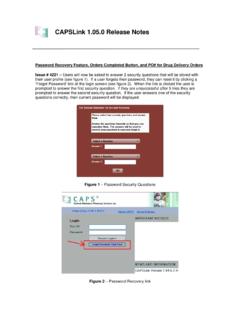
10 Once this is done the order status changes to Needs Validation and can only be accessed and validated by a Pharmacist or DOP user . Clinician users can edit orders that were previously created by another Clinician user . If a Clinician user enters and order their name will automatically appear in the Prescribed By field in the order. The prescriber is also visible from the main patient list screen. Fig 1-6 Order Entry Screen Clinician user Security Questions and Password Recovery On first login users will be asked to answer 2 security questions that will be stored with their user profile (see figure 1-7). If a user forgets their password, they can reset it by clicking a Forgot Password link at the login screen (see figure 1-8). When the link is clicked the user is prompted to answer the first security question. If they are unsuccessful after 5 tries they are prompted to answer the second security question.