Transcription of Connected Components Workbench Software Quick Tips
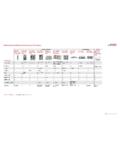
1 Connected Components Workbench Software Quick Tips Main Window Controller Organizer or Instruction Central Themes Micro800 Simulator Project Organizer Toolbar Workspace Toolbar Toolbar Instruction Toolbox Add Device Selector Properties Pane Status Bar Find out more at the Connected Components Workbench Software page Organizer View Themes Toolbar Choose between the Controller Organizer or IEC theme for Project Organizer view Ladder Editor Logix theme for Ladder Editor Project Organizer Controller Organizer Available in Connected Components Workbench . Software version 13 or later Micro800 Simulator Toolbar Add Device New organizer Start/Exit Simulator Fault Status Selector view for enhanced user experience Right-click and Power On Sync Plug-in and select Change Expansion I/O. Controller to Right-click to switch between add new Task, controller types routines and interrupts Connection and Run Mode Change Connect/Disconnect Upload Clean Right-click to add Structured Text, Program Ladder Diagram arrangements or Function Block and edits are Diagram reflected in both Verify Build Download views Test Logic Accept Discard Drag-and-drop Programs to different positions in order to change the execution Start/Stop order Run Mode Change Data Grid Available in Connected Components Workbench Software version 13 or later Find the right tags easily using Filters Switch between Local and Global Variable data grid Create multiple tags in one click with Quick Declaration Monitor individual status through Bit addressing for all integer-type variables Ladder Diagram Editor Instruction Toolbar Keyboard Shortcuts Branching Scroll Mouse over Instruction Right-click Instruction to Add to Ctrl-R enables/disables Variable Drop Branch tabs for description or Remove from Favorites Selector after drag-and-drop of around Instruction Instructions Click to show Drop list of all Branch Instruction after Groups Instruction Hit TAB key after entering Instruction Click to hide or
2 Unhide Whole name to auto-complete Branch Start Instruction Toolbar or ASCII Branch is (BST) and to auto-create Instruction Text Input Pane Status Bar selected Block instance names Zoom Variables Single Zoom In Zoom to Fit All Single-click to select Select level of variables Instruction Branch and hit F1 to selected invoke context sensitive help Zoom Out Zoom to Page Width Select Contact Only If toolbars are not visible, right-click on or Coil and hit Instruction area where toolbars are to enable toolbars. SPACEBAR to selected From there, enable Zoom Double-click to declare scroll through Zoom is also available by holding down new variable available types Ctrl and using mouse wheel Structured Text Editor Import/Export Project and Archive Manager Variable Selector Archive Manager Ctrl-I brings up the Create and delete archive Variable Selector, Requires Developer Edition so you can select a variable instead of typing it Instruction Block Selector Import/Export Project Ctrl-R brings up the Block Selector Import or Export the entire project including archives, as a CCWARC file type Structured Text Editor Toolbox Drag-and-drop of language elements User-defined Function (UDF) or User-defined Data Type (UDT).
3 User-defined Function Block (UDFB) Requires Developer Edition Right-click and select Add Right-click on Data Types and Open Right-click on UDF to add Parameters Select either user-defined Arrays, Structures, or Defined Words (constants). For Structures, enter name of new Data Type Enter each field New Data Type will be available when a new variable is Right-click on UDF to Rename created Allen-Bradley, Connected Components Workbench , expanding human possibility, FactoryTalk, Guardmaster, Kinetix, Micro800, Micro850, micro870 , PanelView, PowerFlex, Rockwell Automation and TechConnect are trademarks of Rockwell Automation, Inc. Trademarks not belonging to Rockwell Automation are property of their respective companies. Publication 9328-SP002D-EN-P November 2020 | Supersedes Publication 9328-SP002C-EN-P March 2019 Copyright 2020 Rockwell Automation, Inc. All Rights Reserved.