Transcription of CREATING ACCESSIBLE MICROSOFT WORD 2007/ …
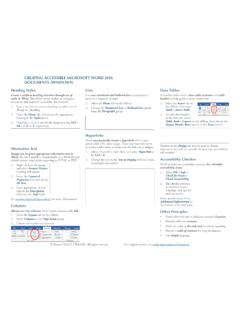
1 CREATING ACCESSIBLE MICROSOFT WORD 2007/ 2010 DOCUMENTSH eadingsCreate a uniform heading structure through use of styles in Word. This allows screen readers to navigate a document , and improves accessibility for and Editing HeadingsHeadings can be created using the Styles toolbar. 1. Select the text and click on the appropriate style. ( Heading 1 )2. Headings 1, 2, or 3 can also be assigned using CTRL + ALT + 1, 2, or 3, respectively. Alternative text for Images Images can be given appropriate alternative text in Word. This alt text is read by a screen reader in a Word file and should remain intact when exporting to HTML or 20071. Right-click on the image and select Size. A dialog box will Select the Alt Text tab, and replace the filename with appropriate alternative 20101.
2 Right-click on the image and select Format Picture. A dialog box will appear. 2. Select the Alt Text tab on the sidebar. Enter appropriate alt text to the Description field, not the Title field. ColumnsWhen CREATING columns, always use true columns, not columns created by hand with the Tab key. CREATING Columns1. Select Page Layout on the Select Columns in the Page Setup Tables Use the Insert Table command to create tables, not by hand with spaces or the Tab key. There is no way to easily create table headers in Word. The first row can be identified as table headers in PDF (but not in HTML). To do this, Right click on the first row in the table and select Table Properties > Row> Repeat as header row at the top of each automatically creates a hyperlink when a user pastes a full URL onto a page.
3 These may not make sense to screen reader users, so more information is Hyperlinks1. Select a hyperlink, right click, and select Edit Hyperlink or CTRL + k. 2. Change the URL in the Text to Display field to a more meaningful true numbered and bulleted lists to emphasize a point or a sequence of Lists1. Select Page Layout on the Select Bullets and Principles Ensure that font size is sufficient, around 12 points. Provide sufficient contrast. Don t use color as the only way to convey content. Provide a table of contents, especially for long documents. Use simple 2010 Accessibility CheckerWord 2010 includes an accessibility resource that identifies and repairs accessibility issues. Running the Accessibility Checker1.
4 Select File> Info> Check for Issues> Check Accessibility. 2. The checker presents accessibility errors, warnings, and tips on how to repair the errors. Docx formatThe docx format supports Word 2007 and newer. For a more widely supported file format, consider saving files as Word 97-2003, or doc format. 2012 Project GOALS All rights reserved. Contact us at or # For more information go to Made possible by a grant from the Fund for the Improvement of Postsecondary Education (FIPSE), US Department of Education. No official endorsement ACCESSIBLE MICROSOFT POWERPOINT 2007/ 2010 PRESENTATIONSData Tables PowerPoint can style rows and columns so they appear as data tables, but there is no way to add content in a way that will be identified by a screen reader.
5 If your presentation contains more than the simplest tables, and if you have Adobe Acrobat, consider saving your presentation to PDF and adding the additional accessibility information in Acrobat automatically creates a hyperlink when a user pastes a full URL onto a page. These may not make sense to screen reader users, so more information is Hyperlinks1. Select a hyperlink, right click, and select Edit Hyperlink or CTRL + k. 2. Change the URL in the Text to Display field to a more meaningful LayoutsUsing slide layouts provided within Powerpoint will ensure that files have correctly structured headings and lists, and proper reading Slide Layouts1. Select Home> New Slide, or select the New Slide button from the default tool Choose from the slide options menu the desired text for Images Images can be given appropriate alternative text in PowerPoint.
6 This alt text is read by a screen reader in a PowerPoint file and should remain intact when exporting to HTML or 20071. Right-click on the image and select Size and Position. A dialog box will Select the Alt Text tab, and replace the filename with appropriate alternative 20101. Right-click on the image and select Format Picture. A dialog box will appear. 2. Select the Alt Text tab on the sidebar. Enter appropriate alt text to the Description field, not the Title field. Outline and Notes PanelsPowerPoint contains two panels that can be used to enhance accessibility: the outline panel and the notes panel. Outline Panel The outline panel contains a text outline of the content that appears in your slides.
7 Reviewing this panel can help ensure the content on the slides is logically sequenced, that slide titles are unique and meaningful, and that reading order is appropriate for any user. Notes Panel The notes panel allows the speaker to add notes and information that will not appear on the slides. Placing image or chart descriptions in this area should be avoided. This information may not be accessed by a screen reader, so use with Principles Ensure that font size is sufficient. If your presentation will be viewed on a projector, font size may need to be even larger. Provide sufficient contrast. If your presentation will be viewed on a projector, sometimes the contrast needs to be even more pronounced. Do not use color as the only way to convey content.
8 Avoid automatic slide transitions. Use simple slide transitions when possible. Use simple language. Check reading order of text boxes that are not part of the native slide layout. They are usually the last thing read by a screen reader. If you have embedded video, ensure that the video is captioned, and that the player controls are ACCESSIBLE . If you have embedded audio, include a transcript. If your slides contain animations, ensure that they are brief and do not distract from the most important content on the 2010 Accessibility CheckerPowerPoint 2010 includes an accessibility resource that identifies and repairs accessibility issues. Running the Accessibility Checker1. Select File> Info> Check for Issues> Check Accessibility.
9 2. The checker presents accessibility errors, warnings, and tips on how to repair the errors. Pptx formatThe pptx format supports PowerPoint 2007 and newer. For a more widely supported file format, consider saving files as PowerPoint 97-2003, or ppt format. 2012 Project GOALS All rights reserved. Contact us at or # For more information go to Made possible by a grant from the Fund for the Improvement of Postsecondary Education (FIPSE), US Department of Education. No official endorsement CONVERSION IN MICROSOFT WORD 2007/ 2010 DOCUMENTSC onverting to PDFTo produce ACCESSIBLE PDF files for the web, the following requirements must be met:1. The file must meet accessibility standards by providing alternative text for images, proper headings, appropriate link text, etc.
10 2. The file must be exported correctly. If a file is created by printing to PDF, it will not be correctly Office 2007 users must have either Acrobat or the MICROSOFT PDF add-in installed. Office 2010 users can create tagged PDF files natively or with the Adobe following instructions can also be used to convert PowerPoint files to 2007 Adobe Add-inThe Adobe Add-in, also called PDFM aker, is the best choice to create high-quality tagged PDF files. 1. To export a PDF, click on the Office button, hover over Save As, and select Adobe PDF (or use shortcut Alt+F, F, A).2. Or you can select Create PDF from the Acrobat ribbon. A dialog box will The program should create a tagged PDF file by default. If not, select Adobe PDF Conversion Options and select the Create ACCESSIBLE (Tagged) PDF file Add-inWord 2007 offers a free Save as PDF Add-in that allows you to create tagged PDF files without installing Acrobat.