Transcription of Creating Accessible PowerPoint Presentations - CDL
1 MS PowerPoint 2007 Creating Accessible PowerPoint Presentations !"#$%&'()*+,-.'*/0012*!""#$$%&'#!(#")*+' +,-!!.*%/%0/%1#!2!(.3!+4!/)#!!50'%4+6*%0 !7/0/#!8*%1#6$%/-!!"#$!%"&&'!3)%45-*67($ $&8.,$&4,4(9()"*()*#!+,- 4(;4*3)%45-*(',-&&./'0'-1"2-!34*5'6)74"* :5<=*3)%45-*!8"#2!3*"#2/'0'-1"2-!>'(*.5;4(;4*5?*4'%&*4"45-%,$*% )*%;*4'(*<"#$%.*)5B,%;9**C5"*,-(*(;.5"-,D()*45*"&(*%4E*&',-(*%4E*<5 *=5"-*F(#* )G5-*=5"-*5-D,;%H,4%5;I *?-5B*>'(*M>J9**F(*-(N"(&4*4',4*-("&(*5-*-(O)% *5?*4'%&*<"#$%.,4%5;*% %()*#=*,<<-5<-%,4(*,44-%#"4%5;*45*4'(*M>J*7'%.'*.,;*#(*?5";)*5;*4'(*F(#*,4*46679 ::6"#,45$;,)<<)$'1,2&1"2-:#,,"''!TUTORIA L DESCRIPTION .. 1!Overview 1!Prerequisites 1!Objectives 1!How to use this Document 1! Creating AN Accessible PowerPoint .. 2!What is Accessibility? 2!What Makes a PowerPoint Accessible ? 2! PowerPoint Interface 3!Slide Layout 4!)))))))))))))
2 Inserting Hyperlinks 5!Inserting Hyperlinks 5!Alternate Text for Images 6!Adding Alternate Text to Images 6!Grouping Images 7!Adding Alternate Text to Grouped Images 8!Write Long Descriptions in Notes Pane 9!Formatting Tables and Charts 10!Insert Table 10!Insert Chart 11!Edit Chart 11!RESOURCES .. 13!Online Resources 13!CSU Online Resources 13!Getting Help on Your Campus 13!Acknowledgement 13! TUTORIAL DESCRIPTION Overview "#$%&!'()!*(+!,$&-%.!,-/0!,(!$11011!$%2! +0/02-$,0!'()+!3(40+3(-%,!5+010%,$,-(%16 !7-8+(1(*,!3(40+3(-%,!-1!$!5(5)9$+!$559- 8$,-(%!*(+!8+0$,-%.!2'%$/-8!5+010%,$,-(% 16!3+010%,$,-(%1!8+0$,02!4-,#-%!3(40+3(- %,!8$%!8(%,$-%!,0:,;!.+$5#-81;!$)2-(;!<-20(;!$%2!/(+06!=)0!,(!,#0!<-1)$9!%$,)+0!(* !$!2-<0+10!1,)20%,!>(2'6!!"#010!.)-209-%01!40+0!4+-,,0%!*(+! ,#0!BCCD!<0+1-(%!(* !7-8+(1(*,!E**-80!3(40+3(-%,6!"(5-81!8(< 0+02!-%!)))))))))))))))))))))))))
3 ,#-1!,),(+-$9!-%89)20!8+0$,-%.!$88011->9 0!3(40+3(-%,!,#+().#!,#0!)10!(* !19-20!9$'(),1;!$9,0+%$,0!,0:,!*(+!-/$.0 1;!,#0!%(,01!5$%0;!8#$+,1!$%2!.+$5#1!$%2 !#'50+9-%&16!F01()+801!+09$,02!,(!$88011 ->90!2(8)/0%,1!$+0!9-1,02!$,!,#0!0%2!(* !,#-1!,),(+-$96!!!!Prerequisites G%2-<-2)$91!)1-%.!,#-1!,),(+-$9!1#()92!#$<0!>$1-8!8(/5),0+!1&-991!$%2!,#0!$>-9-,'!,(! 4(+&!4-,#!,#0!H-%2(41!(50+$,-%.!1'1,0/6! !Objectives I*,0+!8(/590,-%.!,#-1!,+$-%-%.!'()!1#()9 2!>0!$>90!,(J!! =0*-%0!4#$,!/$&01!$!3(40+3(-%,!$88011->9 0!! A)-92!$!5+010%,$,-(%!)1-%.!19-20!9$'(),1 !! I22!$9,0+%$,-<0!,0:,!,(!2018+->0!.+$5#-81!8(%,$-%02!-%!3(40+3(-%,!5+010 %,$,-(%1!! K10!%(,01!5$%0!,(!-%,0+5+0,!!8(/590:!-/$ .01;!*9(4!8#$+,1;!,$>901!$%2!8$5,-(%1!*( +!$)2-(!! L+0$,0!8#$+,1;!.+$5#1!$%2!,$>901!4-,#!,# 0!3(40+3(-%,!$559-8$,-(%!! M(8$,0!+01()+801!,(!8(%<0+,!!3(40+3(-%,!,(!$88011->90!N"7M;!))))))))))))))))))))))))))))))
4 M081#$+0!$%2!3=O!*-901!!!How to use this Document P$8#!108,-(%!-1!2-<-202!>'!#0$2-%.16!H-,#-%!,#0!#0$2-%.1;!2-+08,- (%1!$+0!4+-,,0%!$1!$!%)/>0+02!9-1,6!H-,# -%!0$8#!9-1,;!,#0!%$/01!(* !/0%)!-,0/1!$+0!>(9202!*(+!?)-8&!+0$2-%. 6!Q8+00%!1#(,1!$%2!2-$.+$/1!$+0!9$>0902! *(+!0$8#!1,056!G%2-<-2)$9!5$.01!#$<0!"-5!>(:01!,(!-%89)20!$22-,-(%$9!-%*(+/$,-(%!% (,!-%89)202!-%!,#0!1,0516!F01()+801!$+0! -%89)202!$,!,#0!0%2!(* !,#0!2(8)/0%,6! CSU: Accessible Technology Initiative Creating Accessible PowerPoint Presentations 1 Creating AN Accessible PowerPoint What is Accessibility? !I88011->-9-,'!-%!,0+/1!(* !0908,+(%-8!2(8)/0%,1!.0%0+$99'!+0*0+1!, (!*$8-9-,$,-%.!,#0!)10!(* !,08#%(9(.'!*(+!50(590!4-,#!2-1$>-9-,-01 6!3+(<-2-%.!0?)-<$90%,!$88011!,(!0908,+(%-8!2(8)/0%,1!*(+!$99!*$8)9,';!1,$** !$%2!1,)20%,1!,#+().#(),!,#0!LQK!1'1,0/!-1!+0?)-+02!>'!QARCB6!))))))))))))))
5 "#-1!Q0%$,0!A-99!0:,0%21!,#0!+0?)-+0/0%, 1!(* !Q08,-(%!SCT!(* !,#0!O020+$9!F0#$>-9-,$,-(%!I8,!,(!,#0!L $9-*(+%-$!Q,$,0!K%-<0+1-,'6!"(!90$+%!/(+0!$>(),!$88011->-9-,'!+0?)-+0/0%,1!*(+!,#0!L QK;!+0*0+!,(!,#0!*(99(4-%.!H0>!1-,0!$>() ,!,#0!I88011->90!"08#%(9(.'!G%-,-$,-<0J!#,,5 JUU44468$91,$,0602)U$88011->-9-,'U6!"#0!89$+-,'!$%2!9(.-8!>+().#,!,( !5+010%,$,-(%1!,#+().#!$88011->-9-,'!$11 011/0%,1!$%2!+0/02-$,-(%!$**08,1!,#0!0%, -+0!1,)20%,!>(2'!$%2!*$8)9,'!>'!1)55(+,- %.!502$.(.-8$9!0%.$.0/0%,!$%2!1)880116!! "#0!*(8)1!(* !,#-1!,),(+-$9!-1!,(!8+0$,0!2(8)/0%,1!,# $,!$+0!$88011->90!,(!-%2-<-2)$91!4-,#!$!<-1)$9!-/5$-+/0%,!$%2!,#$,!+0?)-+0!,#0!)10!(* !$11-1,-<0!,08#%(9(.';!1)8#!$1!$!18+00%!+0$20+!(+!,0:,!/$.%-*-8$,-(%!1(*,4$+0!,(!%$<-.$,0!$%2!+0$2!2(8)/0%,16!=0$* !$%2!#$+2V(*V#0$+-%.!1,)20%,1!>0%0*-,!*+(/!8$5,-(%02!$)2-(!$%2!<-20(!4- ,#!-%!$!5+010%,$,-(%6!)))))))))))))))))) )))))
6 Q,)20%,1!4-,#!5#'1-8$9!2-1$>-9-,-01;!90$ +%-%.!2-1$>-9-,-01!$%2!P%.9-1#V9$%.)$.0! 90$+%0+1!$91(!>0%0*-,!*+(/!,#0!*(+/$,,-% .!*0$,)+01!(* !$%!$88011->90!5+010%,$,-(%6!What Makes a PowerPoint Accessible ? !I88011->90!3(40+3(-%,!5+010%,$,-(%1!8$% !>0!+0$2!>'!$99!1,)20%,1!+0.$+29011!(* !$55$+0%,!2-1$>-9-,'6!Q508-*-8!$88011->- 9-,'!+0/02-$,-(%!*(+!$11-1,-<0!,08#%(9(.'!$99(4!18+00%!+0$2-%.!1(*,4$+0;!)102!>'!50(590!4-,#!<-1)$9!-/5$-+/0%,1!,(!+0$2!/$,0+-$9!(%!,#0!18+00%!(),!9()26!L$5,-(%02!$)2-(!$88(/5$%'-%.!,#0!3(40+3(-%,!$99(41!50(590!,(!+0$2!-,!4#(!8$%%(,!#0$+!,#0!5+010%,$,-(%6!I22-,-(%$99'!$88011->90!3(40+3(-%,!5+010%,$,-(%1!-%89)20!!!"# $%&$'%()3+010%,$,-(%1!$+0!5+05$+02!$#0$2 !(* !,-/0!$%2!+0#0$+1026!!N$<0!$%!0908,+(%-8!8(5'!5(1,02!-,!,(!'()+!8()+10!40>1-,0!!!*+,&)'"-%$.+/0&$"-%()N$<0!$9,0+%$,-<0!,0:,!,#$,!2018+->0!$99!-/$.01!-%!,#0!2(8)/0%,!))))))))))) )))))))))))))))))))
7 !K10!,#0!%(,01!5$%0!,(!2018+->0!8(/590:! -/$.01;!*9(48#$+,1;!,$>901;!$%2!$)2-(!!L (%<0+,!#'50+9-%&1!,(!,#0!%$/0!(* CSU: Accessible Technology Initiative Creating Accessible PowerPoint Presentations 2 PowerPoint Interface !3$#2/+)45)6"7+/6"$-&)8-&+/90'+)!!!!T I P:!F02)80!(+!+0/(<0!*$1,!5$802!(+!<-1)$99'!8(/590:!,+$%1-,-(%16!"#010!,0%2!,(!8$)10!18+00%!+0$20+1!,(!+0V+0$2!,#0!5$.0!0$8#!,-/0!$!,+$%1-,-(%!(88)+16!!T I P:!I99(4!1,)20%,1!,(!<-04!,#0!19-20!5+010%,$,-(%!-%!*)99!02-,-%.!/(20!4#0+0!,#0'!#$<0!,#0!8(%,+(9!,(!<-04!,#0!5+010%,$,-(%!$,!,#0-+!(4%!5$806!!"#0!:"&+%)60-+!-1!)102!,(!5+(<-20!9(%.!2018+-5,-(%1!*(+!8(/590:!.+$5#-81!(+!$)2-(!$2202!,(!,#0!5+010%,$,-(%6!"#0!;&0#+!8$%!-%89)20!-/$.01;!,0:,;!8#$+,1;!.+$5#1;!$)2-(!$%2!<-20(6!"#0!;<$.+%)0-.)=2&<$-+)60-+%)8(%,$-%!$99!,#0!,0:,!*+(/!,#0!19-20;!-* !,0:,!#$1!>00%!$2202!8(++08,9'6!))))))))))))))))))) ))
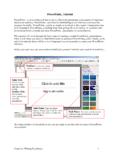
8 !! CSU: Accessible Technology Initiative Creating Accessible PowerPoint Presentations 3 Slide Layout !$99!,#0!,0:,!-%!,#0!5+010%,$,-(%!-1!8(% ,$-%02!-%!,#0!E),9-%0!3$%0!,#0%!$!18+00% !+0$20+!8$%!0$1-9'!+0$2!-,6!"#0!19-20!9$ '(),1!#095!20*-%0!,#0!5(1-,-(%!(* !,-,901;!1)>,-,901;!,0:,;!8(%,0%,!$%2!(> W08,1!-%!,#0!19-206!"#0!*-+1,!19-20!'()! 4-99!100!4#0%!3(40+3(-%,!(50%1!-1!,#0!"- ,90!Q9-20!9$'(),6!"(!8#((10!$22-,-(%$9!1 9-20!9$'(),1J!%&+>)45 Go to the Home tab on ribbon at the top of the screen %&+>)?5 Select Layout icon and click on the arrow to see Office Theme dialogue box %&+>)@5 Choose a theme to match your content %&+>)A5 Input content into designated text boxes. Adding extra text boxes to predefined layouts will disorganize reading order for a screen reader 3$#2/+)?5)=99$'+)*B+C+%)!!!!!T I P:!I<(-2!)1-%.!$!D<0-E!19-20!9$'(),!))))
9 >08$)10!,#0'!2(!%(,!8(%,$-%!59$80#(920+1 !*(+!,-,901!$%2!,0:,!$%2!4-99!%(,!>0!+0$ 2!0$1-9'!>'!$11-1,-<0!,08#%(9(. '!20<-801!9-&0!$!18+00%!+0$20+6!T I P:!P%1)+0!,#$,!0$8#!19-20!#$1!$!2-1,-%8,-<0!,-,906!"#-1!4-99!#095!$99!1,)20%,1!%$<-.$,0!$%2!)%20+1,$%2!,#0!9(.-8$9!*9(4!(* !,#0!2(8)/0%,6!T I P:!7$&0!*(%,!1-@0!$,!90$1,!RC!5,16!M-/-,!>)990,!5(-%,1 JRVD!50+!19-20!Select Layout icon and click on the arrow to see Office Theme dialogue box. CSU: Accessible Technology Initiative Creating Accessible PowerPoint Presentations 4 !Inserting Hyperlinks Hyperlinks are elements within electronic documents that link to another section in the document, to another document, or more commonly, to an Internet resource. When inserting a hyperlink, provide a title for the URL or document. Screen reading software is able to pull all the hyperlinks into an index table.))))))))
10 It will enhance readability if the list of hyperlinks in this table is informative rather than a list of long URLs or non-descriptive words such as, Click here. Inserting Hyperlinks 1. Input the name of the URL, file or email address on the PowerPoint slide ! name of your web site, California State University Web Site. 2. Highlight this text; it will become the hyperlink people will read. 3. Select Insert Tab at the top of the page on the ribbon. 4. Select Hyperlink. The Insert Hyperlink window will appear as below. 5. On the left hand side of the dialogue box, select Existing File or Web Page, Place in This Document, Create New Document, or E-mail Address, depending on your link. 6. If the link is to an Internet resource, type the URL in the Address text box at the bottom of the dialogue box. 7. Click OK. 3$#2/+)@5)8-%+/&)F1>+/<$-E)) =018+-5,-<0!