Transcription of CRP123 and CRP129 Registration Process - Launch Tech
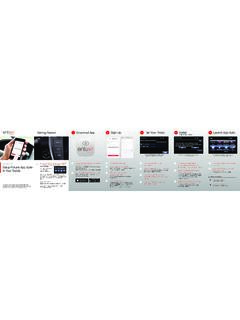
1 CRP123 and CRP129 Registration Process 1. Go to and click the CRP123 or 129 once click update icon. (Figure 1) Figure 1 2. Download and install the CRP123 or 129 update tool and Launch the program when installed. 3. You will be prompted to type in the serial # (located on the back of the tool) (Figure 2) Figure 2 4. After the Serial # is entered select update and enter the following information. Click Submit (Figure 3) Figure 3 (If you need the Register Code proceed to the steps 5 8) (If you have the Register Code proceed to step 9) 5. The Register code can be found by connecting the supplied USB cord to the CRP12X and inserted into the computer. 6. When the tool has powered up, place curser on the Help icon and press the OK button.
2 (Figure 4) Figure 4 7. Select Tool Information press OK. (Figure 5) Figure 5 8. This is the Register Code number for inputting into step 4 (Figure 6) Figure 6 (Return to step 4 and input the code and then proceed) 9. Install the TF card from the tool into the supplied USB TF card adapter and insert into USB port of CPU. 10. Reopen the CRP update Suite and select the updates you would like to preform or click select all and click Download. (Figure 7) Figure 7 11. Once all steps are complete, reinsert the TF card into the tool and power the tool via USB in computer or via OBD2 port in vehicle. The tool will prompt you to upgrade, select OK button on tool to proceed. (Figure 8) Figure 8 12. The Registration Process is now complete!
3