Transcription of DIGITAL VOICE RECORDER DS-2 - Olympus …
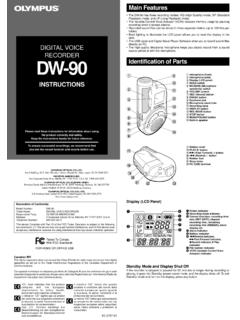
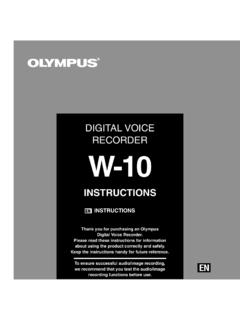
1 DIGITAL VOICERECORDERDS-2 INSTRUCTIONS Thank you for purchasing an OlympusDigital VOICE read these instructions for informationabout using the product correctly and the instructions handy for future ensure successful recordings, werecommend that you test the record functionand volume before of ContentsTable of Contents .. 2 Safe and Proper Usage .. 4 General Precautions .. 51 Getting StartedMain Features .. 6 Identification of Parts .. 9 Inserting Batteries .. 12 Setting Time/Date (TIME&DATE) .. 132 Menu SettingMenu List .. 153 About 17 Recording Modes (REC MODE) .. 19 Using the Variable ControlVoice Actuator (VCVA) .. 20 Microphone Sensitivity (MIC SENSE) .. 224 About PlaybackPlaying .. 23 Repeat Playback.
2 28 Noise Cancel Function .. 305 Other 31 Index Marks .. 35 LCD Display Information .. 37 Formatting the RECORDER (FORMAT) .. 396 Preparation Before UsingDSS PlayerUsing DSS Player Software .. 41 Operating Environment .. 42 Installing Software .. 43 Using Online Help .. 46312345678910 Connecting to Your PC .. 47 Running DSS Player .. 527 DSS Player ExpandedFunctionsUpgrade Function .. 548 Other Practical Use MethodsUsing as External Memoryof the Computer .. 569 Other InformationAlarm Message List .. 57 Troubleshooting .. 59 Accessories (optional) .. 62 Technical Assistance and Support .. 634 Safe and Proper UsageBefore using your new RECORDER , read thismanual carefully to ensure that you knowhow to operate it safely and this manual in an easily accessiblelocation for future reference.
3 The warning symbols indicate important safetyrelated information. To protect yourself andothers from personal injury or damage toproperty, it is essential that you always read thewarnings and information the OnlineManualWhen you install the DSS Player on your PCfrom the CD-ROM, you can use an onlineexpanded version of this instruction manual,allowing you to learn more about the digitalvoice the DSS Player is installed, click on the [Start]button, select [All Programs], then [ OLYMPUSDSS Player], then click on [DS-2 ONLINEINSTRUCTIONS]. You can read more about theitems listed 12 Menu Setting 16 Recording from External Microphoneor Other 26 Timer Recording (TIMER REC).. 28 Listening While Audio is Recorded(Recording Monitor).
4 32 Changing the Playback Speed(PLAY SPEED).. 39 Continuous Playback (ALL PLAY).. 41 Auto Backspace Review(BACK SPACE).. 44 Skip Interval Setting (SKIP SPACE).. 45 Alarm Playback Function (ALARM).. 48 Locking Files (LOCK).. 55 LCD Contrast Adjustment(CONTRAST).. 58 Backlight (BACKLIGHT).. 59 System Sounds (BEEP).. 60 Assigning Folder Names(FOLDER NAME).. 61 Assigning File Comments(COMMENT).. 64 Moving Files Across 65 Uninstalling 75 Window Names (DSS Player).. 85 Download VOICE Filesfrom the 86 Play a VOICE 88 Upload VOICE Files to the 89 Send VOICE Files with 91 Changing User 91 Changing a Folder 92 Editing File 92 Editing a 93 USB Microphone/USB 94 Using VOICE Recognition 98 Joining 106 Splitting 108 Menu Setting of this 110 Changing the USB Class(USB CLASS).
5 1115 Batteries Warning Batteries should never be exposed toflame, heated, short-circuited ordisassembled. Do not attempt to recharge alkaline,lithium or any other non-rechargeablebatteries. Never use any battery with a torn orcracked outer cover. Keep batteries out of the reach ofchildren. If you notice anything unusual whenusing this product such as abnormalnoise, heat, smoke, or a burning odor:1remove the batteries immediatelywhile being careful not to burnyourself, and;2call your dealer or local Olympusrepresentative for service. Do not leave the RECORDER in hot,humid locations such as inside aclosed automobile under directsunlight or on the beach in thesummer. Do not store the RECORDER in placesexposed to excessive moisture ordust.
6 Do not use organic solvents such asalcohol and lacquer thinner to cleanthe unit. Do not place the RECORDER on top ofor near electric appliances such asTVs or refrigerators. Avoid recording or playing back nearcellular phones or other wirelessequipment, as they may causeinterference and noise. If youexperience noise, move to anotherplace, or move the RECORDER furtheraway from such equipment. Avoid sand or dirt. These can causeirreparable damage. Avoid strong vibrations or shocks. Do not disassemble, repair or modifythe unit yourself. Do not operate the unit whileoperating a vehicle (such as abicycle, motorcycle, or go-cart). Keep the unit out of the reach Precautions<Warning regarding data loss>Recorded content in memory may bedestroyed or erased by operatingmistakes, unit malfunction, or duringrepair is recommended to back up and saveimportant content to other media such asa computer hard By using the built-in stereo microphone, 2types of stereo recording modes, whichare Stereo HQ (stereo high quality soundrecording) and Stereo SP (stereo standardrecording) and 3 types of monauralrecording modes, which are HQ (highquality sound recording), SP (standardrecording), and LP (long-term recording)can be selected.
7 *1( )Recording timeSTEREO HQ mode : 1 hours 5 minutesSTEREO SP mode : 2 hours 10 minutesHQ mode :4 hours 20 minutesSP mode :10 hours 25 minutesLP mode :22 hours 20 minutes Available recording time for one continuousfile. Available recording time may be shorter ifmany short recordings are made. (Thedisplayed available recording time andrecorded time are approximate indications.) You may assign your own names product is equipped with the followingfeatures. Connect the cradle and the USBconnection cable to this RECORDER , and highspeed data transfer to a computer can beperformed. ( ) This RECORDER can also be utilized asexternal memory of a computer. ( ) By connecting the computer with the USB,pictures, text data, etc.
8 Can be saved, andutilized to carry data. It has a large backlight full-dot display(LCD display screen). The screen displays information aboutrecorded VOICE files and easily understoodoperational messages. The RECORDER stores highly compressedDSS and WMA format VOICE messages ininternal flash memory.*11 Getting StartedMain FeaturesMain Features71 Main Features The five folders can hold 199 files each,for the maximum of 995 recordings.( ) It has a built-in Variable Control VoiceActuator (VCVA) function. ( ) A timer recording function is built-in, whichcan record at a set time. You can input file comments.*2 You can add comments of up to 100 charactersto each recorded file. This RECORDER has 10 pre-set commenttemplates.
9 The RECORDER has a Noise Cancel Function.*2( ) Ruwisch & Kollegen GmbH Noise SuppressionTechnology reduces noise in files and enablesclear sound playback. Recorded files may be moved from onefolder to another. You can insert or delete index marks. *2( ) If you insert index marks during recording orplayback, you will later be able to quickly findthe recording you want to hear. The playback speed can be controlled aspreferred. Fast forward and rewind are possible at aset interval. Comes with DSS Player software. ( ) If you transfer VOICE files recorded with therecorder to a PC, you can easily play back,organize, and edit the files. If you connect the RECORDER to a computer, youcan use it as a USB microphone or USBspeaker.
10 The DSS Player can be upgraded to a DSS Player Plus , which is equipped witha enhanced functionality (Option). ( ) If a commercial VOICE recognition software isutilized, the recorded VOICE file can be convertedto characters automatically.*3 In addition to the DSS Player functions,joining and splitting of the files and configuringthe menu settings of this RECORDER , etc. can DSS Player can be upgradedto DSS Player Plus , which isequipped with enhanced functionality(paid option). ( )Plus81*1: DSS format in SP and LP mode recording, andWMA format in stereo HQ and stereo SP andHQ mode recording.*2: For WMA files, these functions are onlyavailable for files recorded with this recorderor the IC recorders from Olympus .