Transcription of DOCSIS 3.1 cable modem
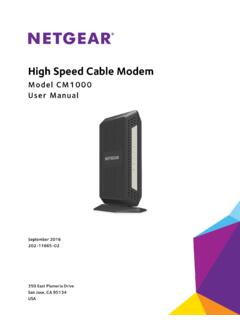
1 DOCSIS cable modem with Gbps LAN port Model MB8611 Quick Start Guide 2 Packaged with your MB8611 modem Power Adapter Coax Wrench Ethernet cable Velcro cable Organizer Para una Gu a de Inicio R pido en espa ol, por favor vaya a 3 Let s get started 1 Call your cable service provider to order cable Internet service if you don t already have it. Mention that your MB8611 supports DOCSIS , the fastest cable modem service standard. Your MB8611 also supports all speeds of any DOCSIS services. Or, if you already have cable service, you should have your account number handy in case you need it during the activation process. You can generally find the account number on the landing page when you log in to your cable service provider account. You can also find it on a recent cable bill.
2 2 Now connect your MB8611 as shown on the next panel. Connecting to a coax cable See the connection photo on the next panel. Connect your MB8611 to a live coax cable . Sometimes a cable will already be available. Sometimes there s a coax wall jack available, and you connect to the jack with a coax cable . Your MB8611 can also share a coax cable attached to a TV by using a coax splitter. Please note that a badly chosen splitter may reduce a cable modem 's speed or prevent connection to the network. If you need to use a splitter, use a two-way splitter whose top frequency is 1,000 MHz or higher. 4 RESET button ETHERNET (LAN) You can connect a WiFi router, computer, HDTV, game station, or other Ethernet-capable device. To connect your router, see If you want to connect a router, below. COAX Connect a live coax cable to the modem s COAX connector as discussed above.
3 (Use the wrench to tighten the nut finger-tight: Do not overtighten.) ON/OFF button POWER Connect the supplied power adapter between the power jack and an electrical outlet. 5 Prepare to activate Power up your cable modem . To do this, the On/Off button needs to be On (Push the button in until it clicks). Wait for the online connection light ( for , or for ) to stop flashing and remain solidly lit. This may take up to 15 minutes. Activate with your service provider Some service providers allow you to activate by calling them. Others, like Comcast Xfinity and Cox, prefer that you activate by opening the Web browser of a computer that s plugged into the MB8611 s Ethernet port. If you have a computer, plug it into the MB8611 s Ethernet port. Once you've opened the computer s browser, go to your service provider s web page. This should bring you directly to the service provider's activation page.
4 Follow the onscreen instructions. If you don t have a computer, you can normally activate by calling your service provider. Another option is to first connect a WiFi router to the MB8611 as described on page 7 of this Quick Start. Then use the browser of your smartphone, tablet, or other WiFi device to go to your service provider s web page, where you should see an activation page s onscreen instructions. 6 For Comcast XFINITY Users Only: If the activation page does not appear, please go to for more information and to activate your modem . Here is a list of phone numbers for some major cable service providers. (Note that this list is subject to change.) Comcast Xfinity 1 (800) 934-6489 Cox 1 (877) 206-4210 Bright House (Spectrum) 1 (855) 222-0102 Sparklight ( cable One) 1 (877) 692-2253 Charter Spectrum 1 (855) 757-7328 MediaCom RCN 1 (844) 987-3260 1 (800) 746-4726 Altice Suddenlink 1 (877) 794-2724 Time Warner (Spectrum) WOW!
5 1 (855) 707-7328 1 (800) 343-2076 Once your MB8611 is activated either online or by phone, your service provider will provision your MB8611 service. Typically this takes less than 5 minutes, but in some cases this may take 30 minutes or longer to complete. Once you have activated, you should have Internet access for whatever s plugged into your cable modem . Congratulations! If your cable modem is NOT working, see Troubleshooting Tips below. Note: You can connect this device to a WiFi router, computer, Internet capable TV, game station, or other Ethernet-capable device. This product does not include a router, WiFi, or telephone capability. 7 If you want to connect a router Most users will connect a WiFi router to the MB8611. This connection may be made initially, before activating the cable modem , or it may be done after the cable modem has been activated.
6 A wireless router lets multiple devices (computers, smartphones, tablets, video devices, game ) share your cable modem s Internet connection, either wirelessly or through a direct Ethernet connection. The MB8611 has a Gbps Ethernet LAN port for connecting a router. This is unusually fast and flexible, and it supports router WAN port speeds from 100 Mbps to Gbps. 1. The cable modem and the router should both be powered off. 2. Plug one end of the cable modem s Ethernet cable into the Ethernet jack of your modem and plug the other end of the cable into the router s WAN port. (You may need to disconnect the cable from your computer first.) 3. Power-up the cable modem . Wait for the ONLINE light ( or ) to be solidly lit. 4. Power-up the router. Wait for the router to complete its power-up sequence. 5. The Ethernet port light on your modem should be lit to show the Ethernet connection to your router.
7 Note the color will be white for 100BT, green for 1 Gig Ethernet, and blue for Ethernet. 6. Follow your router s instructions for setting up the router and connected devices. If you haven t already activated your Internet service, do that now. (See Prepare to activate on page 5.) Using a computer or other device connected to the router, try connecting to the Internet. If it works, Congratulations! Installation is complete. 8 MB8611 Lights LIGHT COLOR DESCRIPTION Power Green ON: cable modem power on OFF: cable modem power off Downstream Green or Blue Green Blinking: Scanning for DS channel Green ON: Connected on 1 downstream channel Blue Blinking: Negotiating bonded channel(s) Blue ON: Bonded with 2 or more channels Upstream Green or Blue Green Blinking: Ranging in progress Green ON: Connected on 1 channel Blue Blinking: Negotiating bonded channel(s) Blue ON: Bonded with 2 or more channels OFF: Upstream not connected Online Green or Blue Blinking: Trying to go online Green: Online with DOCSIS Blue: OFF: Online with DOCSIS Offline LAN White, Green or Blue Blinking: Ethernet data is flowing White: Ethernet link at 100BT Green: Ethernet link at 1GE Blue.
8 Ethernet link at Rear Panel Ethernet LAN port(s) Green or Amber Blinking: Ethernet data is flowing Green: Connected at Amber: Connected at 100 Mbps, or 1GE OFF: No connection If a blue Upstream or Downstream light blinks continuously, this indicates partial service (at least one designated channel has not completed bonding). You should still get high Internet speeds, but your service provider may want to know so they can adjust their network. 9 Troubleshooting Tips What if I can t make an Internet connection right after installation? First turn your cable modem off for at least 8 seconds, then on, to see if that fixes the problem. Check the connections you ve made to your cable modem power, Ethernet, and coax. Are those connections good? Check that the modem s power cube is plugged into a live outlet, and that the Ethernet cable is connected securely.
9 Make sure that your coax cable is live. You can check that by using it with a TV. Check that you provided the correct setup information to your cable service provider. Contact your cable service provider to make sure they ve turned on your Internet service. What if my cable modem has been working, and then stops working? First turn your cable modem off for at least 8 seconds, then on, to see if that fixes the problem. If the modem s lights don t come on, check that the modem is getting power from its power cube and that the modem s power button is on. Check your cable modem cables. Check with your service provider. Sometimes there s a service outage or some other service issue. What if I m getting Internet service but my speed is disappointing? Be sure you know what speed you re paying for. Check the speed with a computer plugged into the modem .
10 Use one of the tools found when you search the phrase: broadband speed test. 10 No matter who your service provider is, check Comcast XFINITY s Internet Minimum System Recommendations here: If you get good speed when a computer is plugged into the modem , you may have a router problem. Some video streaming services get bottlenecked, especially at busy times like after dinner. See whether you have the speed problem at less busy times. Try connecting your cable modem nearer to where the coaxial cable comes into your home. This lets you see whether your home s cabling is a problem. If you re using a splitter with your cable modem , try the cable modem without the splitter to see if that helps. If it does, you may need to get a better splitter, one with a top frequency of at least 1000 MHz. To take full advantage of the Ethernet port on your MB8611, make sure the computer or router you connect to also supports Your MB8611 s port will also connect to lower speed 1000BT or 1GE Ethernet ports.