Transcription of Dragon Home v15 Quick Start Guide - Nuance …
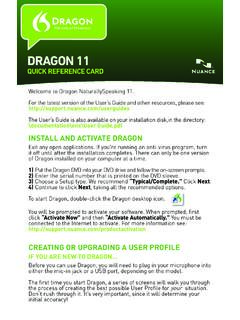
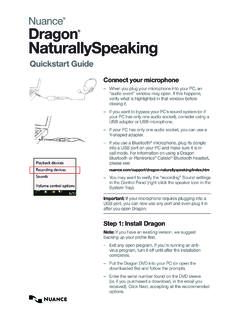
1 Dragon Home 15 Quick Start Guide Install Dragon 1. Exit any open program. If an anti-virus program is running, turn it off until after the installation ends. 2. Put the Dragon DVD into your PC or open your download file. 3. Enter the serial number found on the DVD sleeve or, for a download, in the email you received. Once installation ends, Start Dragon (double-click its icon on the Desktop). Choose your microphoneIf applicable, connect your microphone; if you simply use your PC's built-in microphone, Dragon will detect it. Dragon will list the microphones available to your PC, indicating which one is active. Choose the one to use. Create a user profileThe first time you Start it, Dragon guides you to create the best possible user profile for you. A profile is a set of files that store information Dragon uses to transcribe what you say, such as how you sound.
2 your profile will become more and more precise the more you use details, click the Help icon on each screen. 1 Complete the Interactive TutorialThese short progressive simulations develop essential skills including: lpausing before and after commands lchanging a hotkey or other setting ladding a personal word At any time, you can exit the Tutorial then return through the Help menu. Open the Help The Help includes tips and instructions, including troubleshooting and how to use Dragon in various applications. Click the DragonBar's question mark icon () then select Help Topics. 2 Make Dragon or notOn: Dragon is listening Off: Dragon can't hear anythingOne can control Dragon s microphone by: lClicking its icon on the DragonBar or System Tray. lPressing its hotkey (by default, the + on the numeric keypad).
3 LSaying commands such as Wake up and Microphone off. Ensuring Dragon listens when desired is an important habit! your first dictationOpen Microsoft Word, Notepad, or DragonPad. Make sure the cursor is in the document, turn on the microphone, think of a few sentences then dictate them. Say punctuation (colon, question mark, etc.) and practice the commands "New paragraph" and "New line".As you speak, a small icon indicates that Dragon is processing. No need to wait for Dragon to catch up. Use a natural pace and tone. Speaking in longer phrases gives much better results than halting speech. Correcting errorsThough you can boost accuracy by personalizing the vocabulary, some errors will occur. Dragon will learn from them if you correct them, which it lets you do several Dragon misrecognizes what you just dictated, you can say Correct that.
4 This displays the Correction Menu, which lists alternatives. If the correct alternative is on the list, choose not, say Spell that to open the Spelling window, where you spell or type what Dragon should have written, or modify an almost-correct alternative. 3 PunctuationTo can | point | period | full stop!exclamation point | mark'sapostrophe ess(open paren)close paren"close quote@at sign+plus sign_underscore-hyphen;semi colon&ersand#hashmark | number sign Numbers, dates, times, units, pricesTo can $ mm4 542311/32781-565-50008:30 PM200 kg5 3 May 15, 2003 Boston, MA 024601 Wayside point twofour dollars and fifty centsnumeral four (or say "Spell four")zero point zero threefour by fourfour millimetersfour degreesfive thousand four hundred twenty threeeleven over thirty twoseven eight one five six five five thousandeight thirty P Mtwo hundred kilogramsfive feet three inchesMay fifteenth two thousand threeBoston Massachusetts oh two four six ohOne Wayside Drive4 Sample commandsSay "What can I say" at any time to see suggestions.
5 For more commands, see the click a button, menu or other item, say its name preceded by Click, "Click OK."Pause before and after commands but not within them. Control the microphoneGo to sleep or Stop listeningWake upMicrophone offSelect textSelect allSelect <xyz> | line | paragraphSelect next <n> wordsSelect previous paragraphUnselect thatCorrect Dragon s errorsCorrect <xyz>Correct thatMove the insertion pointInsert before | after <xyz>Go to top | bottom | end of lineGo backMove left <n> charactersPage up | downMove in a listMove down <n>Press EnterPress right arrow Get helpWhat can I sayShow formatting commandsGive me helpEdit textResume with <xyz>Delete <xyz> | line | paragraphDelete last <n> wordsScratch that <n> timesBackspace <n>Undo thatCut | Paste thatShow Dictation BoxSpell outSpell thatSpell <characters>, Spell cap b hyphen 5, Spell space Charlie alpha papaAdd lines and spacesNew line | paragraphPress Enter.
6 Press Tab keyTab <n> timesFormatBullet selection, Unbullet thatBold the previous lineUnderline | Capitalize <xyz>ALL CAPS <word> 5 Work with windowsSwitch to <window name>List all windowsMinimize windowShow DesktopRestore windowsStart and close itemsClick StartStart <name> (Mail | DragonPad | Microsoft ) Open Control PanelClose window or Press alt F4 Move the mouseMove mouse up | down | right | leftSlowerStopClick the mouseMouse click | double-click | right-clickNote: To click a button, menu or other item, say its name preceded by Click, "Click OK." Learning moreAt first, focus on getting used to dictating fluidly and personalizing the vocabulary to include the unusual words you need. Progressively, you'll use more capabilities. Explore tools and settings as needed. You can always: lsay "What can I say" lsearch the Help with a direct command such as Search Help for hotkey options lclick the ?
7 Icon and return to the Tutorial Resources on the Web include the latest hardware, support and notes. See Copyright 2018 Nuance Communications, Inc. All rights reserved. Nuance , Dragon , the Dragon logo, the DragonBar and NaturallySpeaking are trademarks or registered trademarks of Nuance Communications, Inc. or its affiliates in the United States and/or other countries. All other names and trademarks referenced herein are the trademarks or registered trademarks of their respective owners. 6