Transcription of eDocument Management System Search Tips - …
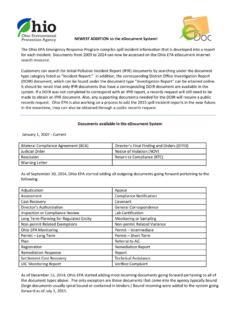
1 eDocument Management System Search tips For help with the eDocument Management System , contact ohio EPA at or 1- 877-372-2499 Performing a Keyword Search To begin your Search , enter as many keyword values as possible to help narrow the number of documents that are returned. Each of the available keyword fields is described below: 1. Document Type Selection If you know the document type, click on the drop down arrow and select the required document type. If you do not know or are unsure of the exact document type you can leave this field as the default Search All Document Types . 2. Date Ranges If you want to Search for a document based on the date it was created or received by our Agency, select the From Date: and the To Date: and click on the Search button on the page. If you do not know the date ranges, you can leave these fields empty. 3. Other Keyword Fields that can be selected include: a. Secondary ID b. Entity Name c. County d. Program e. Document Subtype (if applicable to selected document type) f.
2 Package Number g. Permit Type, Permit Classification, Permit Purpose (Permit document type only) 4. For each of the fields in Item 3, you can: a. Specify a Search by choosing Equal and enter in the specific item(s), then click on the Search button on the bottom of the page. The original Search defaults to equal. b. Exclude an item by choosing Not Equal and enter the specific item(s), then click on the Search button on the bottom of the page. c. Add multiple Search fields for each keyword by selecting the plus sign button next to the question mark to the right of the keyword field. For example, a Search can be done for multiple counties by selecting Cuyahoga County, selecting the plus sign and adding an additional county to be included in the Search . This Search will default to an or when adding multiple keywords. Note that when entering a name in the Entity Name keyword box, the System will automatically perform a fuzzy Search of documents that contain that name in the Entity Name field.
3 For instance, if you are looking for any documents associated with facility XYZ , entering XYZ will return any document in the System that contains that name. This eliminates the need to know the exact name of the facility when searching ( , XYZ Co., XYZ Company, XYZ, LLC, etc.). Additionally, if too broad of a Search is performed ( , searching for all Notice of Violation (NOV) documents in the System ) you will receive the following message: Enter additional keyword values in order to narrow down the number of documents returned. To perform a new Search , click on the Clear button on the bottom of the page. This will clear all of the previously entered keyword values and will return to the Document Type selection field to the default Search All Document Types . eDocument Management System Search tips For help with the eDocument Management System , contact ohio EPA at or 1- 877-372-2499 Performing a Full Text Search You can perform a Search of the text within most of the documents in the System by typing in your Search term(s) in the Search For This: box located near the bottom of the page below the Keyword fields.
4 For the best results when performing a Full Text Search , Search for an exact phrase by putting double quotes around the phrase rather than searching by an individual word(s). For instance, entering the term Surface Water will return every instance or combination of results with the words Surface Water. It also will return results with just surface or water in the Search results. Often times if you perform too broad of a word Search without using double quotes ( , Surface Water ), the System will attempt to find each of the word(s) within all of the documents in the System and you will receive the following time-out error: There was an unexpected problem searching for your documents. Please try entering your Search criteria again. You can also perform a full text Search in conjunction with a keyword Search , however note that the System will attempt to locate the full text Search terms first before narrowing by the keywords entered so follow the best practices outlined above.
5 Search Results Options After a Search has completed, the results will appear in a table. The number of documents that are returned meeting the Search criteria is displayed above the table. From this table, you can do the following: a. View a specific document by hovering over the name, and clicking on it. The document will open in a separate window. b. View all Search results by scrolling down each page to view documents, select the number of items per page to see more than the default of 10 items per page. c. Download the results by clicking on individual documents or all documents by clicking on button in the title bar. Once selected, the document(s) can be downloaded as pdfs into a zip file by clicking on the button. To clear the selected document(s), click on the button. d. View Related Documents by clicking on the folder icon , select the related documents you wish to view, click download and enter a name for the file to be created and click on the Begin Merge button.
6 Related documents are any other documents in the System for the selected Entity. e. View Keywords of the document by selecting the button. The keywords of the selected document(s) can be downloaded into an Excel spreadsheet by clicking on the button.