Transcription of Excel 2010 | Quick Reference Guide
1 MICROSOFT Excel 2010 Quick Reference Guide MC-NPL Computer Lab 1001 Powell St Norristown, PA 19401 (610) 278-5100 x141 Revised: 6/8/2015 Page 1 of 5 Spreadsheet What is a spreadsheet? A grid of rows and columns that help to organize, summarize and calculate data. How is Excel 2010 different from previous versions? Microsoft Excel 2010 is built on the Ribbon concept that was introduced in Excel 2007 . It adds some features pertaining to the security of documents as well as some improved statistical, financial, and mathematical functions and a wizard interface. While Excel 2010 documents share a file extension with Excel 2007 (*.pptx), the Excel 2010 file is a unique file type. Excel 2007 documents will open in Compatibility mode and will not have certain Excel 2010 tools available unless re-saved as an Excel 2010 document.
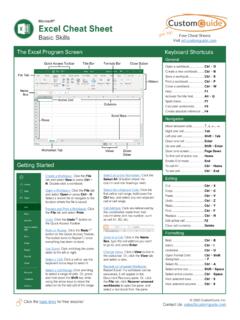
2 Saving a Excel 2007 documents as a Excel 2010 documents requires responding to a warning that some formatting may be lost. Opening the Excel Program Two methods Double-click on icon on the desktop or use the Start menu. The Excel Environment Ribbon area and Tabs The Ribbon is the area under title bar that contains tabs, each containing different commands specific to the function of the tab. Groups and Buttons Tabs contain groups of similar commands (buttons). Screen tips and two-part buttons Hovering over a button reveals a screen tip. Some buttons have two parts; the button proper which carries out the command with the current settings, and the list arrow which will provide some options to change settings. File Tab The File tab opens the Backstage view (it replaces the Microsoft Office Button and the File menu used in earlier versions of Microsoft Office).
3 Backstage view allows you to: Manage your documents and related data about them Create, save, and send documents Inspect documents for hidden properties or personal information Set options such as turning off AutoComplete suggestions Quick Access Toolbar Located on the title bar by default. Can be moved below the Ribbon. Contains commands most often used. Dialogue Box Launcher Groups have a launcher that contains related but less common commands. MICROSOFT Excel 2010 | Quick Reference Guide MC-NPL Computer Lab 1001 Powell St Norristown, PA 19401 (610) 278-5100 x141 Revised: 6/8/2015 Page 2 of 5 Hovering, selecting and dropping down Identifying buttons by pointing, clicking on buttons to get most recent setting, and clicking on dropdown arrows to change settings.
4 Status Bar Gives information about the current workbook. Right-click to customize. View Toolbar On the right side of the Status Bar. Changes the way the workbook is displayed on the screen (such as zooming in). It does NOT affect the layout or formatting of the workbook itself. Selecting Cells, Rows or Columns Selecting a Cell Click into the cell. The cell s name will appear in the name box of the formula bar. Selecting a Range of Cells Click into the first cell in the range. Hold down the left mouse button and drag to the last cell in the range. Release the mouse button. Selecting a Row Move your mouse directly over the row number until it changes to a horizontally-pointing arrow. Left click to select.
5 Selecting a Column Move your mouse directly over the column letter until it changes to a downward-pointing arrow. Left click to select. Formatting Cells Merge and Center [ Select a range of cells Home tab Alignment group Merge & Center ] Font Attributes Change the font, style, size, and color of the text in the selected cells. [ Home tab Font group ] Add Cell Shading [ Select cells Home tab Font group Fill Color button list arrow Select color ] Adjust Column Width [ Select the column Home tab Cells group Format button Auto Fit Column Width ] - or - In the row containing the column letters, move your cursor between the column letters to the right of the column that needs adjusting until it changes to and then Double click.
6 Formatting Values (numbers) Apply Accounting Number Format [ Select the cells containing the number(s) Home tab Number group Accounting Number Format button ] MICROSOFT Excel 2010 | Quick Reference Guide MC-NPL Computer Lab 1001 Powell St Norristown, PA 19401 (610) 278-5100 x141 Revised: 6/8/2015 Page 3 of 5 Formulas & Functions & Cell Referencing Enter a Formula [ Click into the cell Type an equals sign = Reference starting cell by clicking into it Type the operator for your calculation (+ Addition, - Subtraction, * Multiplication, / Division) Reference next cell by clicking into it When all cells are referenced, click the check mark on the Formula bar ] Enter a Function Click into the cell Type an equals sign = Type function name (sum, Average, etc) Type left parenthesis ( Reference starting cell by clicking into it Type a colon.)
7 Reference ending cell by clicking into it Click the check mark on the Formula bar ] Insert a Function [ Click into the cell Formulas tab Function Library group Insert Function button Select function OK button Verify range (change if necessary) OK button] AutoSum: To total a Column or Row of Numbers [ Click into the cell at the end of the column/row of numbers ] Home tab Editing group AutoSum Button Click the check mark on the Formula bar ] Cell Referencing Click into the cell where you want to insert the Reference . Type an equals sign = . Click in the cell you want to Reference . Click the check mark on the Formula bar. Editing a Worksheet Spell Check [ Review tab Proofing group Spelling & Grammar ] Excel will run through every possible error it finds.
8 Press either ignore or change. Add/Insert a Column [ Select a column Right Click Insert (Column will be inserted to the left of the selected column) ] Copy a Formula from One Cell to Another Click in the cell with the formula. Move your cursor over the fill handle. Hold down left mouse button and drag to next cell. View Formulas/Functions on a Worksheet Hold down the Ctrl key. Press and release the ~ key. Repeat process to return to other view. Add/Insert a Row [ Select a row Right Click Insert (Row will be inserted above the selected row ] Delete a Row or Column [ Select the row or column to be deleted Home tab Cells group Delete button ] Move a Column (cut and paste method) [ Select the column Right Click Cut Select the column to the right of where you want to move the column Right Click Insert cut cells ] MICROSOFT Excel 2010 | Quick Reference Guide MC-NPL Computer Lab 1001 Powell St Norristown, PA 19401 (610) 278-5100 x141 Revised.)
9 6/8/2015 Page 4 of 5 Move a Row (cut and paste method) [ Select the row Right Click Cut Select the row below where you want to move the row Right Click Insert cut cells ] Trace Error - Green Triangles sometimes happens when moving rows or columns If you see a green triangle in a cell it means there is an error in the formula. Click in the Cell and then click on the list arrow next to the Trace Error button for options to update the formula. Sorting Data [Select the range of cells or rows to be included in the sort Home tab Editing Group Sort & Filter Button Choose one of the sort options] Apply Conditional Formatting to Data [ Select the cell to which you want to apply conditional formatting Home Tab Styles Group Conditional Formatting Button Highlight Cells Rule Choose Option ] Precedence of Operations Order of Operators Negation, Percentage, Exponentiation, Multiplication and Division, Addition and Subtraction Operators with the highest precedence are evaluated before those with a lower precedence.
10 If two operators have the same precedence, then they are evaluated from left to right. Use of Parenthesis The use of parenthesis tells Excel to evaluate that portion of an equation separately, and then to use that result when evaluating the rest of the equation. Comments Insert a Comment [ Select the cell where you want to insert the comment Review tab Comments group New Comment button ] Make a Comment Visible (Show/Hide) [ Click in the cell that contains the comment (it will have a red triangle in the upper right corner) Right click Show/Hide Comments ] Worksheet Management Copy a Worksheet [ Right click on worksheet tab Move or Copy Create a copy check box OK ] Rename a Worksheet [ Right click on worksheet tab Rename Type new name Click in clear cell ] Move a Worksheet Click and hold worksheet tab.