Transcription of Federal Financial Report (FFR) User Guide
1 Federal Financial Report (FFR) Expenditure Data User Guide January 4, 2021 FFRUserGuideCONTACT USDocument Comments:We value your feedback on this document. How are we doing? The Communications & Documentation Team of the electronic Research Administration (eRA) is dedicated to serving our community and welcomes your feedback to assist us in improving our user guides. Please send comments about the user Guide to this address: support:Please contact the eRA Service Desk:Toll-free: 1-866-504-9552 Phone: 301-402-7469 TTY: 301-451-5939 Web: (Preferred method of contact)Email: (for IMPAC II Support)Hours: Mon-Fri, 7:00 to 8:00 Eastern Time DISCLAIMER STATEMENTNo data shown in illustrations represents any real account, project, or individual. Any resemblance to actual accounts, projects, or individuals is purely ,2021 FFRUserGuideTABLE OF CONTENTS1 Federal Financial Report (FFR) What is FFR? Report Submission Due FSR Role in Features of Accessing FFR22 Search for About the FFR Search Perform a Search Using Search Using a Quick Search Manage FFR PDF History Action83 Federal Financial Report (FFR) Long Initiate FFR Long Form from eRA Submit/Certify the Long Form FFR Report14 TableofContentsiiiJanuary4,2021 FFRUserGuideFederalFinancialReport1 January4,20211 Federal Financial Report (FFR) What is FFR?
2 A Federal Financial Report (FFR) is a statement of expenditures associated with a grant. Recipients of Federal funds are required to Report the status of funds for grants or assistance agreements to the sponsor of the grant using the Federal Financial Report expenditure data. The FFR module lets grantees search for and initiate the FFR from within eRA Commons, which redirects them to the Federal Payment Management System to complete the submission. Grantees can also check on the status of submitted FFRs, view the PDF of submitted FFRs, and view the history of activity for an FFR. Beginning January 1, 2021, HHS grant recipients are required to submit the SF-425 long form in the Payment Management System (PMS) instead of the eRA Commons FFR Module. Guide notices: NOT-OD-20-127 - Announcement of - Additional Implementation with PMS ( ) and obtain PMS log in credentials prior to submitting an FFR. Familiarize yourself with PMS using the documentation provided by PMS (see ).
3 The PMS Help Desk can help with system problems; see Report Submission Due Dates The FFR is prepared and submitted by Grant and Contract Accounting (GCA) on behalf of the Principal Investigator (PI). The schedule for submitting required Financial reports is generally specified in the award documents of a grant or contract. See NIH FFR Supplemental instructions. Different due dates exist for FFRs depending on whether the Report is an annual Report or the final Report . Annual Federal Financial ReportFor awards requiring annual submission of an FFR, the Report must be submitted each budget period within 90 days of the calendar quarter in which the budget period ended. The reporting period for the annual FFR is the budget period for the award. The actual submission date is based on the calendar quarter (6/30, 9/30, 12/31, and 3/31).Final Federal Financial ReportFor awards requiring a final FFR, the due date and status for a final FFR are based on the Project Period End Date (PPED) as follows:FFRUserGuideFederalFinancialRepo rt2 January4,2021 lPending: If the FFR is not submitted and it is within 120 days of the PPED lDue: If the FFR is not submitted and it is between the PPED and 120 days past the PPED lLate: If the FFR is not submitted and it is over 120 days past the FSR Role in CommonsA user who needs the authority to view, enter, and submit an FFR on behalf of a research institution must possess the FSR role in eRA Commons to access the FFR module.
4 An institution's Signing Official (SO) or Account Administrator can add this role to a user's account. A Signing Official (SO) or Business Official/Administrative Official (BO/AO) can have the FSR role. An user who possesses only the FSR role can perform only those tasks associated with FFRs; however, an account can include multiple roles, including that of Features of FFR If you have the FSR role in Commons, you can use the FFR module to perform multiple tasks. Available options vary depending on the status of the FFR associated with the award. lSearch for grant awards within your organization having associated FFRs lInitiate a FFR by clicking Manage FFR button, which redirects you to PMS to fill out and submit the FFR lView an FFR as a PDF lView the submission history of an FFR NIH requires all Financial expenditure data to be submitted via PMS. This includes all initial FFRs being prepared for submission and any revised FFRs being submitted or re-submitted to an HHS Commons Online Help contains detailed information on the FFR module.
5 You can access the FFR topics by clicking any of the help icons ('?') on the FFR screens. If you prefer a PDF format user Guide , refer to the Federal Financial Report (FFR) Expenditure Data User Guide at Accessing FFR The FFR module is part of eRA Commons. If you hold the FSR Commons role, you have access to FFR. 1. Navigate to eRA Commons on the internet at 2. Log into Commons. 3. Select the FFR module from Commons ,20212 Search for About the FFR Search Screen Use the Search for Federal Financial Report (FFR) screen to search for grant awards within your organization that have associated FFRs. Perform a SearchYou can search either by entering search criteria or by clicking one of the predefined quick searches. When searching based on search criteria, enter as many criteria as possible to perform a more narrow and specific search. Too broad of a search can result in a very large set of records returned by the FFR module, which might slow down the FFR response time.
6 Search Using Search Criteria 1. Select search criteria from the available dropdowns on the search screen. The following dropdowns are available to search, which include parts of the grant number (See Deciphering the NIH Application/Grant Numbers document at ) FFRUserGuideSearchforFFRs4 January4,2021 lActivity Search by the grant number's activity code. Example R01 or U01. lIC oDefaults to All, which will search all ICs. To search by specific IC(s), mark their checkboxes in the IC dropdown. Type letters in the IC dropdown's Search field to quickly jump to an IC. TIP: Hover your mouse over the IC field to show all currently selected ICs. lSerialEnter the serial number of the grant into the field. lYear oYear of the grant. lStatusDefaults to All, which will search for FFRs in all statuses. To narrow the search to specific status(es), use the drop-down to display a list of status values and select the status(es) you wish to include in the search by marking or unmarking the appropriate checkbox.
7 You may search for any combination of the following: lPending lDue lLate lReceived lIn Review lAccepted lRejected lRevision PendingFFRUserGuideSearchforFFRs5 January4,2021 lDue Date Will return records with a due date of the entered date or later. Enter a date directly into the field or select a date using the calendar tool. 2. Click the Search button. The results of the search appear in search results below the search criteria. Refer to the section below titled Search Results to learn what you can do with search results. 3. Click the [new search] link to clear the results and perform a new query, as Using a Quick Search Quick searches are one-click, pre-defined searches providing a convenient method of retrieving commonly entered criteria. They appear on the Search screen in FFR when you first enter the module. If you do not see a list of quick searches defined at the bottom of the search screen, click the [new search] link, shown below: To run a quick search: 1.
8 Select the corresponding button of the appropriate quick search. ReceivedSearches for and returns any records for FFRs in a status of Received, for all , Due, or LateSearches for and returns any records for FFRs in a status of Pending, Due, and Late, for all this yearFFRUserGuideSearchforFFRs6 January4,2021 Searches for and returns any records for FFRs in a status of Received with a start date of January 1 of the current year and an end date of December 31 of the current year. 2. In the search results, see the Actions column for actions you can take on a record. Refer to the section below for additional information on search results. 3. Click the [new search] link to clear the results and perform a new Search Results FFR retrieves all matching awarded grants (except Fellowships) and shows 25 search results at a time by default. To change the number of displayed records, choose an option from the Show <x> entries dropdown menu at the bottom of the ,2021 Use the links at the bottom of the screen to navigate through the remaining records.
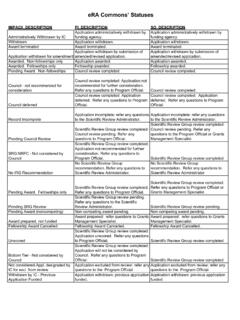
9 Select the header of any column (other than Action) to re-sort the displayed hit list includes the following information: lAward Number lDoc No: award document number. lSpec. Funding: Special funding indicator of ARRA, Sandy, or <blank> as appropriate lFFR Due: The date when FFR status will change from Due to Late lSubmitted to Agency: The date on which the FFR was received by Agency, otherwise this column is blank lBudget Start: The budget period start date of grant lBudget End: The budget period end date of grant lLatest FFR Status lAction: Displays all actions that can currently be performed on the FFR record. These options vary depending on the status of the FFR. Refer to the section below titled Actions for more the Export button at the top of the search results to view the FFR search results in an Excel spreadsheet. Excel will open in a separate window. Actions The options available for your FFR vary depending on the status of the FFR.
10 FFRUserGuideSearchforFFRs8 January4,2021 Action OptionAvailable to FFRs in of the ActionManage FFR lPending lDue lLate lReceived lAccepted lRejected lRevision PendingRedirects to PMS, where (after you login) it opens the FFR long form for editing and lReceived lAccepted lRejected lRevision PendingDisplays a history of actions performed against the FFR record. PDF lAccepted lIn Review lReceived lRejected lRevision PendingOpens the current version of the Report in PDF format. Table 1: FFR Manage FFR Action Click Manage FFR to be redirected to the current FFR in PMS, where, after logging in, you are presented with the FFR long form to complete and submit. You can either initiate the FFR using this button, or return to a partially completed FFR to continue editing PDF Action Click the PDF button to open a read-only PDF version of the Report . This link is available for FFRs in a status of Received, In Review, Accepted, Rejected, and Revision History Action Click the History button to display a brief history of the FFR since initiation.