Example: tourism industry

Go to https://ipay.adp.com/iPay/login.jsf select Register Now

Go to select Register Now Enter the Registration Code: incccsi- ipay Complete Steps 2-4 to Verify your Identity, Create a Password, and add Security questions to your account. During this step, be sure to make note of your USER ID which will be provided to you on the screen. At Step 5, you will need to enter contact information PLEASE USE A PERSONAL EMAIL ADDRESS, NOT A WORK. EMAIL. This is used to retrieve pay statements and W-2s, so in the event your assignment has ended, you need to ensure you still have access to this information!! After providing your Contact Information, Check your EMAIL you will receive an Activation Code that will be used to finalize this process. (If you sign-up for Mobile Alerts at all, the Activation Code provided thru mobile TEXT will NOT WORK! You MUST use the Activation Code sent to your EMAIL Address provided during sign-up). **Once you finalize this process, you will receive another email confirming your User ID and login instructions to access your ipay Statements!

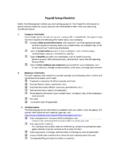
Register for ADP Services Step 5 of 7: Enter Your Contact Information step 3 Cet User 10 & Password Select Security 5 Enter Contact Information Enter Acttvation Code and Submit Cancel Enter contact information to receive communication company and/or ADP. ADP Will send an activation code to confirm that we can contact you.

Tags:

  Registers, Select, Login, Ipay login, Ipay, Jsf select register now, Register for adp

Information

Domain:

Source:

Link to this page:

Please notify us if you found a problem with this document:

Other abuse

Advertisement

Transcription of Go to https://ipay.adp.com/iPay/login.jsf select Register Now

1 Go to select Register Now Enter the Registration Code: incccsi- ipay Complete Steps 2-4 to Verify your Identity, Create a Password, and add Security questions to your account. During this step, be sure to make note of your USER ID which will be provided to you on the screen. At Step 5, you will need to enter contact information PLEASE USE A PERSONAL EMAIL ADDRESS, NOT A WORK. EMAIL. This is used to retrieve pay statements and W-2s, so in the event your assignment has ended, you need to ensure you still have access to this information!! After providing your Contact Information, Check your EMAIL you will receive an Activation Code that will be used to finalize this process. (If you sign-up for Mobile Alerts at all, the Activation Code provided thru mobile TEXT will NOT WORK! You MUST use the Activation Code sent to your EMAIL Address provided during sign-up). **Once you finalize this process, you will receive another email confirming your User ID and login instructions to access your ipay Statements!


Related search queries