Transcription of How$to$Calculate$Mean,$Standard$Deviation$ …
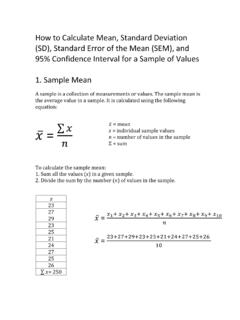
1 How to Calculate Mean, Standard deviation (SD), Standard Error of the Mean (SEM), and 95% Confidence Interval Using Excel 1. Enter your measurements or values in a column in an Excelspreadsheet. 2. Start typing =AVERAGE in the cell where you want the meanto a label for your measurements. In this example, the label is Measurements, but it should be something more descriptive like Relative Hindlimb Length. Select the cell where you want the mean to appear and label the cell next to it Mean. As you start typing, Excel will display matching functions in a drop- down menu.
2 Click on AVERAGE when it appears. Use your cursor to highlight the range of values and press Return. Alternatively, you can type in cell numbers. In this example, you would type =AVERAGE(D9:D18) and press Return. 3. After you select average, select the values you will use tocalculate the The mean will appear in the cell you sample mean is 25. Now, select the cell where you want the standard deviation to appear and type Standard deviation next to it. 5. Start typing = in the cell where you want thestandard deviation to Select the values that you want to use to calculate the standarddeviation the same ones you used for the you type, Excel will display matching functions in a drop- down menu.
3 Click when it appears. (Note that is the function for sample standard deviation . Excel has another function, , for the population standard deviation .) After you select the values, press Return. Be careful not to include the value for the mean in your selection. 7. The standard deviation will appear in the cell you you will calculate the standard error of the mean (SEM).8. Excel does not have a built- in function for calculating SEM, soyou will enter this the cell where you want the standard error of the mean to appear and type SEM next to it.
4 SEM is the standard deviation divided by the square root of the sample size, which is 10 in this example. To calculate SEM, type = (range)/SQRT(COUNT(range)). Range is the range of values, which here is D9 to D18. You can also type in =D20/SQRT(10). D20 is the cell with the standard deviation . Press Return. SEM will appear in the cell you selected. You will nowcalculate the 95% confidence interval (95% CI).10. In this lab, we are estimating the 95% CI as 2 times the cell where you want the 95% confidence interval to appear and type 95% CI next to it.
5 You can calculate this in Excel by typing =2*(D21). D21 is the cell with the SEM value. Press Return and the 95% CI will appear in the cell you selected. Start typing in =CONFIDENCE. When the function appears, click on it. 11. You can also calculate 95% CI using Excel s built- in Return and the 95% CI will appear. You will see that the number is not exactly the same as the estimate of twice SEM for this particular sample. You will then type in =CONFIDENCE( , standard_dev, size). In this example, the values are =CONFIDENCE( , D20, 10).
6