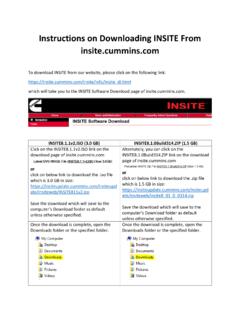
Transcription of INSITE 8.2.0 Release Notes - Cummins
1 1 INSITE Release Notes CAUTION: Please verify that the Calibration you select to download to an ECM is appropriate for that specific ECM. Permanent damage could occur if incorrect calibrations are used. Table of Contents 1 Issues with INSITE .. 2 Opening INSITE .. 2 Installation .. 2 Connections .. 3 Advanced ECM Data .. 3 Calibrations .. 3 Display Graphics .. 4 ECM Diagnostic Tests .. 4 Fault Codes .. 4 Printing .. 4 Simulators .. 4 INSITE Integrated Simulator Single and Multi-Module.
2 4 Work Orders/ECM Images/Templates .. 5 2 Issues with ECM Applications .. 5 ISB .. 5 Calibration Selection .. 5 .. 6 Woodward Governor (GCM) .. 6 Signature/ISX CM570 .. 6 Features and Parameters .. 6 ISX CM870 .. 6 Celect Plus .. 7 INSITE ReCon ECM Procedure .. 7 Celect .. 7 Phase 3 and 4 .. 7 Phase 5 .. 7 Calibration download fail .. 7 QSK19/45/60 CM500 .. 8 Calibration Selection .. 8 QSM 11 .. 8 2 Calibration Selection .. 8 3 Datalink Adapters INLINE 5, 6, and 7.
3 8 4 Datalink Adapter Compatibility Matrix .. 9 Supported Protocols .. 9 Datalink Adapter Issues .. 10 5 Version Compatibility .. 11 INSITE Software and Operating System Compatibility .. 11 6 Special Issues .. 11 Power Savers .. 11 7 Suggestions and Tips .. 11 1 Issues with INSITE Opening INSITE INSITE takes longer to open if the computer has been restarted. Issue is currently under investigation. Installation INSITE does not support Windows XP or Windows Vista. INSITE version will only operate on PC s running either Windows 7, Windows 8 or Windows 10.
4 Refer to the table below for the hard drive space required for the installation of INSITE This is based on the assumption that the Operating System is installed on C:\ Hard Drive Space Requirements Upgrade from Fresh Install 350 MB 500 MB NOTE: It is highly recommended that you always reboot your PC after installing software. 3 Connections Error Messages for communication failures: Error 5200: Indicates communication loss between computer and the datalink adapter. Error 5201: Indicates communication loss between the datalink adapter and the ECM.
5 Error 5202: Indicates no communication could be established between the datalink adapter and the computer. Error 5204: Indicates no communication could be established between the datalink adapter and the ECM. If the Auto Configure and/or "Datalink Adapter Connection Test" do not find the adapter when connected, manually configure the Datalink adapter connection. An Internet connection is required before selecting the following URL s from the Help > About INSITE menu: or Advanced ECM Data If the display becomes distorted or cannot be completely viewed, close the Advanced ECM Data window and then reopen it.
6 Resizing the window can cause the view to become distorted. Calibrations Automotive applications will have a default setting of "ON" for the Save and Restore option in the Calibration Download dialog. Industrial applications will have a Default Setting of "OFF" for the Save and Restore option in the Calibration Download dialog. When performing a Calibration Download, the "Save and Restore" option may be grayed out for some applications. To decrease calibration download times, please insure that all applications other than INSITE are closed.
7 Always use the J1939 protocol and engine connector when available. Computers with less than the minimum recommended hardware requirements will have an extended Calibration Download time. Screen savers and suspend modes should be disabled. 4 Display Graphics The use of Large Toolbar Buttons will not display all icons on the toolbar. Work Around: Under Tools > Options > General, select Small Buttons in Display Options. Dual Monitors are not supported by INSITE . To disable the "Display Feature Names" option for the view bar, uncheck the box in Tools > Options > General > Viewbar > Display Feature Names.
8 If your PC monitor display is set to "Large Fonts", some information in INSITE may not be displayed. It is recommended to use small fonts. ECM Diagnostic Tests If the display becomes distorted or cannot be completely viewed, close the ECM Diagnostic Tests window and then reopen it. Resizing the window can cause the view to become distorted. Fault Codes The MIL Lamp Status is not displayed when printing the Image Fault Codes in Tool Display Format. Work Around: Print the Image Fault Codes in Text Only Format or connect to the image, open Fault Codes and select the Print icon.
9 Printing When using print preview, use the tool bar magnifying glass to display the text in a larger view. The Print options will be disabled when no printers are available. This includes the Page Setup, Print and Print Preview options. Work around: Setup/install a printer on the PC and retry the INSITE print selection. Simulators Values shown in simulator do not reflect real values that would be seen when connected to an engine. INSITE Integrated Simulator Single and Multi-Module All simulators for the 2007 models and above were combined into one single simulator called INSITE Integrated Simulator - Single Module and INSITE Integrated Simulator Multi-Module.
10 These will display all the Features and Parameters, ECM 5 Diagnostic Tests, and Advanced ECM Data that is supported for single and multi-module engines. Work Orders/ECM Images/Templates Double clicking on the exported image files (.csv format) will not open them with the correct format in Microsoft Excel. Work around: Follow the steps below to open an exported (.csv format) image file in Excel: 1. Open the .csv image file with Microsoft Excel 2. Highlight column A 3. Click on Data > Text to Columns a.