Transcription of Installation & Activation Procedure RetainPro
1 Installation & Activation ProcedureRetainProGeneralRetainPromust be installed on each computer where it will be NOT install on one computer and use a shortcut to the software on a different WILL NOT run different from RetainPro 9 and earlier versions!You can install theon ANY computer where you might want to use it. You will need activate it on theRetainProcomputer where it will be used so it runs as a activated activated seat can easily be moved between computers as you desire using our Internet Activation Internet connection is needed only for the brief moment of activating or deactivatingDownload Installation FileDownload the Installation file using this link link will.
2 Don t save the Installation file for later install the MOST RECENT build of the softwarewill be saving the installer for an old copy of the software because we update the builds very Installation file will ask you to paste in thethat RetainPro has assigned to Control Code (PCC)Locate the email you received from RetainPro that contains that long scrambled looking string of characters. Always usethe most recent email because it has your all the information for your license, including your Maintenance & Support Plan expiration date, name thatPCCwill appear as the license holder, ! If you installed our DEMO version.
3 It cannot be used as licensed sure to UNINSTALL ITInstallation ProcedureThis section describes Installation of thesoftware on any computer where you wantto use it. At this time we assume you havedownloaded and started the installationprogram after starting the installationprogram you will view a "Welcome" screenidentifying the product to be Next >[] RetainPro software , div. ENERCALC, INC. Box 2208, Newport Beach, CA 92659 Page 1 Next you will be asked to review theRetainPro License Agreement. You have 60days after purchase to review the agreementand return the software , so it is notnecessary to read the entire document atthis time.
4 After Installation you can print andread the License Agreement using theLicensemenu->License I and click Next >[]Next you will be asked to name the Startmenu program group that will contain thelinks for starting up various parts of thesoftware. (We recommend using what ourinstallation program suggests.)This program group will be placed withinthe Start | Programs selection Next >[]Next and immediately prior to the fileplacement process you will be given asummary of your selected all is OK then Click Next >[]The files will then be copied to software , div. ENERCALC, INC. Box 2208, Newport Beach, CA 92659 Page 2 The final screen announces that the installationprocess is Finish[] software Installation IS NOWCOMPLETES oftware Activation Procedure on Next PageRetainPro software , div.
5 ENERCALC, INC. Box 2208, Newport Beach, CA 92659 Page 3 software Activation ProcedureRetainProGeneralRetainProhas a security system that requires you to "Activate" the will :lCopy & paste a() into the softwareProduct Control Code PCClUse an [] button to get permission from ourInternet ActivateInternet Activation Serverto run as a registered extensive information about your license, including your Maintenance & Support Plan expiration date andPCCthe Licensee name that will appear on screen and be installed on each computer where it will be used. DO NOT install on another computer and useRetainProa shortcut to the software on a different WILL NOT run will use Internet Activate to activate the software on each computer on which you want to use the software .
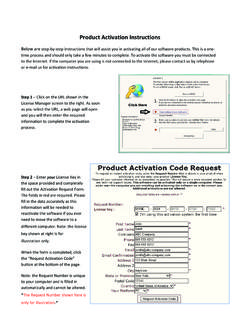
6 Youcan only activate computers simultaneously. Useup to the number of simultaneous licenses you have purchased Internet Deactivate to return the Activation permission to our Activation server for use on another computer. (AnInternet connection is needed only for the brief moment of activating or deactivating.)There are other methods of manually activating the software if you do not have an Internet connection. There is also a[Manual Activation ] button provided. Click it for information & ProcedureThe first window that you will see is the license startupscreen to the the button you see circled in red to continue to thenext step of entering your Product Control screen will change to display an entry area for yourProduct Control Code (PCC).
7 The PCC is a scrambled looking string about 150characters long that was supplied to you in one of yourproduct delivery yourPCC, highlight it andmost recently receivedpress Ctrl-C to copy it to the Windows Clipboard. Thenclick the button circled to paste it into the entry ! The same PCC is used in ALL your installations. Youonly need a new PCC when you renew your click the software , div. ENERCALC, INC. Box 2208, Newport Beach, CA 92659 Page 4 The screen will change when the PCC is accepted andit will display your license activate the software to be a fully working versionclick the [Internet Activate] button will then be presented with two Activation options:IndefiniteThis selection will activate the programand leave it activated.
8 Each time you start thesoftware thereafter it will launch immediately as activated .Automatic Activation & Deactivationdeactivateson exit and then automatically activating on setting is typically used in larger firms that havemany users in manydifferent you have made your selection click :If the Activation is successful you will see the dialogshown to the click [Continue to Program] and you are all setto start working! RetainPro software , div. ENERCALC, INC. Box 2208, Newport Beach, CA 92659 Page 5If your Activation request is you already have other computers Activated andhave used up all available seats you will receive amessage that this computer can t be have the option to forcibly deactivatethe computer(s) that are already is a very handy feature in case you leftthe office with your software are currently trying to activate ActivationThere may be instances where Internet Activation will not operate.
9 This may be because of no Internetconnection, a stubborn antivirus software , firewall or proxy server that you just can t get Activation involves sending RetainPro software a simple string of data that identifies your license andcomputer. You email that information to us and we create an Unlocking Key that you then paste into ! Providing unlocking keys is done for users on a limited basis. If you have problems with InternetActivation and plan on moving the active license to various computers frequently we cannot continuallyassist you. You will need to find and fix the problem that prevents our software from contacting theRetainPro Internet Activation [] button.
10 The ManualManual ActivationActivation dialog will then be the message and click [Continue] RetainPro software , div. ENERCALC, INC. Box 2208, Newport Beach, CA 92659 Page 6 The program has created a Request String that youwill need to send to ve made this easy for the [ ] button will tell your email program to create theemail to send to email it creates will look like this :When you receive the response from us simply copy the Unlocking Key we will provide into the locationshown and click the [Activate] program will store the unlocking key in the WindowsRegistry on your computer. Click [Activate] and thesoftware Activation process will be complete!