Transcription of Installing the USB Drivers
1 Installing the USB DriversThe following two USB Drivers must be installed on your computer to enable the computer to recognize the 1203-USB converter when using any of the configuration tools (Connected Components Workbench, DriveExplorer, DriveExecutive, or HyperTerminal software): USB Converter driver USB Serial Port driverIf you intend to use Connected Components Workbench software, version or later, to configure the converter and connected drive, these two USB Drivers are automatically installed during the installation of this software. However, if you intend to use an earlier version of this software tool or DriveExplorer, DriveExecutive, or HyperTerminal software, you must manually install these two USB Drivers .
2 This requires downloading and extracting both USB Drivers to the computer, and then Installing both USB Drivers . For instructions to do this, see the next two Both USB Drivers to the ComputerTo obtain both USB Drivers required for the 1203-USB converter and USB serial port, perform the following Go to the Allen-Bradley Web Updates website at Click the 1203-USB link in the 7-Class or 4-Class Peripherals Download the zip file to a unique location on your Unzip the file to access the executable files for both USB Both USB DriversMost personal computers today use the Windows XP or Windows 7 operating system.
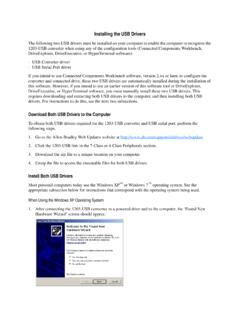
3 See the appropriate subsection below for instructions that correspond with the operating system being Using the Windows XP Operating System1. After connecting the 1203-USB converter to a powered drive and to the computer, the Found New Hardware Wizard screen should appear. Installing the USB Drivers2If this screen did not appear, perform the following steps:a. Open the Windows Control Panel and double-click In the System Properties window, click the Hardware Click Device Expand Universal Serial Bus controllers in the Right-click the USB Converter and choose Update the above screen appears, proceed to step Click No, not this time.
4 3. Click Next > to continue (next wizard screen appears). 4. Click Install from a list or specific location (Advanced) .5. Click Next > to continue (next wizard screen appears). 6. Check Include this location in the search .7. Click to the location on the computer where the executable files for both USB Drivers were unzipped ( step 4 in the <Link>Download Both USB Drivers to the Computer section). Installing the USB Drivers38. Click Next >.9. After the 1203-USB driver has been successfully installed, a confirmation screen appears. 10. Click After approximately 20 seconds, the Found New Hardware Wizard screen should appear again.
5 12. Click No, not at this time .13. Click Next > to continue (next wizard screen appears). Installing the USB Drivers414. Click Install from a list or specific location (Advanced) .15. Click Next > to continue (next wizard screen appears). 16. Check Include this location in the search .17. Click to the location on the computer where the executable files for both USB Drivers were unzipped ( step 4 in the <Link>Download Both USB Drivers to the Computer section).18. Click Next >.19. After the USB Serial Port driver has been successfully installed, a confirmation screen appears. 20. Click the USB Drivers521.
6 Verify that the Drivers have been correctly installed by expanding Ports (COM & LPT) in the Device Manager treeview as shown below. Allen-Bradley 1203-USB (COMx) should appear in the treeview. Note the COM port being used. This COM port number will be used later to configure a driver using RSLinx software to represent the connection on the COM port. This is required for either the Connected Components Workbench or DriveExecutive software tool. See the PowerFlex 1203-USB Converter User Manual, publication DRIVES-UM001, for Using the Windows 7 Operating System1. After connecting the 1203-USB converter to a powered drive and to the computer, open the Windows Control Click Device Expand Other Devices in the Right-click the USB Converter and choose Update Driver Software.
7 The following screen appears. Installing the USB Drivers65. Click Browse my computer for driver software .The following screen appears. 6. Check Include subfolders .7. Click to the location on the computer where the executable files for both USB Drivers were unzipped ( step 4 in the <Link>Download Both USB Drivers to the Computer section).8. Click After the 1203-USB driver has been successfully installed, a confirmation screen appears. 10. Click After the USB Converter driver has been successfully installed, the USB Serial Port driver must be installed. Open the Windows Control Click Device Expand Other Devices in the the USB Drivers714.
8 Right-click the USB Serial Port and choose Update Driver Software .The following screen appears. 15. Click Browse my computer for driver software .The following screen appears. 16. Check Include subfolders .17. Click to the location on the computer where the executable files for both USB Drivers were unzipped ( step 4 in the <Link>Download Both USB Drivers to the Computer section).18. Click the USB Drivers819. After the USB Serial Port driver has been successfully installed, a confirmation screen appears. 20. Click Verify that the Drivers have been correctly installed by expanding Ports (COM & LPT) in the Device Manager treeview as shown below.
9 Allen-Bradley 1203-USB (COMx) should appear in the treeview. Note the COM port being used. This COM port number will be used later to configure a driver using RSLinx software to represent the connection on the COM port. This is required for either the Connected Components Workbench or DriveExecutive software tool. See the PowerFlex 1203-USB Converter User Manual, publication DRIVES-UM001, for details.