Transcription of Internet Rechartering 2.0 User Guide
1 Internet Rechartering User Guide Internet Rechartering may be accessed by the Unit Leader, Charter Org Rep, Committee Chairman or Key 3 Delegate by logging into their or Account Open Recharter Once the roster is loaded, you may start editing the roster YPT - Red Exclamation Point Youth Protection Training has not been completed and recorded in the person profile or the YPT has expired YPT Green Exclamation Point Youth Protection Training is current CBC Green Checkmark New Criminal Background Disclosure has been received and recorded in the person profile CBC Red Exclamation Point New Criminal Background Disclosure has not been received scout Life Red Exclamation Point No subscription has been added to the registration scout Life Green Checkmark Subscription has been added to the registration -- No status (New Members, youth, and no fee adults) Changing a position You have the ability to change a position of a leader by clicking on the pencil icon.
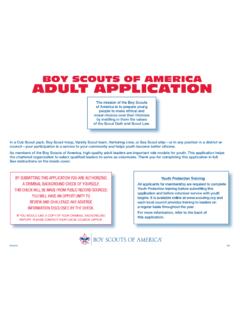
2 Choose the appropriate position within the drop down and click update information. Refreshing your roster Manage Members Add a new adult, mark as multiple, remove from roster and invite new member. Adding a New Member Click on Manage Members>Add New Member>Enter all required information>Click on the Plus sign next to Add Paper Application>Select the file and attach the application >Click the Add Member button. Uploading a group of Documents into the Renewal A group of documents, perferably in a zip file, can be uploaded into the renewal. They are Adult and Youth Applications, Criminal Background Disclosure Authorizations, Youth Protection Training Certificate, CORI Form and PA background records. Select the individuals that you are uploading documents for by checking the box next to their name and click upload documents. A popup will appear and this is where you load the zip file of documents.
3 Creating a Zip File for loading documents If you are uploading a group of files, use your Zip File option by highlighting the documents, right click after highlighting the documents and select Send to and next slect Compressed (zipped) folder. Once you have created the zip file and named your zip folder, choose the folder when clicking the Upload Document option. Invite New Member into the unit (Leads) An email is sent with a link to complete an online registration. Reminder: click on Refresh Roster periodically throughout processing your renewal. This will add any new online registrations into your unit. Once the invite is sent, they will appear on the Pending Members Tab. Remove From Recharter Select the person whom you are removing. Click on Manage Members and select Remove From Recharter. A popup will appear and you will choose Remove. At that point they will be moved to the Removed Members Tab.
4 Adding An Individual Back Into The Recharter After Removing Them You have the ability to add someone back into the renewal after removing them by clicking on the Removed Member Tab. 1. Click on Remove Member tab 2. check the box next to the person you are adding back into the unit 3. Click Add to Recharter. 4. A pop up box will appear-click Add Once you click Add, the youth or adult will move back into the unit. Click on Troop Roster tab and the roster should now reflect the add. Once added, click Refresh Roster and continue with renewal submittal. Validate Recharter and Pay Once you have updated your roster and attached the necessary documents, click Refresh Roster and then the Validate Recharter and Pay. A popup will appear If you have any errors or warnings. At that time you will need to correct the errors before you can continue with your renewal.
5 The errors will have a red bubble next to them and the warnings a yellow bubble. If you receive a warning, you have the ability to correct the warnings if possible and continue through the submittal process. Once the error has been corrected within the roster, click the Validate Recharter and Pay button. If there are no errors and only warnings and you are ready to submit your unit, click the Proceed to Payment button. There is a possibility that you will have no errors or warnings and in this case you may also proceed to payment. You have the option to print your roster by clicking the Print Roster once you have validated all information and before you move to the payment page. Payment and Confirmation During this process you have the ability to verify all fees and choose your payment option. The payment option is Check ($1 fee), Credit Card (3% fee) and Pay at Council.
6 If you pay at council, you will need to provide a form of payment to the local council in order to register your unit. Once you have chosen your payment option, click the Pay and Post Renewal button.