Transcription of Logging into SystmOnline - MSW
1 Logging into SystmOnline This guide is designed to help patients log into SystmOnline for the first time or if you have experienced difficulty Logging in and have been given new account details by the Surgery. Before proceeding you will need your Username and Password provided to you by Price s Mill Surgery. This must be the latest information you have been given as old passwords will not work once they have been reset. If in doubt please contact Reception at the Surgery and they will be happy to issue a new Password for you. Logging in If at all possible we recommend you log in for the first time using a computer. It is possible to do it on a smartphone or tablet but they are notoriously fiddly and it is very easy to make mistakes which could result in your account being locked out.
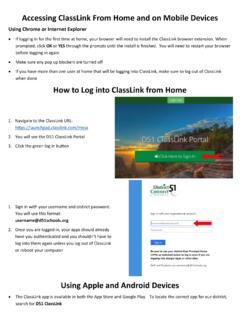
2 1. To access the login page of SystmOnline go to in your web browser. 2. You will see a page that looks like this: 3. Carefully enter the Username and Password exactly as it appears on the information you have received from the Surgery. Take great care not to include any spaces in either the Username or Password and be sure to include all the characters in the Password no matter how odd they might look. Take care to enter upper and lower case letters correctly. 4. Mis-keying the temporary Password you have been given is the commonest reason for failed login attempts. 5. Once you are happy that the Username and Password have been entered correctly, click on the [Login] button.
3 A. If you see the following, you have made a mistake keying in your Username and/or Password so please try again. b. If you see the following then you have successfully logged in and can move on to the next step. 6. Before you can access your online account you will need to reset your password. Complete the fields as follows: a. Current password annoyingly you will have to re-enter your temporary password again. As before, enter it exactly as it appears on the information you have received from the Surgery. Take great care not to include any spaces and be sure to include all the characters in the Password no matter how odd they might look.
4 Take care to enter upper and lower case letters correctly. b. New password you now need to enter a password of your own. It can be anything you like but must follow the rules defined above. c. Confirm new password you will need to enter your new password exactly as you entered it in the New password field above. 7. Once you are happy all the Password information has been entered correctly then click on the [Submit] button. Assuming no mistakes have been made you will see the following message: 8. Click on the [Back] button to continue and you will be taken to the Patient Home Page where you can access the Your Appointments, Your Medication, Your Records and Your Account menus.
5 Changing your password It is possible you may have had help from someone else while Logging into your SystmOnline account for the first time. If so it is likely the person who helped you will now know your Password. If you would like to change it to something else then please do the following: 1. In the Your Account menu on the Patient Home Page click on Change Password. 2. You will see an identical screen to the one you used in Step 5 above. Complete the fields as before but this time be sure to enter the Password you have just created as the Current password. The temporary Password given to you by the Surgery will no longer be valid and can be deleted/destroyed.
6 3. Once you are happy all the Password information has been entered correctly then click on the [Submit] button.