Transcription of Microsoft DOS II (Command Prompt)
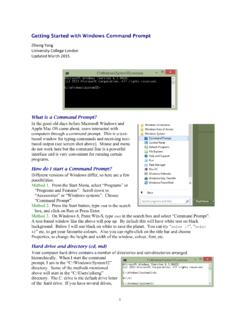
1 Microsoft DOS II ( command prompt ) Microsoft DOS or MS-DOS is a command prompt shell window. DOS controls the computer s hardware and provides an environment for programs such as Windows to run. This system program must always be present when working with computers that have a Operating System Installed. Handout Objectives: 1. Understanding the importance of DOS 2. Setting Date and Time 3. Navigating through long Directories. 4. How to recall DOS commands 5. How to view single and groups files. 6. List Files with the Same Extensions 7. How to clear cluttered dos screen 8. How to create a file using DOS 9. How to edit a created file 10. How to display a created file on DOS 11. How to use the copy command 12. How to rename a single file 13. How to rename a group of files 14.
2 How to Create and work with Subdirectories 1. Understanding the importance of DOS There are multiple reasons as to why we need DOS. a. Controls the flow of information between you and the computer Translator b. Allows the user to store information on the computer. c. Allows the user to retrieve information stored on the computer. 2 d. Interprets and translates software applications installed on the computer. e. Provides the user to access all important funct ion such as saving, copying, and printing. 2. Setting Date and Time What most of us don t know is that with DOS we have the ability to control the system date and time. We are mostly familiar with our Windows Clock which is located at the lower right hand corner or the desktop taskbar. To gain access to the Date simply type Date in the DOS command prompt and press Enter.
3 The System Date will display wit h the addit io nal option to edit direct ly fro m the prompt . 3 Follow format given and type desired date (mm-dd-yy) ex. Type 12-15-2010. Press Enter and Type Date again the change is instant. Then do the same to change back to correct date settings. The Time portion works the same way as the date. Type in Time and press Enter. The system clock is based on a 24 hour time format (Military Time) 16:05:09 is considered to be 4:05pm and seconds. This setting can be changed the same way, just type in format and press Enter. 3. Navigating through long Directories. Directories are also known as folders, in each folder there are many files that can be listed on the screen. For example: The Windows directory contains many files and folders.
4 Viewing the contents of the directory happens very quickly causing us to miss a file that we might be looking for. 4 In the command prompt type cd\.. press Enter type cd windows press Enter and then type DIR and Enter. The screen will run through all files and folders till it reaches the end. This happens very quickly and we find ourselves having to scroll back to look for a specific object. There is Pause command that allows us to see the list part by part. To do so Type dir/p and Enter, this command freezes the screen after it has filled the screen just before the point of creating a scroll point. Pressing the Space bar after each pause allows us to continue listing the files. This goes on until you Enter back to the C:\> prompt . 5 4. How to recall DOS commands Sometimes when typing commands we find ourselves typing the same command over and over.
5 To save time DOS has a feature that will allow us to re-enter a previous command so that we do not need to have to retype it. Working with DOS can take some time to enter documents so finding shortcuts comes in handy when doing tasks. Pressing F3 (Function 3) on the keyboard will insert the previously typed command . Pressing the Up Arrow key allows us to scroll through a list of previously t yped commands Pressing the Right Arrow Key allows us to type out each letter from our last command . 5. How to view Single and Group Files To check for a single file Instead of using the directory command to look for one particular file, you can type the name of the file after the DIR command at the C:\> prompt .
6 Steps: 1. Make sure that you are at your C:\> prompt . 2. Type: dir ( ) and press Enter. 3. The screen will display a listing of the file or a file not found message (if it has not been found it means it might be in another directory). 6 To check for a groups of files the * symbol is referred to as a wildcard and stands for any character or group of characters. This is helpful when you want to list files that start with a particular letter or group. Steps: 1. Type: dir p* and press Enter. 2. All filenames that begin with the letter p will be listed. 3. Press the F3 key. 4. Backspace twice and replace p* with z* and press Enter. 5. All filenames if any that begin with the letter z will be listed. 7 6. List Files with the Same Extensions You can also use the wildcard character * to look for a group of files with the same extension.
7 Steps: 1. Type: dir *exe and press Enter. 2. All files wit h the .exe if any extensio n will be listed. 3. Press the F3 key. 4. Backspace three times and replace the .exe extension with the .bat extension and press Enter. All files with the .bat extension should now be listed. 8 7. How to clear cluttered dos screen After typing and retrieving info on the DOS screen it might tend to become cluttered and confusing. Typing CLS in the command prompt will clear all data on screen and start fro m the top. 9 8. Creating a File using DOS Steps: 1. Type: copy con and press Enter. 2. Type this message in the following format: Good Morning Welcome to our DOS II workshop 3. Press the F6 function key (^Z) and press Enter. 4. DOS gives you a message that 1 File(s) has been copied.
8 5. Type: dir d* and press Enter. Now you can see in the list of files beginning with the letter d, the letter that we have just created in DOS. 10 9. How to edit created file. The edit command can be used to launch an editor that will allow us to make changes to files that we have created. Type edit and press Enter. Simply save once changes have been made. 10. How to display file on DOS If you need to check the contents of a particular DOS file, you will need to use the TYPE command . Steps: 1. Type: type and press Enter. 2. DOS will display the contents of the file on the screen. 11 11. How to use the copy command The copy command can be used to copy one file to another. Steps: 1. Type: copy and press Enter. 2. DOS will tell you one file has been copied.
9 3. Type: dir d* and press Enter. 4. You should have two files listed with different names. The copy command also allows us to copy a file with a new extension name Steps: 1. Type: copy and press Enter. 2. Type: dir d* and press Enter. 3. Three files should be listed one with a different extension. 12 12. How to Rename a File The rename command allows us to change the name of the previously created file with a new Steps: 1. Type: ren and press Enter. 2. Type: dir *.note and press Enter. 3. DOS will list only two files that have the .note extension: and 13 13. How to Rename a Group of Files With the wildcard character *, you can also use the RENAME command to change a group of files. Steps: 1. Type: ren *.note *. not and press Enter. 2. Type: dir *.
10 Not and press Enter. 3. You should have two files listed with a .not extension. 4. Type: dir *.note and press Enter. 5. There should be no files found with .note extensions. 14 14. How to Create and work with Subdirectories In order to create a subdirectory, The make directory command will be used. The MD. Is allows us to organize our files on our hard drive. With subdirectories,we can create and store related files together. For example, one subdirectory could be used to store all word processing files and another for all spreadsheet files. Steps: 1. Type: md \data and press Enter. 2. Type: dir *data and press Enter. 3. Notice the *. Will produce a list of only subdirectories. <DIR> Once we create the subdirectory we are able to move in to it, we will use the Change Directory command known as CD.