Transcription of Microsoft Word: Visual Basic for Applications
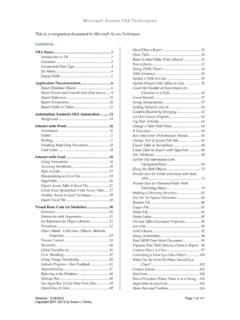
1 Microsoft Word: Visual Basic for Applications See also: Access Techniques for VBA code techniques, some is specific to Access, some are general. This document presumes you know something about VBA. It is not a primer. It is my personal resource. CONTENTS. About Page Headers and 30. Organizing Macros ..3. Export and Import Code ..3 Assembling Multi-file Documents .. 32. Get to Know the Object Model ..3 Approach ..32. Code Samples ..33. Miscellaneous Subjects ..4 Prompt User for Directory of New File .. 33. Insert Chapter 33. Anatomy of a Word Document ..4 Insert Section Break Odd 34. Moving Around in a Word Document ..4 Update Main Table of Contents .. 34. Working with Documents ..6 Update Main Table of 34. Working with Templates ..7 Save New Document .. 34. Update Chapter Tables of 34. Working With Update Indices .. 34. Working With Styles ..7 Delete Macros in New Document .. 35. Working With Subroutines .. 35. Working With 36. Portrait and Landscape.
2 13. Shapes .. 36. Document About Page Anchoring a 36. Positioning a Shape .. 37. Working with Tables ..16 Formatting a Shape .. 37. Addressing Table Cells ..19 Other Important Shape 37. 37. Dialog Converting Visio Picture into Inline Shape ..38. Message Box Key Present RelativeVerticalPosition Property .. 38. Prompt User for Choices ..21 RelativeHorizontalPosition 38. Top Property .. 38. Dialog Object ..21 Left Property .. 39. Prompt User for File(s) or Directory with FileFind Dialog Shrink Inline Shapes ..40. FileDialog Object ..23. Prompt User to Select Folder with FileDialog Watermarks .. 42. Background Printed Watermark ..42. Watermark as Text Box ..43. Documenting Your Shortcut Code Created by Insert Print Watermark About Keyboard Shortcut Background Run This Code ..25. DOM Background ..26 Iterative Document Editing .. 45. Reformat Text in Square Brackets ..45. Field Codes in VBA ..27 Insert RD Field Codes ..46. Index Change Styles in all Word Files in a Given Table of RD Field Code.
3 29. Field Codes and Page Numbers ..30 Passwords and Protection .. 50. Revision: 8/11/2011 Page 1 of 59. Copyright 2002 2011 by Susan J. Dorey Microsoft Word: Visual Basic for Applications Interacting with an Access Iterating Procedures in Modules ..55. Basic Logic to Inventory Macros ..56. Automation ..52. Inventorying Files .. 56. Inventorying Macros ..52 Relevant Relevant Object Revision: 8/11/2011 Page 2 of 59. Copyright 2002 2011 by Susan J. Dorey Microsoft Word: Visual Basic for Applications ABOUT MACROS. Recording keyboard actions is a good way to get the needed code, then you can edit it into an efficient macro. Organizing Macros Macros (in newer versions of Word) are stored in modules. They may reside in any kind of Word file, document or template. All the macros in a file comprise a Project. By default new recorded macros are created in the NewMacros project of It can be helpful to organize macros into modules. Perhaps you put all macros used together in the same module.
4 Perhaps you put utility macros, like those that transpose two adjacent characters, in the same module. But if you have 100 macros, it is better if they are distributed across 5 or so modules. You can create a module in the VBA editor with menu Insert, Module. You can rename a module: First select the module, then use menu View, Properties Window. to open the same-named window. Properties are listed in tabular format with the names in the left column and the values in the right column. Select the value for the Name property and retype it. Click elsewhere for it to take effect. You can move a macro from one module to another: In the Code window select the text of the macro, cut it, open the Code window of the new module, position the cursor, and paste the text. You can delete a module: select it then use menu File, Remove. Export and Import Code A module's code can be exported as a .bas text file. Such a file can be imported into a different project.
5 This can be a convenient method for copying code from one Word file to another. Get to Know the Object Model Because VBA is an object-oriented language, you will be most effective if you understand the Word object model and how to manipulate it. Basically the model has objects. Objects are grouped into collections which are an object unto themselves. Objects may have child objects and/or parent objects. Objects also have methods and properties. When you are trying to figure out how to do something, you must identify the relevant object and property or method. Sometimes you start with the property or method and work backward to the object. Look in the help file for a diagram. Revision: 8/11/2011 Page 3 of 59. Copyright 2002 2011 by Susan Dorey Designs Microsoft Word: Visual Basic for Applications MISCELLANEOUS SUBJECTS. Anatomy of a Word Document When you are editing a Word document with VBA, it can be important to understand the different parts objects and how to deal with them.
6 You could study the Word Object Model, which you can find in the VBA Help file. Key objects that I have needed to handle include: Object Parent Object Contents Window Application all the (open) windows Pane Window the window panes for a given window Document Application an open document Section Document sections are used to hold text formatted differently than the base document, including multiple columns and different page orientation and/or margins Footnotes Document There are special properties that return a particular object: ActiveDocument. Returns a Document object for the document that is active, , the document with the focus. ActiveWindow. Returns a Window object for the active window, , the window with the focus. ActivePane. Returns a Pane object for the active pane in specified window. SeekView. Returns or sets a View object with the document element displayed in print layout view. It uses the WdSeekView constant to specify which view: main document, header, footer, endnotes, footnotes.
7 There are several variations of header and footer: current, first, even, primary. This property can incur a run time error of 5894 if the view is not Print Layout. Examples: = wdSeekMainDocument If <> wdSeekMainDocument Then .. The following code will change the view/pane to Normal view, even when the document is in print layout view and the header is open. Hence, it is very useful for resetting the state of the document prior to editing. = wdNormalView Moving Around in a Word Document By moving I mean moving the cursor. This is accomplished with methods of the Selection object. The selection can be extended or collapsed to an insertion point. The principal methods are those that reflect the keyboard direction keys: Home, End, Up, Down, Left, Right. Use the Select property to return the Selection object. If the Selection property is used without an object qualifier, the object is assumed to be the active pane of the active document window.
8 It may be advisable to not assume what the active pane is. Revision: 8/11/2011 Page 4 of 59. Copyright 2002 2011 by Susan Dorey Designs Microsoft Word: Visual Basic for Applications Which, unfortunately, gets us into panes. A window has more than one pane if the window is split or the view is not print layout view and information such as footnotes or comments are displayed. From this it seems safe to assume that the first pane is the one that opens when the document is first opened. To close all but the first pane: MsgBox If > 1 Then For i = 2 To (i).Close Next End If Similarly don't assume the cursor is in the main body of the document, it might be in a header/footer or footnote. The following code will incur a run time error if the document is not in print layout view. If <> wdSeekMainDocument Then = wdSeekMainDocument Better: If = wdPrintView Then If <> wdSeekMainDocument Then = wdSeekMainDocument End If End If To go to the first character: Unit:=wdStory In the previous example, wdStory is one value of the WdUnits constants.
9 Other values: wdCharacter, wdWord, wdSentence, wdParagraph, wdSection, wdCell, wdColumn, wdRow, wdTable. To go to the first character and select the first paragraph: Unit:=wdStory Unit:=wdParagraph, Count:=1, Extend:=wdExtend To release selection by moving cursor to the right: Unit:=wdCharacter, Count:=1. To move down 8 paragraphs: Unit:=wdParagraph, Count:=8. To move to the start of the current line: Unit:=wdLine To move to the end of the current line: Unit:=wdLine To move to the end of the document: Unit:=wdStory Move cursor: Unit:=wdCharacter, Count:=1, Extend:=wdExtend Revision: 8/11/2011 Page 5 of 59. Copyright 2002 2011 by Susan Dorey Designs Microsoft Word: Visual Basic for Applications Collapse a range or selection to the starting or ending position. After a range or selection is collapsed, the starting and ending points are equal. You can optionally specify the direction in which to collapse the range, as start or end. If you use wdCollapseEnd to collapse a range that refers to an entire paragraph, the range is located after the ending paragraph mark (the beginning of the next paragraph).
10 Using wdCollapseEnd to collapse a selection that refers to the last table row causes the cursor to be located after the end of the table. Using wdCollapseStart to collapse a selection that refers to a table row causes the cursor to be located in the first cell of that row. If you collapsed a group of rows, say after inserting them, the cursor is located in the first cell of the first row. Collapse the selection to an insertion point at the beginning of the previous selection. Direction:=wdCollapseStart Working with Documents Documents collection consists of all open documents. Open a named document: FileName, ConfirmConversions, ReadOnly, AddToRecentFiles, PasswordDocument, PasswordTemplate, Revert, WritePasswordDocument, WritePasswordTemplate, Format, Encoding, Visible, OpenConflictDocument, OpenAndRepair, DocumentDirection, NoEncodingDialog Example: FileName:="C:\MyFiles\ ", ReadOnly:=True c:\data\ . Close the active document: SaveChanges, OriginalFormat, RouteDocument Example: wdSaveChanges Save the active document: (NoPrompt, OriginalFormat).