Transcription of Module 1 Handouts Computer Basics Computers - …
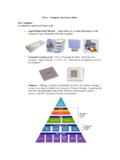
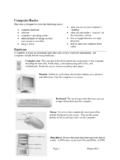
1 Prepared by Christine Anning June 2011 Modified by Emilie Hanson March 2012St. Catherine University, MLIS Department2004 Randolph Ave, St Paul MN Basics Handouts : Computer BasicsHANDOUT 1A: LESSON GOALSD uring this lesson, you will:____ 1 Learn basic Computer terms____ 2 Learn about folders, menus and windows____ 3 Practice using the mouseLesson 1 Handouts - Computer Basics : A Computer Internet Course for Older AdultsModule 1 - Handouts : Computer Basics !!H-2 Course adapted from National Institute on Aging (2007)Helping Older Adults Search for Health Information Online. Retrieved from 1B: Computer TERMSPart I Computer Terms1. Computer or CPU (central processing unit)The main part, or brains of a Computer . The CPU interprets and carries out program KeyboardThe keys that operate the Computer , very much like a typewriter, with extra keys for special Monitor The part of a Computer system that contains the Computer screen, where information is 1 Handouts - Computer Basics : A Computer Internet Course for Older AdultsModule 1 - Handouts : Computer Basics !
2 !H-3 Course adapted from National Institute on Aging (2007)Helping Older Adults Search for Health Information Online. Retrieved from Computer4. Mouse 2. Keyboard3. Monitor5. Mouse Pad6. SpeakersHANDOUT 1B: Computer TERMSPart I Computer Terms4. MouseA small hand-held device that controls the position of the cursor on the Computer screen. Movements of the mouse correspond to movements of the cursor. (See Cursor in Part II)5. Mouse PadThe pad on which you move the mouse. 6. SpeakersDevices that allow you to hear sound from the Hardware The physical parts of a Computer SoftwareThe instructions that tell the Computer and Computer networks what to do. Software is installed inside the 1 Handouts - Computer Basics : A Computer Internet Course for Older AdultsModule 1 - Handouts : Computer Basics !!H-4 Course adapted from National Institute on Aging (2007)Helping Older Adults Search for Health Information Online.
3 Retrieved from 1B: Computer TERMSPart II More Computer Terms9. DesktopThe information that appears on the Computer soon after the Computer is turned on. The desktop contains a number of icons, or images, that you can click on to start IconA small picture or image representing a command (such as print), a file, or a program. When you click or double-click on an icon, you start a command, open a file, or launch a Folder(s)Similar to storing files in a physical file cabinet, you store Computer files, such as documents or pictures, in a folder. To open a folder you double-click on the folder icon with the left mouse button. When you open a folder its contents will appear in a window (see term #16).Desktop ScreenIconFolder iconLesson 1 Handouts - Computer Basics : A Computer Internet Course for Older AdultsModule 1 - Handouts : Computer Basics !!H-5 Course adapted from National Institute on Aging (2007)Helping Older Adults Search for Health Information Online.
4 Retrieved from 1B: Computer TERMSPart II More Computer Terms12. CursorA small image on the screen indicating where you are pointing; the mouse controls the movements of the cursor. The cursor can appear in different forms, including:ArrowIndicates where your mouse is positioned on the screenI-beam (often blinking)Marks a place on the screen where you can enter or select circle or hourglassIndicates that the Computer is doing a task. You must wait until it disappears before handIndicates that you are hovering over a link, which when clicked opens a website 1 Handouts - Computer Basics : A Computer Internet Course for Older AdultsModule 1 - Handouts : Computer Basics !!H-6 Course adapted from National Institute on Aging (2007)Helping Older Adults Search for Health Information Online. Retrieved from 1B: Computer TERMSPart II More Computer Terms13. BrowserSoftware, such as Mozilla Firefox, Internet Explorer, Google Chrome or Safari are used to access the web (web defined in Lesson 2).
5 14. ClickingPressing and releasing a button on a mouse to select or activate the area on the screen where the cursor is pointing. Usually, you click on the left side of the mouse (called a left click). For more advanced functions, you click on the right side of the mouse called a right click). Right mouse buttonLeft mouse buttonLesson 1 Handouts - Computer Basics : A Computer Internet Course for Older AdultsModule 1 - Handouts : Computer Basics !!H-7 Course adapted from National Institute on Aging (2007)Helping Older Adults Search for Health Information Online. Retrieved from 1B: Computer TERMSPart III More Computer Terms15. MenuThe menu bar contains commands that you select to make choices in a program. Menu Bar16. Window(s)A framed area of a Computer screen that appears in front of the desktop. Sometimes the appearance of a window means that you have entered another website or it may mean you are still on the same website.
6 You can have multiple windows open at a time. The active window moves to the front of the others. Click on the minimize button to hide a window, often indicated by an underscore (_) or minus sign (-) in a top corner. The window disappears, but you can bring the window back by clicking on its button in the task bar (see diagram).Lesson 1 Handouts - Computer Basics : A Computer Internet Course for Older AdultsModule 1 - Handouts : Computer Basics !!H-8 Course adapted from National Institute on Aging (2007)Helping Older Adults Search for Health Information Online. Retrieved from BarMaximize ButtonMinimize ButtonInactive WindowActive WindowMinimized WindowLesson 1 Handouts - Computer Basics : A Computer Internet Course for Older AdultsModule 1 - Handouts : Computer Basics !!H-9 Course adapted from National Institute on Aging (2007)Helping Older Adults Search for Health Information Online.
7 Retrieved from