Transcription of New Ford LM Logon Issues Browser Settings
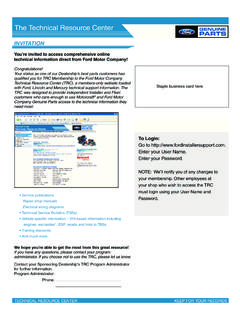
1 UNCONTROLLED DOCUMENT WHEN PRINTED. FORD & L/M Logon Issues & Browser Settings . A customized Browser like AOL will not work. Please use Internet Explorer version SP2, , or higher. Log into > Parts & Service tab > Technical Tools > PTS (Professional Technician Society). Preliminary Check Note: These instructions apply to Windows XP machines with SP2 and Internet Explorer (IE) and above. Open Internet Explorer > Tools > Security > click on the Internet Zone > find Navigate Sub-frames across different domains.. enable this function. Then click OK, system may ask you if you want to accept these function please say YES.
2 Check Windows Firewall to make sure it is turned off. Start > Control Panel > Windows Firewall (if you do not see the icon, make sure you are using Classic View) > select Off Check Windows Pop-up Blocker to make sure it is turned off. Open Internet Explorer > Tools > Pop-up Blocker > Turn Off Pop-up Blocker Remove any add-on toolbars such as Google or Yahoo toolbars, as these have additional built in pop-up blockers. Verify that any third party anti-virus, anti-spyware, firewall, or internet security software is temporarily disabled. Browser Settings and Troubleshooting Open Internet Explorer > Tools > Internet Options General tab > Delete Files > check Delete all offline content > OK.
3 Delete Cookies > OK. Clear History > Yes. Security tab > Custom Level > under Reset Custom Settings , pull down to Reset to: Low > Reset > Yes > OK. Note: If running OASIS on IE , Reset to: Medium-low. Also, under Settings , scroll to Navigate sub-frames across different domains > Enabled > OK. Privacy tab > move the slider to Low > Advanced > check the box Override automatic cookie handling > check the box Always allow session cookies > OK. Advanced tab > scroll down to HTTP Settings ; make sure both options under this section are checked > scroll down to Security; make sure the following are checked: Empty Temporary Internet folder when Browser is closed.
4 Use SSL , Use SSL , Use TLS > Apply > OK. PC and Server Troubleshooting If you wish to test another Browser for web-based training ONLY, download the free version of Opera at For web-based training sound problems, make sure your firewall allows downloading sound file types such as MP3, etc. If you have installed special search and add-on programs such as Gator or "Bonzi" please remove them. If you have a router, make sure that port 443 is open for Secure Socket Layer (SSL), and ports 80 and 8080 are open for HTTP. Internet access uses a caching or proxy server. Make sure the caching/proxy servers are set to automatically detect Settings .
5 Contact your local network administrator and/or your Internet service provider and have them turn off the caching on any and all caching proxy servers for the following: URL: OR *. Rev# 13 Page 1 of 1 Date Issued: 11/30/2007. JP/CP.