Transcription of PeopleSoft Student Information System (SIS) Academic ...
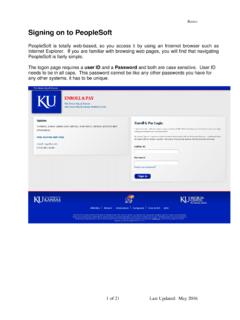
1 1 PeopleSoft Student Information System (SIS) Academic faculty Instruction Sheet TOPIC RESPONSE How to Login to the SIS System PeopleSoft Campus Solutions can be used on the following browsers: Safari, Mozilla Firefox, Internet Explorer and Chrome. On the browser enter the web address Employee username is your SAP user ID or your email address. Example employee ID s: smithj or Employee default password will consist of: 8@ + the month of your birthdate (MM) + the first character of your last name (capitalized) + the last 4 digits of your SSN For example, Joe Smith, who was born on August 9th, and has SSN xxx-xx-1234, his default password would be: 8@08S1234 Once you have successfully logged in, you will be required to select a 2 Reset Password Account new password. Enter your old password (Example: 8@08S1234) and new password in their respective textboxes. New password must contain at least seven alphanumeric characters: numbers, uppercase and lowercase alphabetical characters, and at least one special character.
2 Additionally, you may not use your prior three passwords as your new password. After successfully selecting a password, you will be redirected to the Self Service Password Reset (SSPR) registration page where you will respond to 5 security questions. IMPORTANT! Please make sure you register so you can reset your password online. Until your new password is memorized, we recommend writing it down and storing it in a safe place, especially since it is case sensitive, as well as your responses to the security questions. If you have been unsuccessful with creating a new password and your account needs to be reset, please visit the College IT Department to initiate the reset process. Waitlist Add a Student from the Waitlist PeopleSoft delivers a dynamic waitlist for all credit and non-credit classes. The waitlist was set to 50% of the class size and the waitlist will open automatically as soon as the class is closed. During the enrollment period prior to the start of classes, students wishing to add classes which have reached the enrollment limit can add themselves to the waitlist.
3 A process will run once every hour and will automatically enroll students in the class from the waitlist as seats become available. An email will be sent to the Student s LACCD email account notifying them of the registration. The last day a Student can be added to a waitlist is 12 noon on Saturday before the first day of the term. Waitlists apply to all regular and short-term session classes, summer and winter intersession. Once the class is full it is marked as closed then only students from the waitlist may be enrolled in the course. If one seat becomes available in a course, then Student number one on the waitlist is automatically enrolled from the waitlist provided there are no holds, time conflicts, prerequisites, repeat issues, or duplicate course errors. To view the waitlist for your class and the Student s position on the waitlist, login to your faculty Portal and click on the Class Roster tab. You can filter the roster by enrollment status: Enrolled, Dropped and Waitlist.
4 FIRST DAY OF CLASS: On the first day of class, we recommend that you take attendance, calling the names of the students on both the Enrolled and Waitlist Roster. After classes begin, students actively enrolled in the class who do not show up for the first class meeting MAY be dropped by the instructor by using the Drop Roster. To add students to the class from the waitlist, you 3 will issue the Student a Permission Number. On Friday, three days before the term starts, the Permission Numbers will be viewable on the bottom of the class roster page. If an instructor would like to add a Student that is not reflected on the Enrolled Class Roster or Waitlist, the instructor should issue the Student a Permission Number. Permission Numbers (Replaces the paper ADD Slips) Exporting Permission Number to Excel Release of Permission Numbers Expiration Date All credit and noncredit classes will receive 40 Permission Numbers on Friday, August 25. The Permission Numbers will be viewable on the bottom of the class roster page.
5 students should be instructed to login to their Student Portal, pull down the Academic Menu and click on the Add a Class link. During the enrollment process, the Student will be notified that the class is closed and then will be prompted to insert the Permission Number into the text box. The Permission Number will allow the Student to add the class online. If assistance is needed, the Student can take the Permission Number to the Admission & Records Office for processing. In general, Permission Numbers should be issued after the term starts, first to students on the waitlist before issuing them to students not on the waitlist. Once the waitlist is exhausted, faculty can issue Permission Numbers to any Student that satisfied the pre-requisite for the class. For your convenience, you can print the Permission Numbers from the page by clicking the Print Friendly Version link or export the numbers to an Excel document. Problems with downloading turn off your pop-up blockers and try again.
6 When issuing a Permission Number, it is important that you write down the Student s name and ID number. The System does not know who you issued the number too. It is recommended that you check your Class Roster daily to verify if the Student you assigned the Permission Number too registered in the class. If you discover that another Student , besides the Student you issued the Permission Number too; registered in the class; please forward the name and ID number of the Student to the Office of Student Services for investigation. Permission Numbers DO NOT OVERRIDE pre-requisites; it only allows students to be added to a closed class. If a Student did not satisfy the pre-requisite and the faculty issued a Permission Number, the System will not enroll the Student in the class. The Student will receive a message stating they did not satisfy the pre-requisite for the class. Permission Numbers are set to expire the day before Census unless you request to change the expiration date at the Admissions and Records Office.
7 4 Generating additional Permission Numbers If additional Permission Numbers are needed, contact the Admissions and Records Office to request that they generate additional Permission Numbers for your class. To request to receive the Permission Numbers earlier than the Friday before school starts; to increase the number of Permission Numbers released; or change the expiration date of the Permission Number, please contact the Admission & Records Office. Zero Enrollment Can t view the class roster faculty with their class limit set to zero will not be able to view the Class Roster or the Permission Numbers until one active enrollment has been recorded. To request the Permission Numbers be generated, contact the Admission and Records Office. They will electronically forward you the Permission Numbers to your faculty email account. As soon as one Student registers in the class, the Class Roster will become viewable. Sending Notifications to students When sending an electronic notification to students , you can select to send individual notification (Notify Selected Student ) or to send to all students on the roster (Notify ALL students ).
8 When the page opens your address will automatically populate in the From field. Then, enter the desired Information into the Message text field. Training on the SIS Training Guide Training Simulation For your convenience, end-user training on the new PeopleSoft SIS System can be completed online or in-person. Attached is the Training Schedule for in-person training during the week of August 21. You are welcome to attend multiple training sessions or attend training at a sister college. Attached is the online training guide with step-by-step instructions on how to perform key transactions. If you prefer a training simulation, visit the SIS Modernization project website at , click on the Intranet button, followed by the Training Material button. Scroll down to the faculty Portal Training Material section and click on the faculty Portal Simulation link. Training simulation can only be accessed on-campus. To See It or Try It open the navigation tree on the left side, select the topic you would like to review and click on See It to watch the presentation or Try It to use the keyboard.
9 In-person Training Schedule See below chart. For missing training location, contact the Office of Academic Affairs or Student Services. 5