Transcription of POLYCOM VVX 350 TELEPHONE GUIDE - Nextera
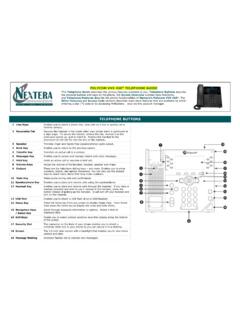
1 POLYCOM VVX 350 TELEPHONE GUIDE This TELEPHONE GUIDE describes the various features available to you. TELEPHONE Buttons describe the physical buttons and keys on the phone, the Screen Overview outlines basic functions, and TELEPHONE Features describe the phone functionalities of Nextera s POLYCOM VVX 350 . The Other Features and Access Code sections describes even more features that are available by either entering a star [*] code or by accessing MyNextera your on-line account manager. TELEPHONE BUTTONS 1 Line Keys Enables you to select a phone line, view calls on a line or quickly call a favorite contact. 2 Reversible Tab Secures the handset in the cradle when your phone stand is positioned in a high angle.
2 To secure the hanset, remove the tab, reverse it so the protrusion points up, and re-insert it. Position the handset to the protrusion on the tab fits into the slot on the handset. 3 Speaker Provides ringer and hands-free (speakerphone) audio output. 4 Back Key Enables you to return to the previous screen. 5 Transfer Key Transfers an active call to a contact. 6 Messages Key Enables you to access and manage instant and voice messages. 7 Hold Key Holds an active call or resumes a held call. 8 Volume Keys Adjust the volume of the handset, headset, speaker and ringer. 9 Dialpad These are the TELEPHONE dialing keys and more. Enables you to enter numbers, letters, and special characters. You can also use the dialpad ke ys to select menu items that have index numbers.
3 10 Mute Key Mutes audio during calls and conferences. 11 Speakerphone Key Enables you to place and receive calls using the speakerphone. 12 Headset Key Enables you to place and receive calls through the headset. If you have a headset attached and wish to use it instead of the handset, press the button instead of picking up the handset. It will turn off your handset and turn on the headset. 13 USB Port Enables you to attach a USB flash drive or USB headset. 14 Home Key Press the Home key from any screen to display Home View. From Home View press the Home key to display the Lines and Calls Views. 15 Navigation Keys / Select Key Scroll through displayed information or options. Select a field of displayed data. 16 Soft Keys Enable you to select context sensitive keys that display along the bottom of the screen.
4 17 Security Slot The connector on the back of your phone enables you to attach a universal cable lock to your phone so you can secure it to a desktop. 18 Screen The color screen with a backlight that enables you to view menu options and data. 19 Message Waiting Indicator flashes red to indicate new messages. TELEPHONE FEATURES PLACING, ANSWERING, RETURNING TO CALLS & ENDING CALLS Placing a call: Simply pick up the handset, press the speakerphone key or press the headset key then enter the phone number or enter the phone number first then choose the method. To place calls quickly, choose a favorite in Home or Lines view or choose from your Favorites list, Recent Calls list or Contact Directory. Answering calls: To use the handset, pick up the handset.
5 To use the speakerphone, press Answer, the speakerphone key, or the line key of the incoming call. To use the headset, press headset key. If already in handset, speakerphone or headset mode, press Answer and the phone will automatically use that mode. To answer a new call while on an active call, tap Answer and the current call will be held. To Return to your calls: If you navigate away from your calls, return to Calls view by pressing More and then Lines or the Home key. Scroll up or down to see all lines and calls. Ending Calls: Hang up to end a call or press End Call. In Calls view, select the held call, and press Resume > End Call. FAVORITES Favorites are contacts you call most often. Favorites display in your Favorites list and Lines view.
6 They also display when you choose the phone line in Home view. To assign a contact as a Favorite: From Home view, select Directories > Contact Directory. Select the contact and select Edit. There are also 9 favorites that will display in Lines view and from Home view. They can quickly be dialed by choosing the correct contact. They will display according to an assigned index number. The contact with the lowest index number displays first. Establish the index number from the Edit Contract Screen by using the up and down arrow keys to select Favorite Index and entering an index number. Press Save. To dial a Favorite: From Home view, select Directories > Contact Directory. From the Favorites list, use the up and down arrow key to select the favorite.
7 The call is automatically placed. To reorder your Favorites list: Update the contact s Favorite Index number in the Contact Directory. CALL HOLD AND RESUME From Lines or Calls view, press Hold. If in Call View, the call must first be highlighted. To resume a held call, from Calls view, use the up and down arrow keys to highlight the call and press Resume. REDIAL To dial the last number called, press the right arrow key for the Placed Calls list. The first number in the list is the last call placed. From the Placed Calls list, press Dial. MICROPHONE MUTE The mute feature allows you to hear the other party, but they cannot hear you. During a call, press the Mute button. The button turns red and a microphone on the screen indicates that the other party (or parties) cannot hear you.
8 Microphone Mute applies to all modes: Handset, Headset, and Speakerphone. You can still hear all other parties while mute is enabled. To turn off microphone Mute, press Mute button again. SCREEN OVERVIEW Phone Views Your phone has three main views: Home, Calls, and Lines View (the default). To change views: For Home View press the Home key. From Home View press the Home key to display either Lines or Calls View. Home Views Home View displays the phone line, messages, settings and information. To change the displayed page, press the down or up arrow key. To change the highlighted entry, press the right or left arrow key. Select New Call to place a call. Select Messages to access voicemail. Select Directories to access Contact Directory, Favorites and Recent Calls list.
9 Select Forward to establish forwarding options for incoming calls. Select DND to toggle DND (Do Not Disturb) on or off. When DND is enabled, your phone won t ring and incoming calls will go to voicemail. Select Settings to access phone features and settings to customize the phone. Lines Views Lines View is the default display. Lines view displays phone lines, favorites, and soft keys. If the phone has calls, the phone line indicates the number of calls and if they are active or held. If there is an active call, the call color is medium grey. If the phone line has one or more held calls, the call color is light grey. To select a call, use the up and down arrow keys. Calls View If multiple calls are in progress or if there is one held call, Calls View can be accessed.
10 Use the up and down arrow keys to view all calls. Entering Data Use the dialpad keys to enter information. To delete characters, use left and right arrow keys until the cursor is positioned to the right of the character, then press the double arrows. To enter characters, press key repeatedly to see the character options and then stop to select. To type special characters, select Encoding then use the 1, *, 0 or # key one or more times to enter special characters. To enter a space, select Encoding, select one of the alphabetic options and then press the 0 key. About Calls Only one call can be active at one time (others can be on hold). You can use the headset, speakerphone, or handset for any call. During a call, you have the option to change modes.