Transcription of PowerPoint 2010 - CustomGuide
1 Customizable Computer Training9 Courseware 9 Online Learning 9 Skills Assessments Microsoft PowerPoint 2010 Quick Reference Card PowerPoint 2010 Screen Keyboard Shortcuts The Fundamentals To Create a New Presentation: Click the File tab, click New, and click Create. Or, press <Ctrl> + <N>. To Open a Presentation: Click the File tab and click Open, or press <Ctrl> + <O>. To Save a Presentation: Click the Save button on the Quick Access Toolbar, or press <Ctrl> + <S>. To Save a Presentation with a Different Name: Click the File tab, click Save As, enter a new name for the presentation, and click Save. To Preview and Print a Presentation: Click the File tab and click Print, or press <Ctrl> + <P>.
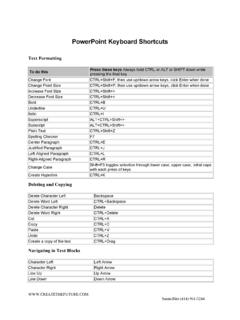
2 To Close a Presentation: Click the File tab and click Close, or press <Ctrl> + <W>. To Get Help: Press <F1> to open the Help window. Type your question and press <Enter>. To Exit PowerPoint : Click the File tab and click Exit. Open a Presentation <Ctrl> + <O> Create New <Ctrl> + <N> Save a Presentation <Ctrl> + <S> Print a Presentation <Ctrl> + <P> Close a Presentation <Ctrl> + <W> Insert a New Slide <Ctrl> + <M> Help <F1> General Editing Formatting Bold <Ctrl> + <B> Italics <Ctrl> + <I> Align Left <Ctrl> + <L> Center <Ctrl> + <E> Justify <Ctrl> + <J> Cut <Ctrl> + <X> Copy <Ctrl> + <C> Paste <Ctrl> + <V> Undo <Ctrl> + <Z> Redo or Repeat <Ctrl> + <Y> Find <Ctrl> + <F> Replace <Ctrl> + <H> Select All <Ctrl> + <A> Navigation Go To.
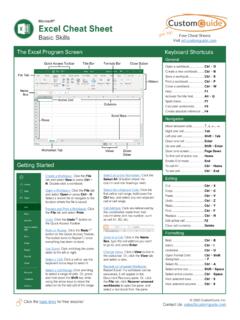
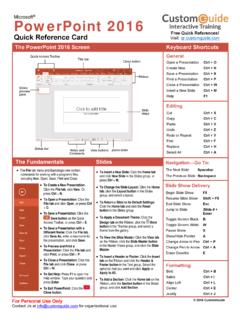
3 The Next Slide <Spacebar> The Previous Slide <Backspace> Slide Show Delivery Begin Slide Show <F5> Resume Slide Show <Shift> + <F5> End Slide Show <Esc> Jump to Slide <Slide #> + <Enter> Toggle Screen Black <B> Toggle Screen White <W> Pause Show <S> Show/Hide Pointer <A> Change Arrow to Pen <Ctrl> + <P> Change Pen to Arrow <Ctrl> + <A> Erase Doodles <E> The File tab menu and Backstage view contain commands for working with a program s files, including New, Open, Save, Print and Close. PowerPoint Quick Reference 2011 CustomGuide | Phone Quick Access Toolbar Title bar Slide pane Zoom slider RibbonView buttonsClose buttonSlides tab Status bar Outline tab Notes pane To Insert a New Slide: Click the Home tab and click New Slide in the Slides group, or press <Ctrl> + <M>.
4 To Change the Slide Layout: Click the Home tab, click the Layout button in the Slides group, and select a layout. To Return a Slide to its Default Settings: Click the Home tab and click the Reset button in the Slides group. To Apply a Document Theme: Click the Design tab on the Ribbon, click the More button in the Themes group, and select a theme from the gallery. To Change the Slide Background: Click the Design tab on the Ribbon, click the Background Styles button in the Background group, and select a background. To View the Slide Master: Click the View tab on the Ribbon, click the Slide Master button in the Master Views group, and click the Slide Master or the appropriate Layout Master in the Outline pane.
5 To Insert a Header or Footer: Click the Insert tab on the Ribbon and click the Header & Footer button in the Text group. Select the option(s) that you want and click Apply or Apply to All. To Add a Section: Click the Home tab on the Ribbon, click the Section button in the Slides group, and click Add Section. Slides Customizable Training MaterialsTel. (888) 903-2432 | x X Customizable Computer Training9 Courseware 9 Online Learning 9 Skills AssessmentsFormatting Images, Multimedia, and ObjectsViews To Cut or Copy Text: Select the text you want to cut or copy and click the Cut or Copy button in the Clipboard group on the Home tab. To Paste Text: Place the insertion point where you want to paste and click the Paste button in the Clipboard group on the Home tab.
6 To Format Selected Text: Use the commands in the Font group on the Home tab, or click the Dialog Box Launcher in the Font group to open the Font dialog box. To Copy Formatting with the Format Painter: Select the text with the formatting you want to copy and click the Format Painter button in the Clipboard group on the Home tab. Then, select the text you want to apply the copied formatting to. To Change Paragraph Alignment: Select the paragraph(s) and click the appropriate alignment button (Align Left, Center, Align Right, or Justify) in the Paragraph group on the Home tab. To Create a Bulleted or Numbered List: Select the paragraphs you want to bullet or number and click the Bullets or Numbering button in the Paragraph group on the Home tab.
7 To Change Paragraph Line Spacing: Select the paragraph(s), click the Line Spacing button in the Paragraph group on the Home tab, and select an option from the list. To Correct a Spelling Error: Right-click the error and select a correction from the contextual menu. Or, press <F7> to run the Spell Checker. To Add a Slide Transition: Navigate to the slide you want to add a transition to. Click the Transitions tab on the Ribbon, click the More button in the Transition to This Slide group, and select a transition effect. To Add an Animation Effect to an Object: Select the object that you want to animate, click the Animations tab on the Ribbon. Click the More button in the Animation group, and select an animation effect.
8 To Copy Animation Effects from One Object to Another: Select the object with the animation effect you want to copy, click the Animations tab on the Ribbon, and click the Animation Painter button in the Advanced Animation group. Then, click the object you want to apply the copied animation effect to. To Insert a Picture: Click the Insert tab on the Ribbon and click the Picture button in the Illustrations group. Find the picture you want to insert and click Insert. To Insert a Clip Art Graphic: Click the Insert tab on the Ribbon and click the Clip Art button in the Images group. Type the name of what you re looking for in the Search for box and click Go. To Insert a Video file: Click the Insert tab on the Ribbon and click the Video button in the Media group.
9 Find the video you want to insert and click Insert. To Insert a Video from the Web: Click the Insert tab on the Ribbon, click the Video button list arrow in the Media group, and select Video from Web Site. Paste the video s Embed code into the Insert Video from Web Site dialog box and click Insert. To Insert an Audio clip: Click the Insert tab on the Ribbon, click the Audio button list arrow in the Media group, and select Audio from File. Find the audio clip that you want to insert and click Insert. To Draw a Shape: Click the Insert tab on the Ribbon, click the Shapes button in the Shapes group, and select the shape you want to insert. Then, click where you want to draw the shape and drag until the shape reaches the desired size.
10 Hold down the <Shift> key while you drag to draw a perfectly proportioned shape or straight line. To Insert SmartArt: Click the Insert tab on the Ribbon and click the SmartArt button in the Illustrations group. Select the SmartArt you want to insert and click OK. To Format an Object: Double-click the object and use the commands located on the Format tab. To Move an Object: Click the object and drag it to a new location. Release the mouse button when you re finished. To Resize an Object: Click the object to select it, click and drag one of its sizing handles (), and release the mouse button when the object reaches the desired size. Hold down the <Shift> key while dragging to maintain the object s proportions while resizing it.