Transcription of Publisher 2010
1 Microsoft Publisher 2010 quick reference Card Publisher 2010 Screen Keystroke Shortcuts The Fundamentals To Create a New Publication by Type: Click the File tab on the Ribbon and select New. Select the type of publication you want to create. Click the desired publication and click Create. To Create a Blank Publication: Click the File tab on the Ribbon and select New. Click a Blank option ( X 11 or 11 x ). Or, click More Blank Page Sizes, select the option you want to create and click Create. To Open a Publication: Click the File tab and select Open. To Save a Publication: Click the Save button on the quick Access Toolbar. Or, click the File tab and select Save from the list.
2 Or, press <Ctrl> + <S>. To Save a Publication with a Different Name: Click the File tab, select Save As, type a new name for the publication, select a new location, and click Save. To Preview a Publication: Click the File tab on the Ribbon and select Print. The preview appears in the right pane; use the Previous and Next buttons and Zoom to preview pages. To Print a Publication: Click the File tab on the Ribbon and select Print. Or, press <Ctrl> + <P>. To Close a Publication: Click the Close button in the window. Or, press <Ctrl> + <W>. Or, click the File tab on the Ribbon and select Close from the list. Open a Publication <Ctrl> + <O> Create New <Ctrl> + <N> Save a Publication <Ctrl> + <S> Print a Publication <Ctrl> + <P> Close a Publication <Ctrl> + <W> Help <F1> General Editing Formatting Bold <Ctrl> + <B> Italics <Ctrl> + <I> Underline <Ctrl> + <U> Align Left <Ctrl> + <L> Center <Ctrl> + <E> Align Right <Ctrl> + <R> Justify <Ctrl> + <J> Increase Font Size <Ctrl> + <]
3 > Decrease Font Size <Ctrl> + <[> Select All <Ctrl> + <A> Cut <Ctrl> + <X> Copy <Ctrl> + <C> Paste <Ctrl> + <V> Undo <Ctrl> + <Z> Redo <Ctrl> + <Y> Check Spelling <F7> Navigation and Layout Zoom to Full <Ctrl> + <Shift> + Page <L> Toggle Between <F9> Current and Full Page View Go To Page <F5> Next Page <Ctrl> + <Page Down> Previous Page <Ctrl> + <Page Up> Insert New <Ctrl> + <Shift> + Page <N> Insert Duplicate <Ctrl> + <Shift> + Page <U> Show/Hide <Ctrl> + <Shift> + Layout Guides <O> Switch to Master <Ctrl> + <M> Page Beginning of Line <Home> End of Line <End> To Get Help: Press the <F1> key to open the Help task pane. Type your question and press <Enter>.]
4 To Undo/Redo: Click the Undo or Redo buttons on the quick Access toolbar. To Change the Color Scheme: Click the Page Design tab on the Ribbon. Select a color scheme from the Color Schemes gallery. To Change the Font Scheme: Click the Page Design tab on the Ribbon. Click the Fonts button and select a font scheme from the list. To Change the Background of a Publication: Click the Page Design tab on the Ribbon. Click the Page Background button and click the Background button. Select a background from the list. To Adjust the Margins of a Publication: Click the Page Design tab on the Ribbon and click the Margin button. Select the margin setting you would like to use, or select Custom Margins, make your adjustments, and click OK.
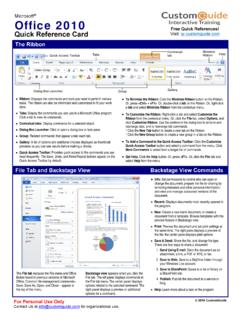
5 To Show or Hide Layout Guides: Click the View tab on the Ribbon and click the Guides check box in the Show group. To Change Page Orientation: Click the Page Design tab on the Ribbon and click the Orientation button. Select the orientation you wish to apply. To Change Page Size: Click the Page Design tab on the Ribbon and click the Size button. Title bar quick Access Toolbar Contextual tabs Status bar Zoom controls Rulers Horizontal scroll bar Task pane Workspace page Vertical scroll bar View buttons Ribbon Free Cheat Sheets! Visit: Interactive Online Learning Courseware Online Learning Skills Assessments 2012 CustomGuide | Phone Formatting Text Boxes Drawing and Graphics To Format a Text Box: Click the text box you want to format and click the Format tab under Text Box Tools.
6 Use the controls on the Ribbon to format the text box. To Link Text Boxes: Select the overflowing text box (marked with an overflow indicator). Click the Create Link button on the Format tab under Text Box Tools. Click inside an empty text box with the pointer. To Unlink Text Boxes: Select the linked text box that comes before the text box(es) you want to unlink, and click the Break button on the Format tab under Text Box Tools. To Move Between Text Boxes: Click the Previous or Next buttons, or click the Previous or Next buttons on the Format tab under Text Box Tools. To Add Columns to Text Boxes: Click the text box to which you want to add columns and click the Format tab under Text Box Tools.
7 Click the Columns button. Select the number of columns you wish to apply. To Change Text Box Margins: Click the text box to which you want to add columns and click the Columns button. Select the number of columns you wish to apply. To Manage Typography: Click the text box in which you want to change the typography and click the Format tab under Text Box Tools. Use the buttons in the Typography group to change the appearance of text. To Insert a Text Box: Click the Home tab on the Ribbon and click the Draw Text Box button in the Objects group. Position the mouse pointer where you would like to insert the text box and click and drag until the text box reaches the desired size.
8 Release the mouse button when you re finished and enter text. To Change Font Style: Click the text box, table, or shape with text. Select the text you want to apply formatting to and click the Home tab on the Ribbon. Click the Bold, Italic, or Underline button in the Font group. To Change Font Type: Select the text you want to apply formatting to and click the Home tab on the Ribbon. Click the Font list arrow in the Font group and select a font from the list. To Change Font Size: Select the text you want to apply formatting to and click the Home tab on the Ribbon. Click the Font Size list arrow in the Font group and select a size from the list. To Change Font Color: Select the text you want to apply formatting to and click the Home tab on the Ribbon.
9 Click the Font Color button list arrow in the Font group and select a color from the list. To Open the Font Dialog Box: Click the Home tab on the Ribbon and click the Dialog Box Launcher in the Font group. To Copy Formatting with the Format Painter: Select the text with the formatting you want to copy. Click the Home tab on the Ribbon and click the Format Painter button in the Clipboard group. Select the text to which you want to apply the copied formatting with the pointer. To Create a Bulleted List: Select the paragraph(s) you want to bullet. Click the Home tab on the Ribbon and click the Bullets button in the Paragraph group. To Create a Numbered List: Select the paragraphs you want to number.
10 Click the Home tab and click the Numbering button in the Paragraph group. To Adjust Character Spacing: Click the paragraph to which you want to apply the character spacing. Click the Home tab on the Ribbon, click the Character Spacing button, and select a spacing option from the list. To Insert a Tab Stop: Click where you want to insert the tab stop on the ruler. Or, click the Home tab on the Ribbon and click Dialog Box Launcher in the Paragraph group. Click the Tabs tab and insert tabs in the dialog box. To Adjust or Remove a Tab Stop: Click and drag the tab stop to the desired position on the ruler. Click and drag the tab stop off the ruler to remove it.