Transcription of Quick Start - download.msi.com
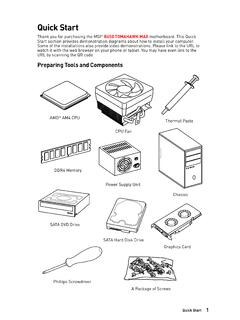
1 1 Quick StartQuick StartThank you for purchasing the MSI B550-A PRO motherboard. This Quick Start section provides demonstration diagrams about how to install your computer. Some of the installations also provide video demonstrations. Please link to the URL to watch it with the web browser on your phone or tablet. You may have even link to the URL by scanning the QR Tools and ComponentsDDR4 MemoryGraphics CardSATA Hard Disk DriveSATA DVD DrivePhillips ScrewdriverChassisPower Supply UnitA Package of ScrewsThermal PasteCPU FanAMD AM4 CPU2 Quick StartSafety Information The components included in this package are prone to damage from electrostatic discharge (ESD). Please adhere to the following instructions to ensure successful computer assembly.
2 Ensure that all components are securely connected. Loose connections may cause the computer to not recognize a component or fail to Start . Hold the motherboard by the edges to avoid touching sensitive components. It is recommended to wear an electrostatic discharge (ESD) wrist strap when handling the motherboard to prevent electrostatic damage. If an ESD wrist strap is not available, discharge yourself of static electricity by touching another metal object before handling the motherboard. Store the motherboard in an electrostatic shielding container or on an anti-static pad whenever the motherboard is not installed. Before turning on the computer, ensure that there are no loose screws or metal components on the motherboard or anywhere within the computer case.
3 Do not boot the computer before installation is completed. This could cause permanent damage to the components as well as injury to the user. If you need help during any installation step, please consult a certified computer technician. Always turn off the power supply and unplug the power cord from the power outlet before installing or removing any computer component. Keep this user guide for future reference. Keep this motherboard away from humidity. Make sure that your electrical outlet provides the same voltage as is indicated on the PSU, before connecting the PSU to the electrical outlet. Place the power cord such a way that people can not step on it. Do not place anything over the power cord.
4 All cautions and warnings on the motherboard should be noted. If any of the following situations arises, get the motherboard checked by service personnel: Liquid has penetrated into the computer. The motherboard has been exposed to moisture. The motherboard does not work well or you can not get it work according to user guide. The motherboard has been dropped and damaged. The motherboard has obvious sign of breakage. Do not leave this motherboard in an environment above 60 C (140 F), it may damage the StartInstalling a Processor123645789 Start123 ImportantIf you are installing the screw-type CPU heatsink, please follow the figure below to remove the retention module first and then install the StartInstalling DDR4 StartHDD LEDRESET SWConnecting the Front Panel LEDHDD LED -HDD LED +POWER LED -POWER LED +POWER LED12109+++----+Power LEDHDD LEDR eset SwitchReservedPower SwitchJFP11 HDD LED +2 Power LED +3 HDD LED -4 Power LED -5 Reset Switch6 Power Switch7 Reset Switch8 Power Switch9 Reserved10No PinRESET SWPOWER SWPOWER LED+POWER LED-HDD LED7 Quick StartInstalling the Motherboard3 Torque.
5 3 kgf cm**3 kgf cm = N m = lbf in218 Quick StartConnecting the Power StartInstalling SATA Start1 Installing a Graphics StartConnecting Peripheral DevicesProcessor with Radeon Graphics12 Quick StartPower On431213 ContentsContentsQuick Start ..1 Preparing Tools and Information ..2 Installing a Processor ..3 Installing DDR4 memory ..5 Connecting the Front Panel Header ..6 Installing the Motherboard ..7 Connecting the Power Connectors ..8 Installing SATA Drives ..9 Installing a Graphics Card ..10 Connecting Peripheral Devices ..11 Power On ..12 Specifications ..15 Package contents ..20 Block Diagram ..21 Rear I/O Panel ..22 LAN Port LED Status Table ..22 Audio Ports Configuration.
6 22 Realtek Audio Console ..23 Overview of Components ..25 Processor Socket ..27 DIMM Slots ..28 PCI_E1~4: PCIe Expansion Slots ..29 SATA1~6: SATA 6Gb/s Connectors ..30M2_1~2: Slots (Key M) ..30 JFP1, JFP2: Front Panel Connectors ..32 JAUD1: Front Audio Connector ..32 CPU_PWR1, ATX_PWR1: Power Connectors ..33 JUSB4: USB Gen 1 5 Gbps Type-C Connector ..34 JUSB3: USB Gen 1 5 Gbps Connector ..34 JUSB1~2: USB Connectors ..35 JTPM1: TPM Module Connector ..35 CPU_FAN1, PUMP_FAN1, SYS_FAN1~6: Fan Connectors ..36 JCI1: Chassis Intrusion Connector ..37 JCOM1: Serial Port Connector ..38 JBAT1: Clear CMOS (Reset bios ) Jumper ..3814 ContentsJRGB1: RGB LED connector ..39 JRAINBOW1~2: Addressable RGB LED connectors.
7 40EZ Debug LED ..41 LED_SW1: EZ LED Control ..41 Installing OS, Drivers & Utilities ..42 Installing Windows 10 ..42 Installing Drivers ..42 Installing Utilities ..42 UEFI bios ..43 bios Setup ..44 Entering bios Setup ..44 Resetting bios ..45 Updating bios ..45EZ Mode ..47 Advanced Mode ..50 SETTINGS Menu ..51OC Menu ..55OC PROFILE Menu ..56 HARDWARE MONITOR Menu ..57 AMD RAID Configuration ..59 Enabling RAIDX pert2 Configuration Utility ..59 Initializing Disks ..60 Creating Arrays ..62 Installing RAID Driver ..63 Troubleshooting ..6415 SpecificationsSpecificationsCPUS upports AM4 socket 3rd Gen AMD Ryzen processors, and future AMD Ryzen processors with bios updateChipsetAMD B550 ChipsetMemory 4x DDR4 memory slots, support up to 128GB* Supports DDR4 1866/ 2133/ 2400/ 2667/ 2800/ 2933/ 3000/ 3066/ 3200 MHz by JEDEC Supports DDR4 2667/ 2800 /2933 /3000 /3066 /3200 /3466 /3600/ 3733 /3866 /4000 /4133 /4266 /4400+ MHz by A-XMP OC MODE 1 DPC 1R max speed 4400 MHz 1 DPC 2R max speed 3866 MHz 2 DPC 1R max speed 4000 MHz 2 DPC 2R max speed 3600 MHz Dual channel memory architecture Supports non-ECC UDIMM memory Supports ECC UDIMM memory (non-ECC mode)
8 Supports un-buffered memory* Please refer for more information on compatible Slot 1x PCIe x16 slot (PCI_E1)* 1x PCIe x16 slot (PCI_E3), supports x4 speed** 2x PCIe x1 slots* The supported specification depends on installed processor.** When installing PCIe SSD in , PCI_E3 slot will be Supports 2-Way AMD CrossFire TechnologyOnboard Graphics 1x HDMI port, supports a maximum resolution of 4096x2160 @60Hz*/** 1x DisplayPort port, supports a maximum resolution of 4096x2160 @60Hz** Maximum shared memory of 16 GB* Graphics specifications may vary depending on the CPU installed.** Available for the processor with integrated on next page16 SpecificationsContinued from previous pageStorageAMD B550 Chipset 6x SATA 6Gb/s ports 2x slots (Key M) M2_1 slot (from AMD Processor) Supports PCIe x4* Supports SATA 6Gb/s Supports 2242/ 2260/ 2280/ 22110 storage devices M2_2 slot (from AMD B550 chipset)
9 Supports PCIe Supports 2242/ 2260/ 2280 storage devices* The supported specification depends on installed Supports RAID 0, RAID 1 and RAID 10 for SATA storage devices Supports RAID 0 and RAID 1 for NVMe storage devicesUSBAMD B550 Chipset 3x USB Gen 1 5 Gbps ports (1 Type-C internal connector, and 2 ports are available through the internal USB Gen 1 5 Gbps connector) 8x USB ports (4 Type-A ports on the back panel, 4 ports through the internal USB connectors)AMD Processor 2x USB Gen 2 10 Gbps ports (1 Type-C port and 1 Type-A port on the back panel) 2x USB Gen 1 5 Gbps Type-A ports on the back panelAudioRealtek ALC892/ALC897 Codec High Definition AudioLAN 1x Realtek 8111H Gigabit LAN controllerContinued on next page17 SpecificationsContinued from previous pageInternal Connectors 1x 24-pin ATX main power connector 1x 8-pin ATX 12V power connector 6x SATA 6Gb/s connectors 2x slots (M-Key) 1x USB Gen 1 5 Gbps Type-C port 1x USB Gen 1 5 Gbps connector (supports additional 2 USB Gen 1 5 Gbps ports) 2x USB connectors (supports additional 4 USB ports)
10 1x 4-pin CPU fan connector 1x 4-pin water-pump fan connector 6x 4-pin system fan connectors 1x Front panel audio connector 2x System panel connectors 1x Chassis Intrusion connector 1x 4-pin RGB LED connector 2x 3-pin RAINBOW LED connectors 1xTPM module connector 1x Clear CMOS jumperLED Features 1x EZ LED Control switch 4x EZ Debug LEDBack Panel Connectors 1x flash bios Button 1x PS/2 keyboard/ mouse combo port 4x USB Type-A ports 1x Display port 1x HDMI port 1x LAN (RJ45) port 2x USB Gen 1 5 Gbps Type-A ports 1x USB Gen 2 10 Gbps Type-A port 1x USB Gen 2 10 Gbps Type-C port 6x Audio jacksI/O ControllerNUVOTON NCT6687-R Controller ChipContinued on next page18 SpecificationsContinued from previous pageHardware Monitor CPU/ System/ Chipset temperature detection CPU/ System/ Pump fan speed detection CPU/ System/ Pump fan speed controlForm Factor ATX Form Factor 12 in.