Transcription of REGISTRATION PROCESS GUIDELINES STEP 1 - UJ
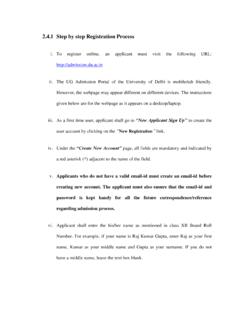
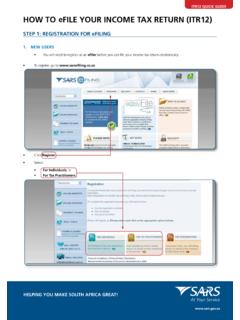
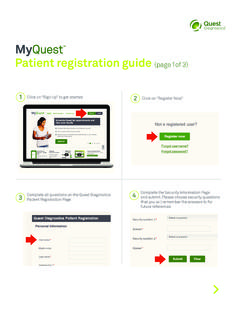
1 REGISTRATION PROCESS GUIDELINES step 1 the UJ website, click on Jobs@UJ , click on Employee Recruitment Portal 1 2 REGISTRATION PROCESS GUIDELINES step 2 Click on Register your CV REGISTRATION PROCESS GUIDELINES step 3 Should you encounter difficulties, you can contact Pnet Enter your details-start here. All fields must be completed. Do not leave a field open. Your CV will not be uploaded REGISTRATION PROCESS GUIDELINES step 4 Your CV must be captured electronically, either on a CD disk or memory stick on Browse where you have stored your CV will appear in this space on SUBMIT Once you have completed all the fields, it is time for you to upload your CV 2 3 1 4 REGISTRATION PROCESS GUIDELINES step 5 Once you see this message, your CV has been successfully uploaded. Make sure you receive your password for Pnet via email-store this in a safe place REGISTRATION PROCESS -YOUR PROFILE DISPLAYED step 6 Click on My Profile to view your profile REGISTRATION PROCESS -FINDING A JOB step 7 Click on Find a Job.
2 Only UJ recruiters are able to view and work with your CV, therefore confidentiality is preserved REGISTRATION PROCESS -USING THE SEARCH FUNCTION step 8 Type in the Keyword such as Engineer and then click on Search . If the Job is not displayed it means there is no advert loaded / advertised Click on the dropdown arrow and select a category REGISTRATION PROCESS -FINDING A JOB step 9 Use the scroll bar to see more Scroll down NOTE: Click on Next if there are more than 1 pages of Jobs listed or Previous to navigate between pages REGISTRATION PROCESS -CREATING A JOB ALERT step 10 Set up a Job Alert. A Job Alert is going to tell you when a possible job is available by sending you an email. This way you do not have to visit the website to look for jobs. Through the Job Alert, Pnet searches for you REGISTRATION COMPLETE step 11 We wish you success with your application Should you have any further questions, kindly contact the UJ Human Resources Team