Transcription of Remote Access Guide
1 1 Remote Access Guide Contents Helpful Shortcuts .. 1 A note about Duo multifactor authentication (MFA) .. 2 Remote Access from your own Personal Device Remote Access Portal .. 2 Accessing PennChart, shared drives, and select apps requiring citrix .. 3 citrix Client installation .. 3 If you have a Penn Medicine Laptop Connect by VPN .. 10 Appendix A list of Remote Access Portal Applications .. 10 Helpful Shortcuts Links to the Remote Access Portal and useful downloads and support documentation: Direct Link to the Remote Access Portal: *please bookmark the site above and not the site COVID-19 Remote Access Command Center support form: Please attempt to use the support documentation posted on the Network site (first link above) and the info in this document before contacting the Service Desk.
2 2 A note about Duo multifactor authentication (MFA) Multifactor authentication is one of the best ways to protect Penn Medicine s information systems from unauthorized Remote Access , particularly if your user ID and password is somehow compromised. Duo was implemented in 2017 but some users may not have enrolled, or completed the enrollment process. If you are not already enrolled in Duo for Multifactor Authentication, you must enroll in order to Access Penn Medicine information assets remotely. Please see the following resources to get enrolled in Duo: Apple iOS devices Android devices Micro learning video Remote Access from your own Personal Device Remote Access Portal Over 70 applications are available on the Penn Medicine Remote Access Portal. Accessing applications from the portal is the most efficient method of Remote Access if you do not have Access to a Penn Medicine managed laptop.
3 All attempts should be made to first leverage this portal before requesting any other alternative Access . Commonly used applications include PennChart and many other clinical applications, e-mail, eStar, UPHS Intranet, and many other systems. A copy of systems accessible is located in Appendix A. A note about Internet Explorer (IE), Chrome, and other web browsers: While the Remote Access Portal will work with most browsers on most devices, the Chrome web browser is generally recommended for the best user experience remotely. One exception, however, is E-Star. Users attempting to Access E-Star remotely should begin by starting a new IE or MS Edge browser session for best results. Session Management: To avoid session errors, use a single browser session (one window with multiple tabs) throughout your Remote Access experience.
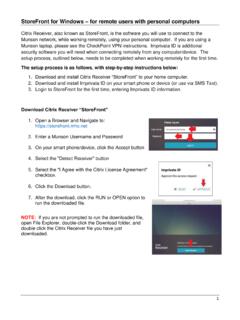
4 If the following message presents, it is recommended that you close the browser completely and start over. 3 Accessing PennChart, shared drives, and select apps requiring citrix Authorized PennChart users may Access PennChart through the Remote Access Portal with the appropriate citrix Client installed (see next section). citrix Client installation Using a windows or Mac personal device, the instructions below will allow you to connect to the below functions. Please note: users will not be able to Access citrix using a Chromebook. PennChart (Epic) Remote Desktop Protocol (RDP) Network Drive Access Operating System: windows 10 (MacOS? iOS & Android Tablets? List supported devices/OS) Web Browser: Google Chrome 4 1. Go to 2. Click the citrix Workspace App Download 3.
5 Click: citrix Workspace app for windows 5 4. Click Download citrix Workspace app for windows 5. Click the citrix file at the bottom of your Google Chrome Browser. 6. Click: Start 6 7. Accept the License Agreement. 8. Click: Next 9. Click Install: DO NOT CLICK THE OPTION TO ENABLE SINGLE SIGN-ON 10. Click: Finish 7 11. Log on and select PennChart & citrix Apps. 12. Select: PennChart 13. Click: The citrix .exe file at the bottom of your Google Chrome Browser to launch PennChart 8 14. When Accessing PennChart for the first time you will be presented with the below Screen. Click CONTINUE 15. Click: ALREADY INSTALLED. 16. When accessing PennChart for the first time you will be presented with the below Screen. DO NOT SIGN ON. CLICK THE X IN THE RIGHT HAND CORNER PennChart should now launch without any issues.
6 9 In addition to several web applications available on the portal, some additional virtual applications are accessible through the portal using citrix , including RDP ( Remote Desktop) and Access to mapped drives/files. How do I Access my shared drives? Expand the employee Resources tab and look for Drives and Remote Access on the right of your screen as shown below: Upon clicking this link you will be taken to a new view that shows options for Drive Mapping VPN and Remote Desktop Connection as shown below: Access to Network Drives: Requests for Network Drive Access in citrix can be fulfilled by the Service Desk, assuming that the employee use case cannot be met with Remote Access Portal Access alone. Network drive Access is virtual and will not provide the ability to download files to a Remote computer, although it does support the ability to open and edit several types of files.
7 Access to RDP ( Remote Desktop to your work computer): If the Remote Access Portal applications do not fulfil your work requirements, Remote Desktop (RDP) Access in citrix may be fulfilled by the Service Desk. Having your work computer Computer Name available will expedite your request for this Access . This is typically tagged on the desktop of most Penn Medicine computers. RDP Access is limited to dedicated employee computers. Access to shared computers or Standard Clinical Devices is prohibited. RDP is virtual and will not provide the ability to download files to a Remote computer, but otherwise should provide the same experience as if you were in the office. 10 If you have a Penn Medicine Laptop Connect by VPN By far, the use of a Penn Medicine managed laptop will provide the best Remote working experience.
8 All employees with a Penn Medicine laptop should use their laptop when accessing resources remotely. Some additional information about using the VPN client to connect to the network is posted in the Appendix. Once connected, your laptop should work as it does at your normal work location with very few exceptions. Look for the Penn Medicine VPN shortcut on the desktop. If there is no shortcut type in Big-IP Edge Client into the search bar (located at the bottom, on the task bar). Appendix A list of Remote Access Portal Applications (continued on next page) 11