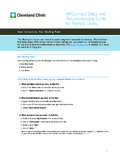
Transcription of Request Time Off Employee - .NET Framework
1 Request Time Off Employee Note: There are multiple ways to begin a process in Workday. In addition to starting from an icon on your Workday homepage (worklet), you can use the Search Box to locate tasks, reports, workers, and views to which you have access. Important: This document will guide you through requesting time off in Workday. This process does not replace the existing time entry or other tools that may be available to you. TIME OFF Workday provides the ability to track time off requests. Employees can input time off requests and submit to managers for approval. Employees may add the Time Off worklet to their Workday homepage, while managers may add the Team Time Off worklet. See the Team Time Off QRC to learn about features available for tracking team time off requests and additional manager functionalities. TO Request TIME OFF From the Workday home page: 1. Click on your name and picture. A dropdown menu displays 2.
2 Click View Profile. Your Profile page displays 3. Click the Time Off menu option 4. Click Add Time Off. The calendar view displays 5. Double click on the date to be deleted/edited 6. Select (-) symbol to cancel the leave Type The available options will vary by country. The time off category can be selected in the drop down. Currently we are not using this process for Leave of Absence categories. Daily Quantity The number of daily hours you are requesting off. ( , your daily working hours). Note: All time off requested on the same Request must include the same daily quantity (submit multiple requests when needed) Comment Enter a comment, as needed 7. Click Submit. Your Request has been submitted will display The Request will flow to your People Manager for approval. If different than your People Manager, the Business Manager will be notified of your Request . Approval is required to use this action. Requests that are not approved (in submitted status) can be cancelled but not modified by the Employee .
3 Once a Request has been submitted and approved, it can be modified. Request Time Off Employee TO MODIFY A TIME OFF Request To Request a change to a previously submitted and approved Request from the Profile page: 1. Select the Actions icon 2. Select Time and Leave > Request Time Off, to make time off adjustments 3. Click the appropriate calendar day and make the necessary changes. Remove a day, or remove the entire row by clicking the - sign 4. Click Submit. The Request will flow to your People Manager for approval TO CANCEL A TIME OFF Request Requests that have been submitted, but not approved, can be cancelled: 1. From the Profile page, select Actions icon 2. Select Time and Leave > Request Time Off. The Calendar view displays 3. Locate, and double click on the unapproved Request 4. Click Remove Row (-) button 5. Enter a comment 6. Click Submit 7. Click Done Important: This document addresses the DXC global process. There may be regional variations to select business processes.
4 If you have questions as you progress through this process, please reach out to hrconnect or your local HR representative.