Transcription of REVISED Dadeschools AnyConnect VPN Installation
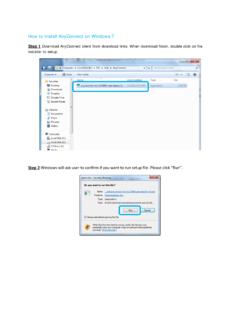
1 NOTE: These instructions can be used only after you have requested the new VPN via a HEAT Ticket. Dadeschools AnyConnect VPN Installation /Configuration Info Step 1 Download/Install the cisco AnyConnect Application: Go to and select AnyConnect VPN for Windows or Mac: . Step 2 Configuration: Once the Installation is complete, open the VPN application. Type as shown below. Click Connect. Step 3 Sign In to Dadeschools VPN: Once you've established a secure VPN connection to M DCPS, you will be prompted to enter your Dadeschools credentials ( Dadeschools Employee # & Password). Click Accept and you're all set! Disclosure: Please note that VPN access may be monitored for appropriate use, and access may be revoked for any use that is non compliant with established policies and protocol.