Transcription of Secure Printing to Canon Copiers - Craven …
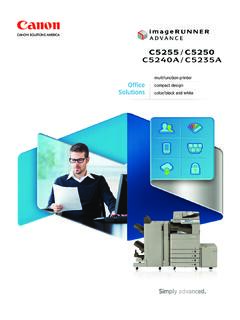
1 Secure Printing to Canon Copiers The Canon Copiers on campus support Secure Printing . When print jobs are sent to a copier in Secure mode, the job is not output on the copier right away; the user must go to the copier andenter a PIN to print the job. This functionality is built in to the Windows driver, but a couple of additional steps are required on the user s part. To print a Word document using Secure print on a Canon copier, take the following steps: Click File -> Print, and ensure that the desired Copier is selected. Then click Printer Properties Secure Printing to Canon Copiers Now, you should see the Canon printer properties dialog. Click the selection box for Output Method and select Secured Print If this is the first time you have used Secure Printing , click Yes to enter your username and a PIN of your choosing.
2 If you have used Secure Printing before, you may click No, to use the st ored credentials from last time. (You may also click Yes if you wish to enter new credentials). Secure Printing to Canon Copiers The first time you open the secured print user information dialog, your Windows user name should be automatically filled in. If not, enter your Windows user name in the User Name field. The PIN must be a numeric string from 1 to 7 digits in length. It is recommended to make the PIN at least four digits long. Now, go back to your Word window, and click the Print Button Secure Printing to Canon Copiers You will be asked to confirm your PIN. Just Click OK, unless you need to change any info here. Upon a successful print, you will see a balloon tip telling you that the job was sent to the printer.
3 Now, you may go to the copier to retrieve your printout. At the main screen of the copier, touch the Secured Print button Secure Printing to Canon Copiers At the Secured Print page, touch the document you want to print, and then touch the Secured Print button. Enter your PIN, and touch OK to print your document.