Transcription of SEPG WEB@WORK Quick Reference Guide
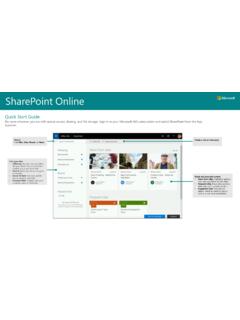
1 SEPG WEB@WORK Quick Reference Guide to SEPG online for faster, easier ordering!You can access all the information you need to stay connected with Southeastern Paper Group through our easy-to-use eCommerce platform. Browse the SEPG product catalog, access Safety Data Sheets, look up prices, create your own custom order Guide , place orders and receive confirmation all via a convenient and Quick interface. Reduce transaction costs. Start ordering online today with these simple steps:SELECT YOUR SHOPPING EXPERIENCEM obile Quick Reference GuideDesktop Quick Reference Guide2 | 2022 Southeastern Paper GroupFor help with online ordering, contact customer support toll-free (800)
2 858-7230 2022 Southeastern Paper Group | 3 Desktop Quick Reference Guide Launch your web browser and type in the address: Enter your User Name and Password (password is case sensitive). If you do not know your username and password, please contact your SEPG Sales Representative for this information. Select the Account icon for a pop out login option. If you have more than one Ship-To, you will be prompted to select one. You can filter the Ship-To list by entering the Ship-To Number, Ship-To Name, or Street Address and selecting the Search button.
3 Scroll down and select the desired Ship-To | 2022 Southeastern Paper GroupLogging In & Selecting a Ship-To Address1 TIPAdd this page to your browser Favorites or Bookmarks for Quick help with online ordering, contact customer support toll-free (800) 858-7230 SEPG s Online Catalog contains thousands of items.
4 These items are grouped into categories and subcategories to help narrow your search based on the type of product or its application. From the Home Page: Go to the home page by selecting the banner in the top left-hand corner of the screen or typing into your web browser s address bar. Select the desired category. Select the desired the Browse Category Menu: Open the menu by hovering over the Shop Categories button. Drag your mouse to the desired category. Select the desired subcategory. While viewing the items on the subcategory page, quickly add items to cart by adjusting the Quantity (QTY) you would like to purchase and selecting the Add to Cart button underneath the product summary of each item.
5 2022 Southeastern Paper Group | 5 Browsing Categories2 TIPYou can also select category title above the subcategory list to view all items that are in a category. Enter the phrase you would like to lookup in the Search Products field at the top center of your window. On the left-hand side of your window you can filter by category or by common attributes shared by the products. While viewing the items in the search results page, you can quickly add items to cart by adjusting the Quantity (QTY) you would like to purchase and selecting the Add to Cart button underneath the product summary of each | 2022 Southeastern Paper Group Searching for Items3 TIPA ccess the category menus and sub menus by hovering over the Shop Categories section.
6 For help with online ordering, contact customer support toll-free (800) 858-7230 Find the desired item by navigating to it from Category selection or searching for it. (Link to the Browse Categories and Search for Items section). Select on the image of the item. You can view the product information in the tabs below the image. Click to expand each one. Enter the desired amount the Quantity (QTY) box and select the Add to Cart button. Alternatively, you can add the item to a new or existing Shopping List or your Wish Item Add & Order Pad Select the My Account icon in the top right-hand corner of the window.
7 The Line Item Add option allows you to quickly add an item to your cart if you know the Item Number, Quantity, and (optionally) Unit of Measure. The Order Pad option does the same but for multiple items. Once the information is filled out, select the Add to Cart button. 2022 Southeastern Paper Group | 7 Product Information4 Select the My Account icon in the top right corner of the window. The Account Menu will slide out from the right-hand side of the window. Select Shopping Lists from the account menu. A dropdown will appear showing the first five lists.
8 If you do not see the desired list, select More. This will take you to the Shopping List selection screen. Scroll down the list and select the desired Shopping List. From that menu, you can edit or delete the items. You can also copy to a New List or export the list to a Tab-Separated Text Lists6 TIPYour Shopping List Menu is also the location for your Negoiated Pricing List (NPL).TIPIf no review is necessary you can do directly to Checkout in the top right-hand corner of the | 2022 Southeastern Paper GroupFor help with online ordering, contact customer support toll-free (800)
9 858-7230 Select the My Account icon in the top right corner of the window. The Account Menu will slide out from the right-hand side of the window. Select Shopping Guide from the account menu. A side menu will show the Order Guide option. This will take you to the Order Guide selection screen. Scroll down the list and select the desired Order Guide . Order Guide items that are found from the general search are identified with an orange OG label. The search criteria has been extended to include original SEPG item numbers to assist customers in finding products.
10 SEPG item numbers can be searched in the general search and within the order Guide under keyword search. Customers restricted to ordering from the order Guide only are not able to order items outside of the order Guide . Order Guide7 2022 Southeastern Paper Group | 9 Select the Shopping Cart icon in the top right corner of the window. Select the Cart Detail button. You can update the quantity of an item. Enter the desired quantity amount in the QTY box in the item(s) summary and select Update at the bottom of the list.